How to import Fujifilm recipes wirelessly over Bluetooth
Short answer: In the FujiStyle app on iPhone or Android, open a recipe, tap Apply Recipe, choose Wireless, tap your camera in the list and pick a custom slot. The app writes the recipe’s settings into that slot over Bluetooth, with no cable and no computer. It works on 23 Fujifilm bodies today.
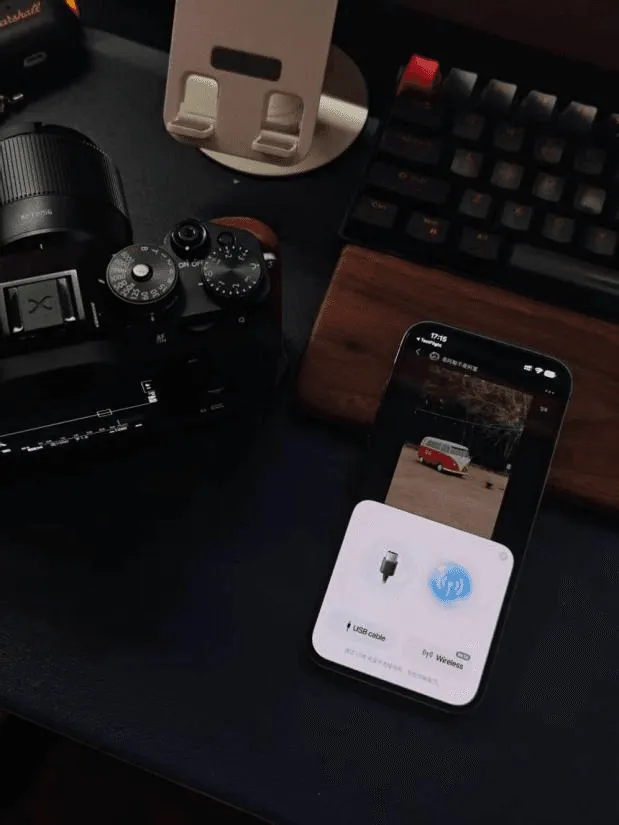
What you need on iPhone
- An iPhone with FujiStyle (iOS 16 or later).
- A supported camera from the table below, switched on.
- A charged battery. The app can’t read the camera’s battery level, so start with a reasonable charge. We suggest 30% or more.
- Bluetooth on the phone, with Bluetooth access allowed for FujiStyle.
- Other camera apps closed, including FUJIFILM XApp, so they don’t hold the camera’s connection.
- The phone next to the camera, and a couple of minutes with the app open on screen.
Supported cameras
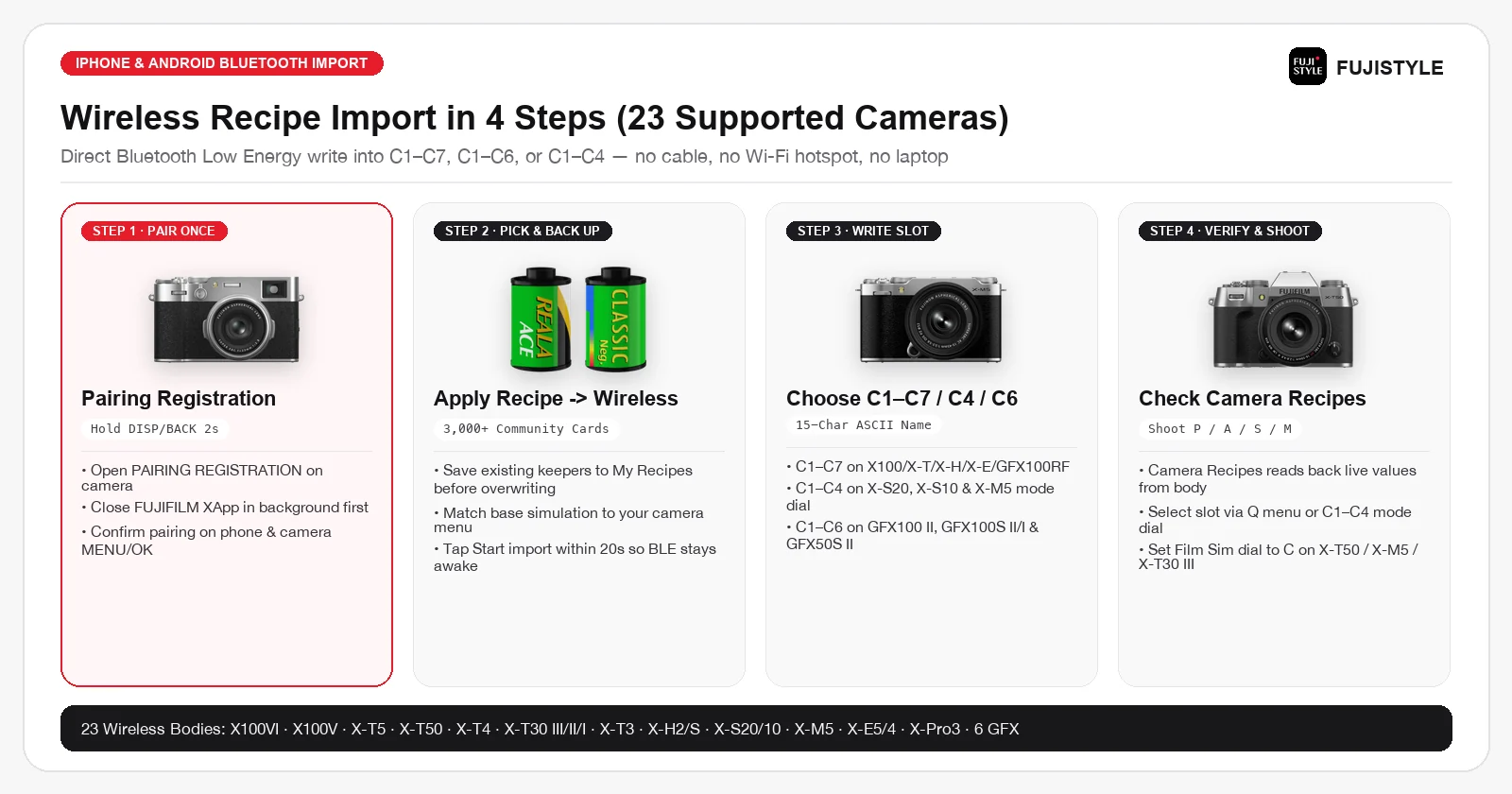
| Camera | Custom slots | Good to know |
|---|---|---|
| X100VI | C1–C7 | |
| X100V | C1–C7 | |
| X-T5 | C1–C7 | |
| X-T50 | C1–C7 | Has a film simulation dial |
| X-T4 | C1–C7 | |
| X-T30 III | C1–C7 | Has a film simulation dial |
| X-T30 II | C1–C7 | |
| X-T30 | C1–C7 | White balance shift is shared between slots |
| X-T3 | C1–C7 | White balance shift is shared between slots |
| X-H2 | C1–C7 | |
| X-H2S | C1–C7 | |
| X-S20 | C1–C4 | C positions on the mode dial |
| X-S10 | C1–C4 | C positions on the mode dial |
| X-M5 | C1–C4 | C positions on the mode dial; has a film simulation dial |
| X-E5 | C1–C7 | |
| X-E4 | C1–C7 | |
| X-Pro3 | C1–C7 | |
| GFX100RF | C1–C7 | |
| GFX100 II | C1–C6 | |
| GFX100S II | C1–C6 | Slot name not written yet |
| GFX100S | C1–C6 | |
| GFX50S II | C1–C6 | |
| GFX 50R | C1–C7 | iOS only for now |
- Slot counts vary by body: most have C1–C7, the GFX100 II, GFX100S II, GFX100S and GFX50S II have C1–C6, and the X-S20, X-S10 and X-M5 have C1–C4.
- “Slot name not written yet” means the app writes all the settings, but the slot keeps the name it already had. You can rename it in the camera’s custom settings menu.
- X-T3 and X-T30: these cameras store one white balance shift per white balance mode, not one per slot. Writing a recipe that uses Daylight with a shift changes the shift for every slot set to Daylight.
- See the full supported Fujifilm cameras matrix for side-by-side Bluetooth & USB coverage on iOS and Android.
Cameras that can’t import wirelessly
- No Bluetooth
- X-Pro2, X100F, X-T2, X-T20, GFX100, GFX 50S. Use USB.
- Bluetooth, but no settings transfer over Bluetooth
- X-E3, X-H1, X-T100, X-T200, X-A5, X-A7, XF10, X-HF1. The X-E3 can import over USB on iOS. On the others, set the recipe by hand from its settings card.
Pair once
The first connection needs the camera’s pairing screen. After that the app remembers the camera.
- 1
Turn the camera on
Keep it on until the app has connected.
- 2
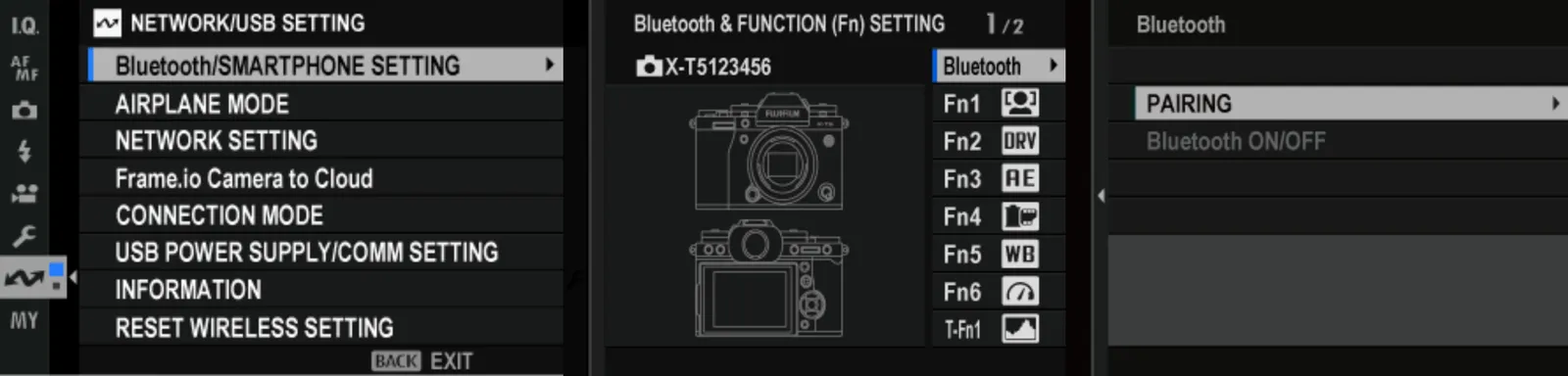
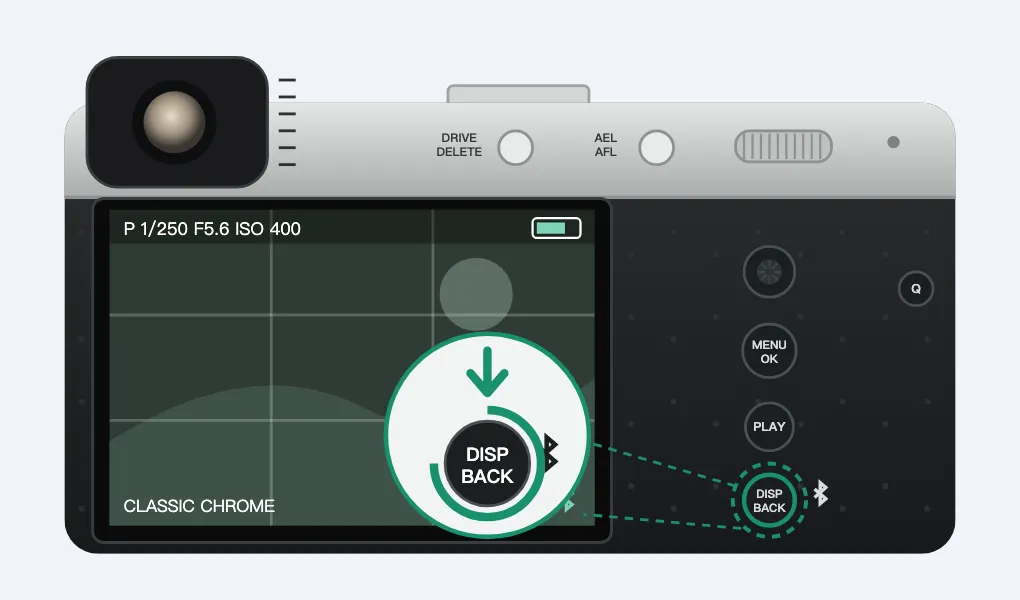
Open the camera’s pairing screen (PAIRING REGISTRATION)
On many recent bodies you can hold DISP/BACK for about two seconds on the shooting screen and choose PAIRING. From the menu it is SET UP (wrench) › NETWORK/USB SETTING › Bluetooth/SMARTPHONE SETTING › PAIRING REGISTRATION on newer bodies, and SET UP › CONNECTION SETTING › Bluetooth settings › PAIRING REGISTRATION on older ones. Names vary a little by model, so check your manual if you can’t find it.
- 3
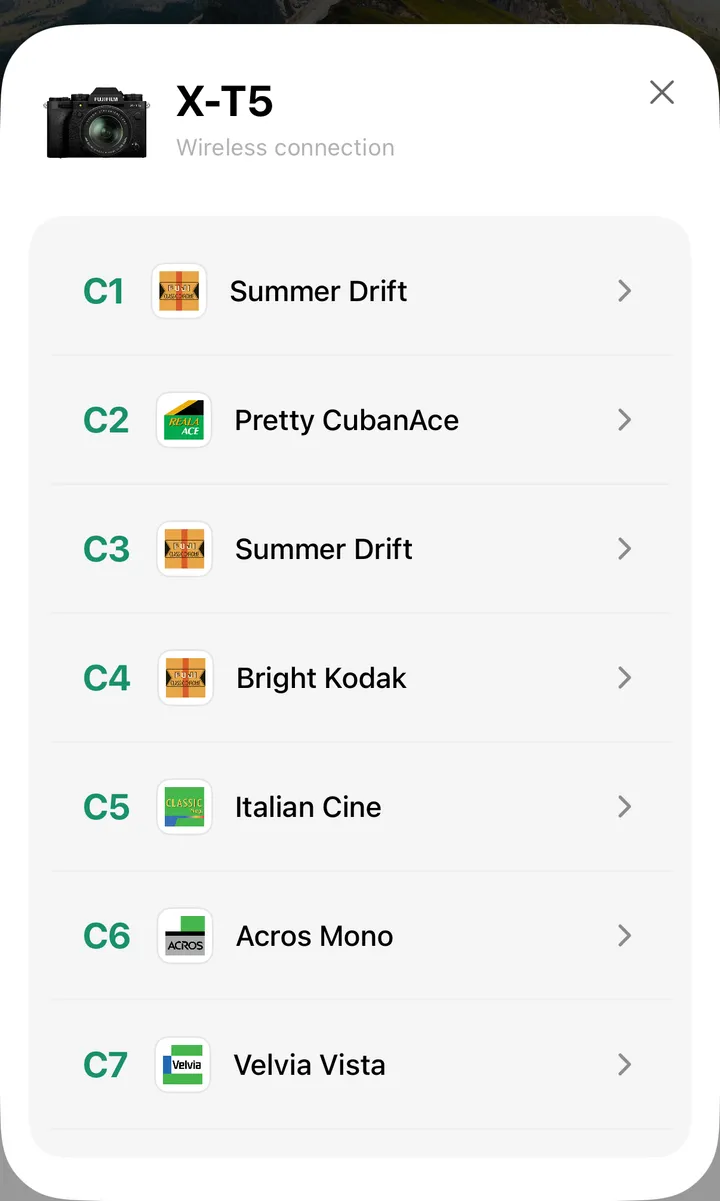
In FujiStyle, open any recipe, tap Apply Recipe, then Wireless
Your camera appears in the list. Tap it.
- 4
Confirm on both sides
Newer bodies (X-E5, X-T5, X100VI and similar): the iPhone shows a Bluetooth pairing request. Tap Pair right away, and if the camera shows a number, press MENU/OK on the camera too. Do both within about 30 seconds. Older bodies (X-T3, X-T30, X-T30 II, X-S10): no iPhone prompt appears. Keep the camera on the pairing screen until the app connects.
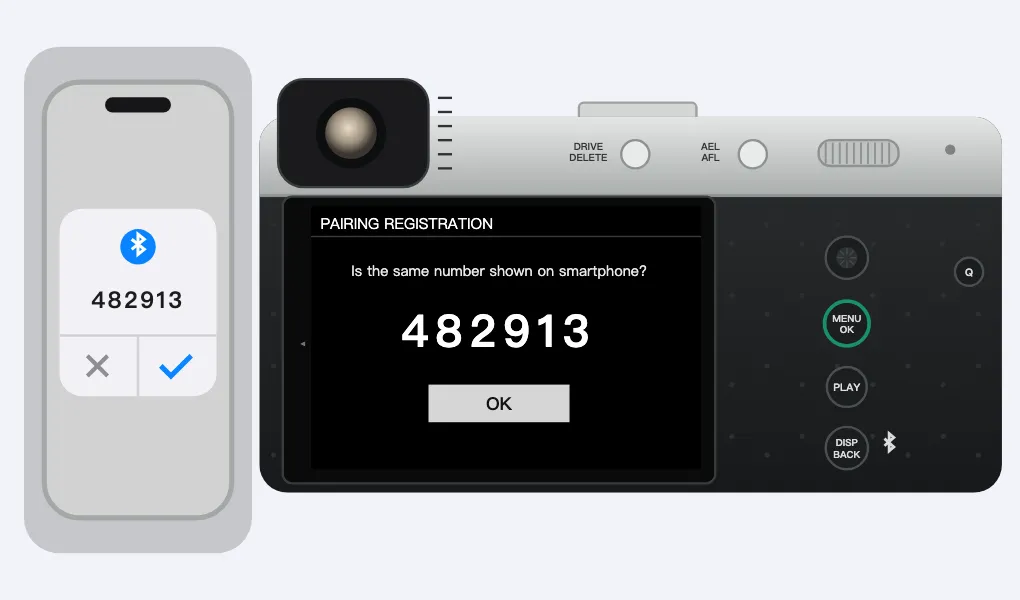
Next time, turn the camera on and open Wireless. The camera shows up in the list as Last connected or Paired. Tap it to connect; the app doesn’t connect on its own.
You’ll need to pair again if the camera has since been paired again (with another phone or app), if its pairing was deleted or its wireless settings reset, or if you reinstalled FujiStyle or moved to a new phone. The app tells you which one it is; the fixes are in the troubleshooting section below.
Import a recipe on iPhone
- 1
Pick a recipe
Find one in the Community tab or in My Recipes, open it, and tap Apply Recipe. Still choosing? Start with the most popular Fujifilm recipes or browse the recipe library by camera.
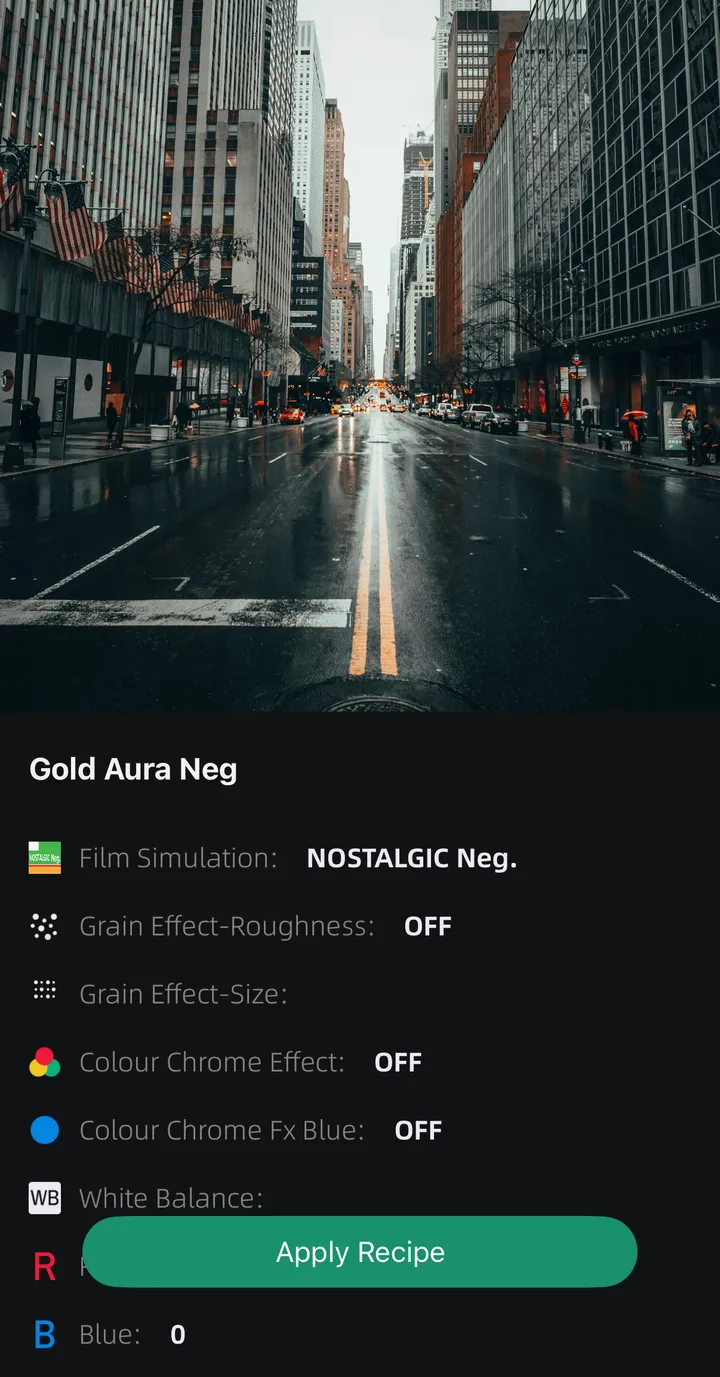
- 2
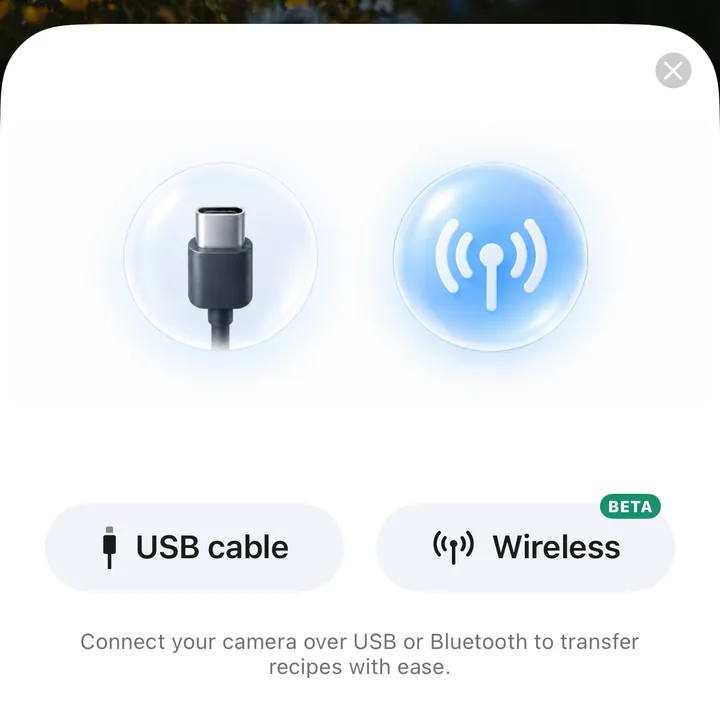
Choose Wireless
The connection sheet offers USB cable and Wireless. Tap Wireless and the app starts scanning.
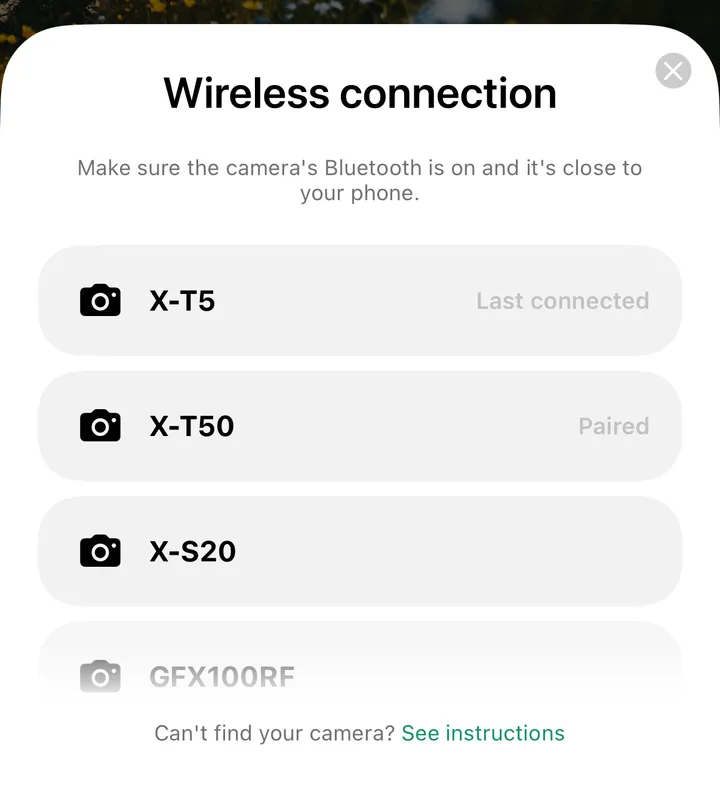
- 3
Tap your camera
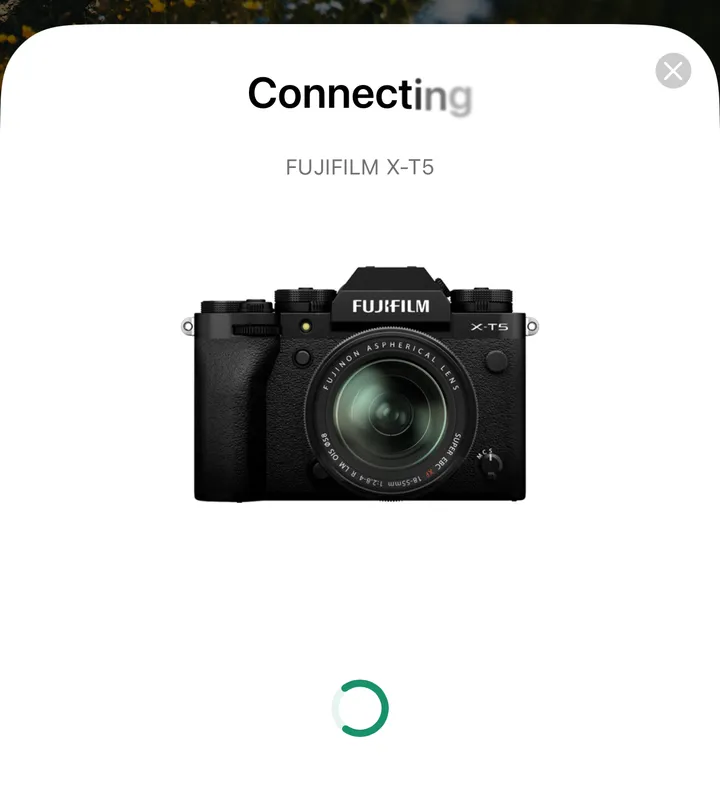
You’ll see Connecting, possibly a pairing prompt, then Reading the camera settings. This takes a few seconds.
- 4
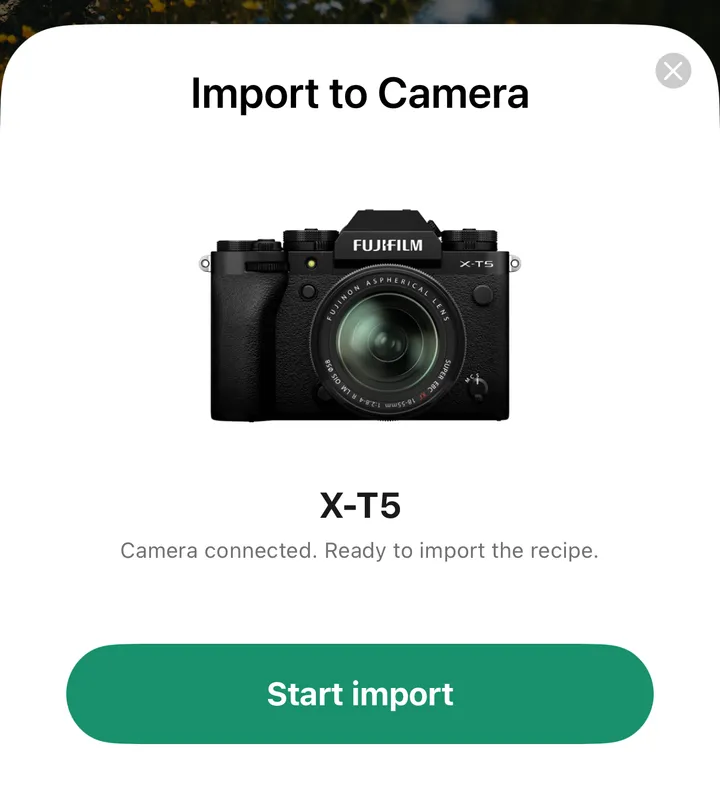
Tap Start import right away
When the sheet says “Camera connected. Ready to import the recipe.”, carry on without a long pause. Cameras tend to drop an idle Bluetooth link after about 20 seconds.
- 5
Choose the slot
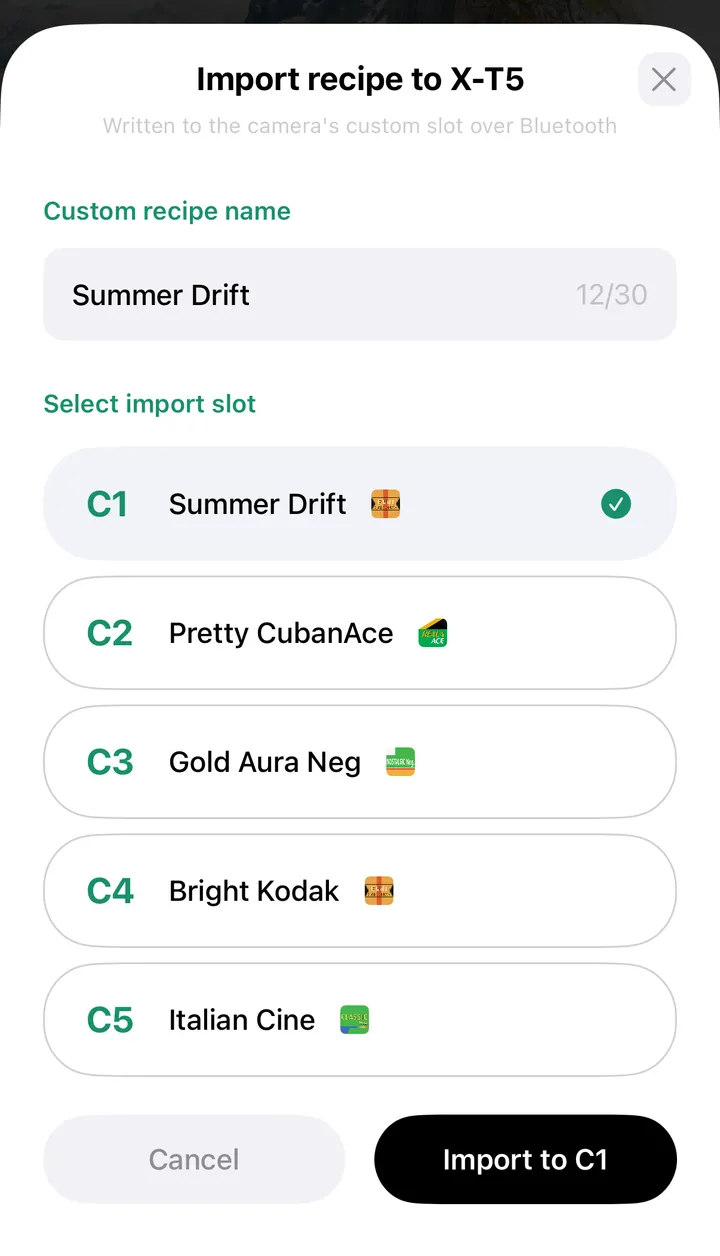
Under Select import slot, tap the slot you want. Writing a slot overwrites whatever is in it and there is no undo, so save anything you want to keep to My Recipes first. Slot counts vary by body: most have C1–C7, the GFX100 II, GFX100S II, GFX100S and GFX50S II have C1–C6, and the X-S20, X-S10 and X-M5 have C1–C4. You can edit the Custom recipe name; use letters and numbers only.
- 6
Tap Import to C3 (or whichever slot you chose)
Keep the camera on and the app on screen until it finishes. Locking the phone or switching apps cuts the Bluetooth link.
- 7
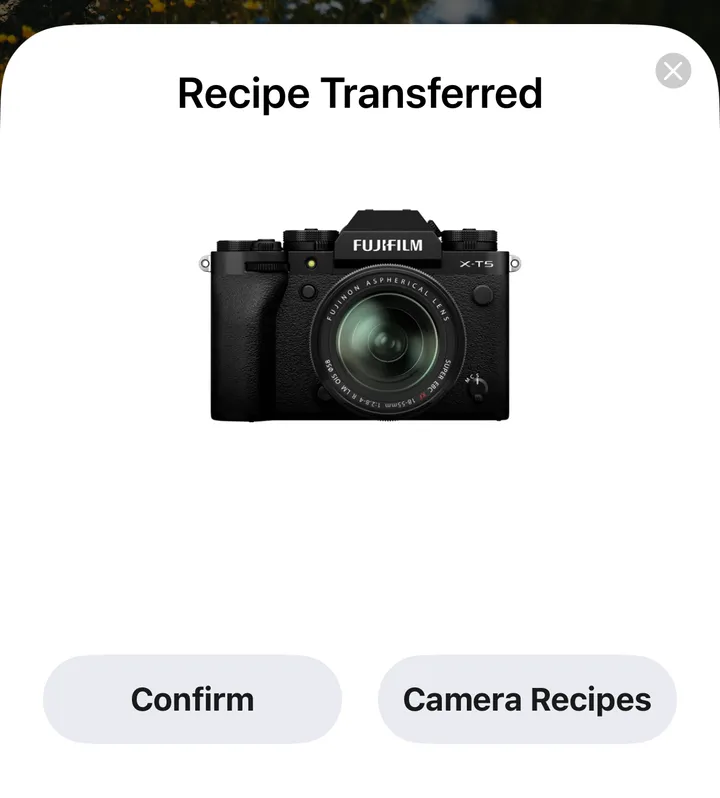
Wait for “Recipe Transferred”
From there, tap Camera Recipes to see what each slot on the camera now holds, or Confirm to finish. The app changes only the picture settings stored in the slot you picked; photos on the card aren’t touched.
Import a recipe on Android
The Android app works the same way. Before you start, check these:
- An Android phone (Android 7.0 or later) with FujiStyle from Google Play.
- Bluetooth on, and FujiStyle allowed to use Bluetooth (Nearby devices) when Android asks.
- On Android 11 and older, Location Services turned on. Android needs it to find Bluetooth devices; the app doesn’t use your location.
- Phone battery at 30% or more. The app won’t start a write below that.
- The app in full screen, not split screen, and on screen until the write finishes.
- 1
Open a recipe and tap Apply Recipe
From the Community tab or My Recipes.
- 2
Choose Wireless
The sheet offers USB cable and Wireless. Tap Wireless and the Wireless connection screen starts scanning.
- 3
Tap your camera
The first time, put the camera on its Pairing Registration screen; it shows in the list as Pairing needed. Later it shows as Paired or Last connected.
- 4
Tap Pair when Android asks
The app says “Tap Pair in the system prompt”. Tap Pair in Android’s pairing request, and press MENU/OK on the camera if it shows a number. Older bodies such as the X-T30 and X-S10 don’t show a phone prompt: keep the camera on the pairing screen until the app connects.
- 5
Tap Start import
After “Reading camera settings…” the screen says “Camera connected. Ready to import the recipe.” Carry on straight away; cameras drop an idle Bluetooth link after about 20 seconds.
- 6
Pick a slot, then tap Import to C3 (or the slot you chose)
Under Select Import Slot, choose the slot and edit the Custom Recipe Name if you like. Writing a slot replaces what is in it.
- 7
Wait for “Recipe transferred”
Keep FujiStyle open while it says Transferring to camera. If the title reads “Transferred, please check”, open that C slot on the camera to confirm. Tap Camera recipes to see every slot, or Confirm to finish.
Check it worked, then shoot from that slot
- The Camera Recipes list is read back from the camera after the write, so it shows what the camera actually holds, not what the app intended to send.
- If the success screen adds a line saying a setting “isn’t supported on this camera model yet and wasn’t written”, those settings kept their old values. Set them by hand in the camera menu.
- If the recipe uses a film simulation your camera doesn’t have, such as Reala Ace or Nostalgic Neg on an X-T3, the slot keeps its old film simulation and the rest is written. Pick recipes made for the simulations your body has; which cameras have Reala Ace lists them model by model.
- Mode dial with C positions (X-S10, X-S20, X-M5 and similar)
- Turn the dial to the C position you wrote. AUTO and SP don’t use your custom settings.
- Slot chosen in the menus (X100VI, X-T5 and similar)
- Pick the slot in the Q menu or with SELECT CUSTOM SETTING in the menu, then shoot in P, A, S or M.
- Film simulation dial (X-T50, X-M5, X-T30 III)
- The dial position can override the film simulation stored in the slot. Your manual explains which dial position leaves it to the slot.
3 community recipes ready to test over Bluetooth
Want a proven card for your first wireless write? Pick one below in FujiStyle, tap Apply Recipe → Wireless, and write it straight into C1:
 Classic Neg.
C1–C7 · Street & Daylight
Clockwise Negative
Auto WB · R+1 / B-3 · DR400 · H-1 S-1.5 · Color +4 · Clarity 0
 Classic Neg.
C1–C4 · X-S20 / X-M5 Coast
Fuji Blue Summer
Daylight · R-1 / B+4 · DR Auto · H+0.5 S-2 · FX Blue Strong
 Nostalgic Neg.
Golden Hour · Gen 5 & GFX
Gold Aura Neg (v2)
Fluorescent 1 · R-4 / B-2 · DR400 · Warm amber highlights
If it won’t connect or won’t write
Roughly in order of how often they come up. Quoted headings are the app’s own messages.
- The camera disconnects after connecting, before you write
- You may see “The camera disconnected” while you’re on the ready screen or choosing a slot. Cameras drop an idle link after about 20 seconds. Tap Reconnect, then go from Start import to the slot without stopping.
- “The camera didn’t wake up”
- You may first see “Waking the camera, please wait”. When a Fujifilm camera is switched off, its Bluetooth stays on standby, so the phone can find it and even connect, but the camera can’t send or receive settings. Turn the power switch on and try again.
- “The camera did not respond to the backup request in time”
- This one usually appears when you tap Import. The camera wasn’t ready for the write yet. Wait a few seconds and tap Import again.
- “The link dropped after the write was committed”
- The camera accepted the recipe, but the link dropped before the app could double-check it. Tap Reconnect and open Camera Recipes: the recipe is often already in the slot. Write it again only if it isn’t.
- “Pairing did not complete”
- On newer bodies the iPhone pairing request was missed, cancelled, or not confirmed in time. Put the camera back on the pairing screen, tap Pair as soon as the iPhone asks, press MENU/OK on the camera if it shows a number, and do both within about 30 seconds.
- The camera isn’t in the list, or “The camera is not in pairing registration mode”
- The first time, the camera only appears while it is on the PAIRING REGISTRATION screen. Also check that the camera is switched on, that its Bluetooth is on, that FUJIFILM XApp and other camera apps are closed, and that the phone is close.
- Pairing never completes, even when you follow every step
- Some older camera firmware uses an older pairing method that the current app version doesn’t complete. Updating the camera to Fujifilm’s latest firmware is worth trying. If that doesn’t help, use USB for now.
- “The pairing records on your phone and camera no longer match”
- This also shows up as a general “Something went wrong” after you reset the camera’s wireless settings. The camera deleted its pairing, but the iPhone still holds the old one, and no app can connect until both sides are cleared: on the iPhone open Settings › Bluetooth, tap ⓘ next to the camera, then Forget This Device; delete the pairing registration on the camera; then pair again.
- “The camera rejected the saved pairing token”
- This happens on older bodies: the camera has been through pairing registration again since you last connected, so its pairing code changed. Open PAIRING REGISTRATION on the camera and connect again. The app saves the new code.
- The transfer stops part-way, or “The link dropped during writing”
- Reconnect and look at Camera Recipes before writing again. To keep it from happening, move the phone closer, keep the app on screen and the phone unlocked, and keep the camera on.
- “We don’t support this camera’s settings format yet” or “This camera does not support Bluetooth backup”
- Your camera is one of the bodies that can’t import wirelessly. Use USB.
- “The read-back does not match what was written”
- Open Camera Recipes. If the slot shows the recipe, you’re done. If it doesn’t, try once more or switch to USB.
- “Bluetooth is off” or “Bluetooth access not allowed”
- Turn Bluetooth on in Control Center, or tap Open Settings and allow Bluetooth for FujiStyle. Changing the permission restarts the app; open the recipe again and choose Wireless.
- “The camera appears to have powered off automatically” or “the battery may be low”
- Turn off the camera’s auto power off, or set it longer, while you import. Charge or swap the battery if the app says it may be low.
- The recipe transferred, but photos look the same
- The slot isn’t selected, the mode dial is on AUTO or SP, or a film simulation dial is overriding the slot. See shoot from that slot.
On Android only
- “Location Services needed”
- On Android 11 and older, Bluetooth scanning only works with Location Services on. Tap Open Settings, turn it on, come back and tap Scan again.
- “Phone battery is below 30%”
- Charge the phone before writing. Reading the camera still works.
- “Exit split screen before writing to the camera”
- Open FujiStyle full screen and tap Import again.
- “Writing stopped because the app went to the background”
- Switching apps or locking the screen stops the write. Reconnect, check the slot under Camera recipes, and write again if needed.
- “Pairing doesn’t match”
- The camera was reset, its pairing was deleted, or it was paired with another phone. Tap Clear and pair again, put the camera on Pairing Registration, then tap Start pairing and Pair.
- “Wireless import is temporarily turned off for this camera”
- You can still read the slots on the camera. To import, use a cable for now.
When to use USB instead
- Your camera isn’t in the wireless table, including the X-Pro2, X100F, X-T2, X-T20 and X-E3.
- Bluetooth keeps dropping, or pairing never completes on your camera.
Both paths write the same settings into the same slots. Follow our full USB-C & Lightning cable recipe import guide (30 supported cameras) or How to add Fujifilm recipes to your camera. Platform blog notes: iPhone · Android.
FAQ
- Is FujiStyle’s wireless import Bluetooth or Wi-Fi?
- Bluetooth. There’s no camera hotspot to join and no Wi-Fi setup. You pair the camera once through its PAIRING REGISTRATION screen, and the app finds it by scanning.
- Which Fujifilm cameras support wireless recipe import?
- 23 bodies today: X100VI, X100V, X-T5, X-T50, X-T4, X-T30 III, X-T30 II, X-T30, X-T3, X-H2, X-H2S, X-S20, X-S10, X-M5, X-E5, X-E4, X-Pro3, GFX100RF, GFX100 II, GFX100S II, GFX100S, GFX50S II and GFX 50R. Slot counts vary by body: most have C1–C7, the GFX100 II, GFX100S II, GFX100S and GFX50S II have C1–C6, and the X-S20, X-S10 and X-M5 have C1–C4. Bodies without Bluetooth settings transfer, such as the X-Pro2, X100F, X-T2, X-T20 and X-E3, use USB instead.
- Does the Fujifilm X100VI or X100V support Bluetooth recipe import?
- Yes. Both the X100VI and X100V take recipes over Bluetooth into any of their seven custom slots, C1–C7, on iPhone and Android. Pair through PAIRING REGISTRATION, tap Pair when the phone asks, then choose Wireless after Apply Recipe. To shoot with the recipe, select that slot in the Q menu or under SELECT CUSTOM SETTING — see our X100VI, X100V & X100F recipe import guide.
- Why do the X-S20, X-S10, and X-M5 only show C1–C4 instead of C1–C7?
- Those three bodies place four custom positions (C1–C4) directly on the top PASM mode dial rather than seven menu-only banks. FujiStyle writes into C1–C4 over Bluetooth on both iPhone and Android; turn the physical mode dial to C1–C4 to shoot with them — see the X-M5, X-S20 & X-S10 C1–C4 guide.
- Which Fujifilm GFX cameras support wireless Bluetooth recipe import?
- Six GFX bodies support Bluetooth recipe import: GFX100RF, GFX100 II, GFX100S II, GFX100S, and GFX50S II on iPhone and Android, plus GFX 50R on iOS. GFX100RF and GFX 50R use C1–C7, while the other four use C1–C6 on the mode dial — see the Fujifilm GFX recipe import guide.
- Can I import recipes wirelessly on Android?
- Yes. The Android app uses the same flow: Apply Recipe, Wireless, tap the camera, pick a slot. On Android 11 and older, Location Services must be on for the phone to find the camera. USB (OTG) still works too.
- Do I have to pair every time?
- No. You pair once; after that you turn the camera on and tap it in the list, where it shows as Last connected or Paired. You pair again only if the camera was paired again elsewhere, its pairing was deleted or reset, or you reinstalled the app or changed phones.
- Does wireless import cost anything?
- In the current iPhone app, importing recipes to your camera, over Bluetooth or USB, is part of FujiStyle Pro. The app shows the current terms before you import, and browsing recipes and recipe cards stay free.
- Will it overwrite the recipe already in that slot?
- Yes. Writing to C3 replaces what was in C3, and there is no undo. Save a recipe you care about to My Recipes, or bookmark the community recipe, before you overwrite its slot.
- Does it change anything else on my camera?
- It writes the picture settings of the slot you choose and leaves photos on the card alone. One exception: on the X-T3 and X-T30, white balance shift is stored per white balance mode, so other slots that use the same mode pick up the new shift.
- Is it safe for my camera, and does it affect the warranty?
- FujiStyle writes only the custom slot settings you choose; it doesn’t install or change firmware. Fujifilm has rules about third-party apps connecting to its cameras, and a camera connected to one may not be covered by Fujifilm’s official warranty. Weigh that before you connect.

导入配方到相机
用 FujiStyle App 把配方应用到你的富士相机