Fujifilm GFX Film Recipes & Import Guide: Bluetooth, USB & C1–C6 vs C1–C7 Slots
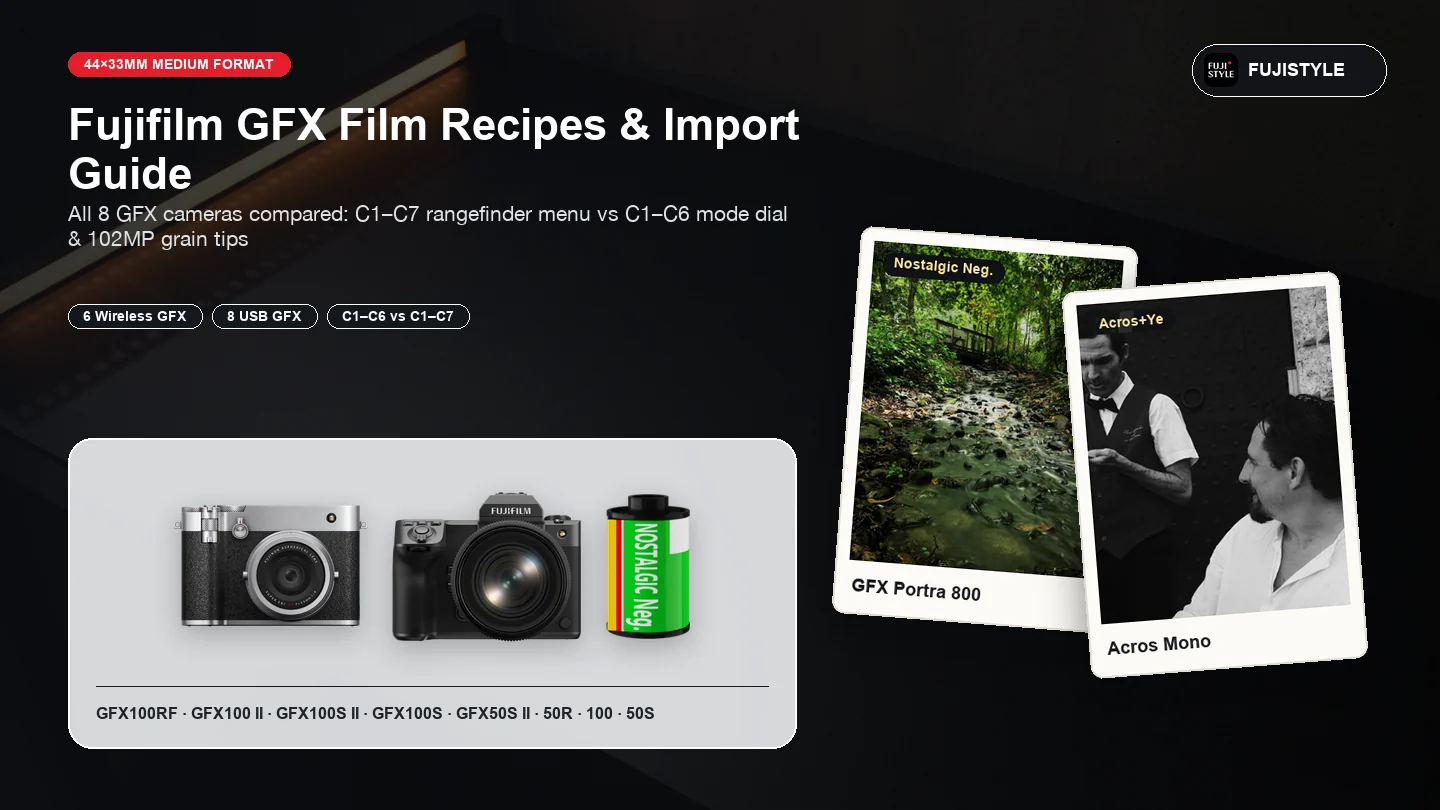
Fujifilm’s 44×33mm medium-format GFX cameras are often treated strictly as studio RAW machines — yet every GFX body runs the exact same JPEG color science, tone curves, and film simulations that made X100 and X-T cameras famous, combined with smoother medium-format tonal rolloff and deeper 16-bit highlight latitude.
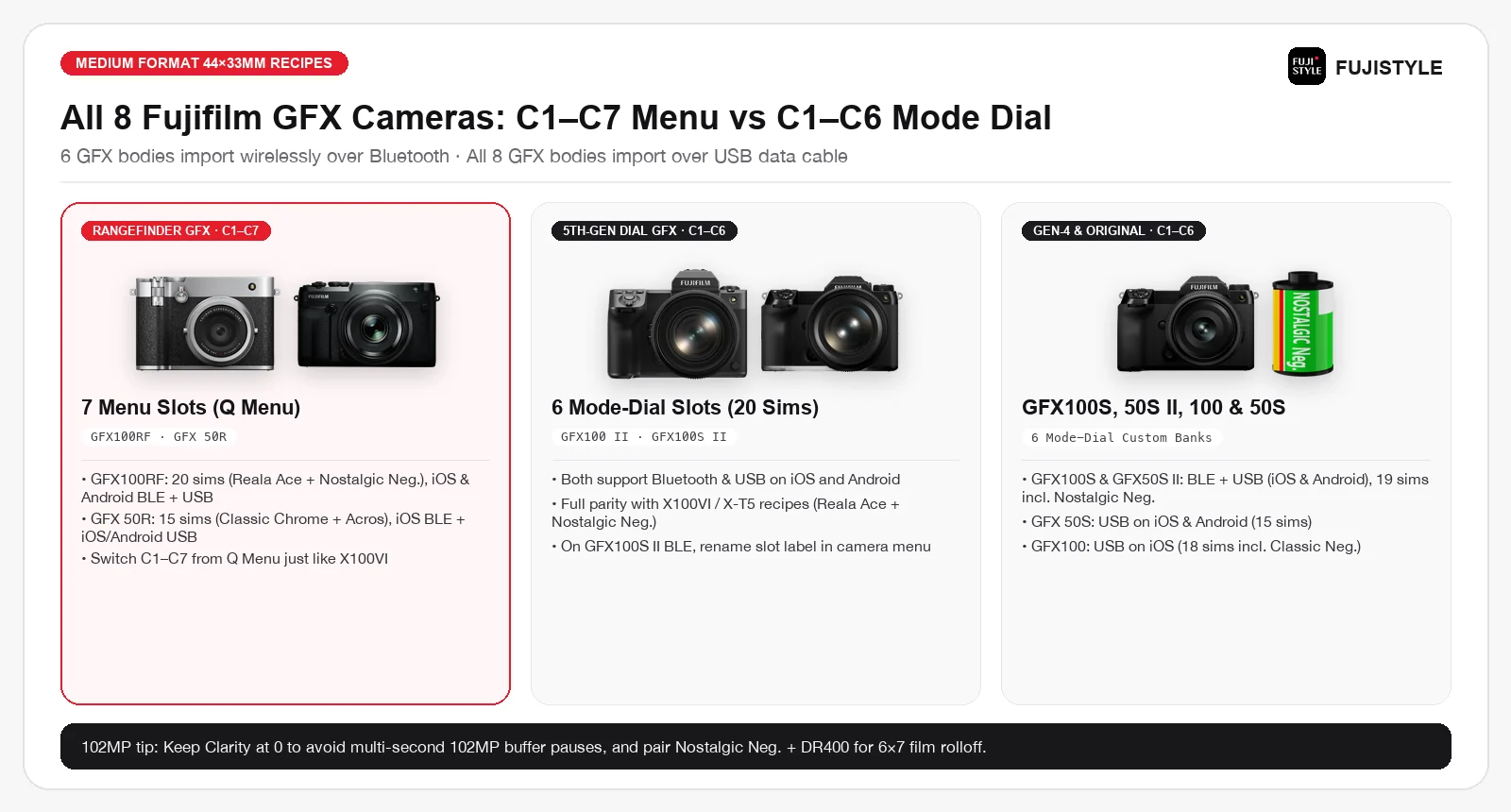 Slot layout and wireless/USB support across all 8 Fujifilm GFX 44×33mm medium-format cameras.
Even better, all 8 Fujifilm GFX cameras are supported in FujiStyle: 6 GFX bodies import recipes wirelessly over Bluetooth and all 8 import over USB. Because GFX bodies split between C1–C6 mode-dial banks and C1–C7 rangefinder menus, this guide breaks down exact compatibility, simulation availability, and 50MP/102MP tuning tips.
Key takeaways:
- 6 Wireless Bluetooth GFX models:
GFX100RF,GFX100 II,GFX100S II,GFX100S, andGFX50S IIon iOS & Android, plusGFX 50Ron iOS. - 8 USB Cable GFX models: Every GFX camera from the original
GFX 50SandGFX100up throughGFX100RF(7 on both iOS & Android;GFX100on iOS). - C1–C6 vs C1–C7: Rangefinder-styled
GFX100RFandGFX 50Rstore C1–C7 in the Q menu; the six PASM-dial GFX bodies store C1–C6 right on the top mode dial.
Complete Fujifilm GFX recipe compatibility matrix (8 models)
Check your GFX body below for wireless Bluetooth support, USB cable support, custom slot count, and built-in film simulations (or filter interactively in the supported Fujifilm cameras matrix):
| GFX Camera | Sensor & Processor | Bluetooth Wireless | USB Cable | Custom Slots | Film Simulations | Key Notes |
|---|---|---|---|---|---|---|
| GFX100RF | 102MP · X-Processor 5 | iOS & Android | iOS & Android | C1–C7 (Menu) | 20 (Reala Ace + Nostalgic Neg) | Fixed-lens rangefinder GFX; full parity with X100VI recipes |
| GFX100 II | 102MP CMOS II HS · X-Proc 5 | iOS & Android | iOS & Android | C1–C6 (Mode dial) | 20 (Reala Ace + Nostalgic Neg) | Flagship hybrid; C1–C6 selectable directly on top sub-monitor/dial |
| GFX100S II | 102MP CMOS II · X-Proc 5 | iOS & Android | iOS & Android | C1–C6 (Mode dial) | 20 (Reala Ace + Nostalgic Neg) | Over Bluetooth, settings write cleanly; slot name is renamed in camera menu |
| GFX100S | 102MP BSI · X-Processor 4 | iOS & Android | iOS & Android | C1–C6 (Mode dial) | 19 (Nostalgic Neg + Classic Neg; no Reala Ace) | First camera to debut Nostalgic Neg |
| GFX50S II | 51.4MP · X-Processor 4 | iOS & Android | iOS & Android | C1–C6 (Mode dial) | 19 (Nostalgic Neg + Classic Neg; no Reala Ace) | Shares exact X-Processor 4 color pipeline with GFX100S |
| GFX 50R | 51.4MP · X-Processor Pro | iOS | iOS & Android | C1–C7 (Menu) | 15 (Classic Chrome + Acros; no Classic Neg) | Rangefinder medium format; use USB on Android or Bluetooth on iPhone |
| GFX100 | 102MP BSI · X-Processor 4 | — (Use USB) | iOS | C1–C6 (Mode dial) | 18 (Classic Neg + Eterna via firmware) | Connect via USB RAW CONV./BACKUP RESTORE on iPhone/iPad |
| GFX 50S | 51.4MP · X-Processor Pro | — (Use USB) | iOS & Android | C1–C6 (Mode dial) | 15 (Classic Chrome + Acros; no Classic Neg) | Original GFX body; works over USB on both iOS and Android |
Understanding C1–C6 mode-dial banks vs C1–C7 menu banks
Unlike APS-C X-T cameras where C1–C7 live purely inside software menus, six of the eight GFX cameras put C1 through C6 directly on the top mode dial (or mode button + sub-LCD on GFX100 / GFX100 II):
- On C1–C6 mode-dial GFX bodies (
GFX100 II,GFX100S II,GFX100S,GFX50S II,GFX100,GFX 50S):- Each
C1–C6bank remembers shooting exposure mode (P,A,S, orM) alongside your recipe’s JPEG settings, very similar to C1–C4 mode-dial bodies. - Turn
AUTO UPDATE CUSTOM SETTINGOFF insideIMAGE QUALITY SETTING › EDIT/SAVE CUSTOM SETTINGif you wantC1–C6to snap back to your saved baseline recipe every time you switch dials.
- Each
- On C1–C7 rangefinder GFX bodies (
GFX100RF,GFX 50R):- Physical shutter speed and aperture dials control exposure independently, while
C1–C7act as pure film-recipe banks selected from theQmenu — identical to the X100VI and X100V workflow.
- Physical shutter speed and aperture dials control exposure independently, while
Which X-Series recipes work best on your GFX generation?
You do not need "GFX-only" recipes — every recipe in the FujiStyle recipe directory uses standard Fujifilm parameter scales. Simply match your GFX processor generation:
- GFX100RF, GFX100 II & GFX100S II (X-Processor 5): Compatible with 100% of Fujifilm recipes, including Reala Ace documentary daylight presets and Nostalgic Neg amber color-negative looks, which were originally voiced by Fujifilm’s optical engineers specifically for GFX medium format!
- GFX100S & GFX50S II (X-Processor 4): Compatible with all Nostalgic Neg, Classic Neg, Classic Chrome, Eterna, and Acros recipes. Skip Reala Ace recipes (or swap their base to Provia / Pro Neg Std).
- GFX100 (X-Processor 4, firmware 2.0+): Supports Classic Neg, Classic Chrome, Eterna, Acros, Color Chrome Effect, and Grain sizing, but predates Nostalgic Neg and Reala Ace.
- GFX 50R & GFX 50S (X-Processor Pro): Shares color science with the X100F and X-Pro2. Choose Classic Chrome, Pro Neg Hi / Std, Astia, and Acros recipes that do not rely on Color Chrome FX Blue or Classic Neg.
3 medium-format adjustments for 50MP & 102MP SOOC JPEGs
When moving an APS-C recipe onto a 44×33mm sensor, three small tweaks elevate medium-format output:
- Keep Clarity at
0on 102MP bodies: Processing a non-zero Clarity buffer on a 102-megapixel GFX100RF, GFX100 II, or GFX100S II file takes noticeably longer than on 26MP APS-C. Leave Clarity at0and shape micro-contrast withHighlight / Shadowand Color Chrome Effect instead. - Pair Nostalgic Neg with DR400: Fujifilm designed Nostalgic Neg alongside the GFX100S to mimic New Color photography (Stephen Shore, Joel Meyerowitz). Combining Nostalgic Neg with DR400 on a 102MP BSI sensor yields extraordinary amber highlight rolloff that looks like scanned 6×7 medium-format Portra.
- Choose Grain Size
LARGEif sharing on mobile: On a 11,648 × 8,736 pixel GFX file,WEAK / SMALLgrain virtually disappears when downsampled to Instagram or web resolution. Step up toWEAK / LARGEif you want subtle organic texture visible at normal viewing distances, or turn GrainOFFentirely when printing clinical gallery landscapes.
Step-by-step: Importing recipes to GFX over Bluetooth or USB
- Over Wireless Bluetooth (
GFX100RF,GFX100 II,GFX100S II,GFX100S,GFX50S II, andGFX 50Ron iOS):- Put the camera into
PAIRING REGISTRATION(underNETWORK/USB SETTING › Bluetooth/SMARTPHONE SETTINGon X-Processor 5 GFX bodies, orCONNECTION SETTING › Bluetooth SETTINGSon GFX100S / GFX50S II / GFX 50R) and close FUJIFILM XApp. - In FujiStyle, tap Apply Recipe → Wireless, tap your GFX body, confirm the pairing prompt, pick
C1–C6(orC1–C7), and tap Import. Follow our Bluetooth wireless import guide for full screenshots.
- Put the camera into
- Over USB-C Cable (All 8 GFX cameras, including
GFX100andGFX 50S):- Before attaching the cable, set
CONNECTION MODEtoUSB TETHER SHOOTING FIXEDorUSB RAW CONV./BACKUP RESTORE(onGFX100iOS, chooseUSB RAW CONV./BACKUP RESTORE). - Connect a verified USB-C data cable, tap Apply Recipe → USB Cable, and write your chosen slot. See our USB-C cable import guide for adapter and Android OTG details.
- Before attaching the cable, set
3 verified recipes tailored for 50MP & 102MP GFX sensors
Load any of these three community cards into C1–C6 (or C1–C7 on GFX100RF / GFX 50R) over Bluetooth or USB:
1. Shot on GFX100RF (Medium-Format Color Negative): Portra 800 · Nostalgic Neg.
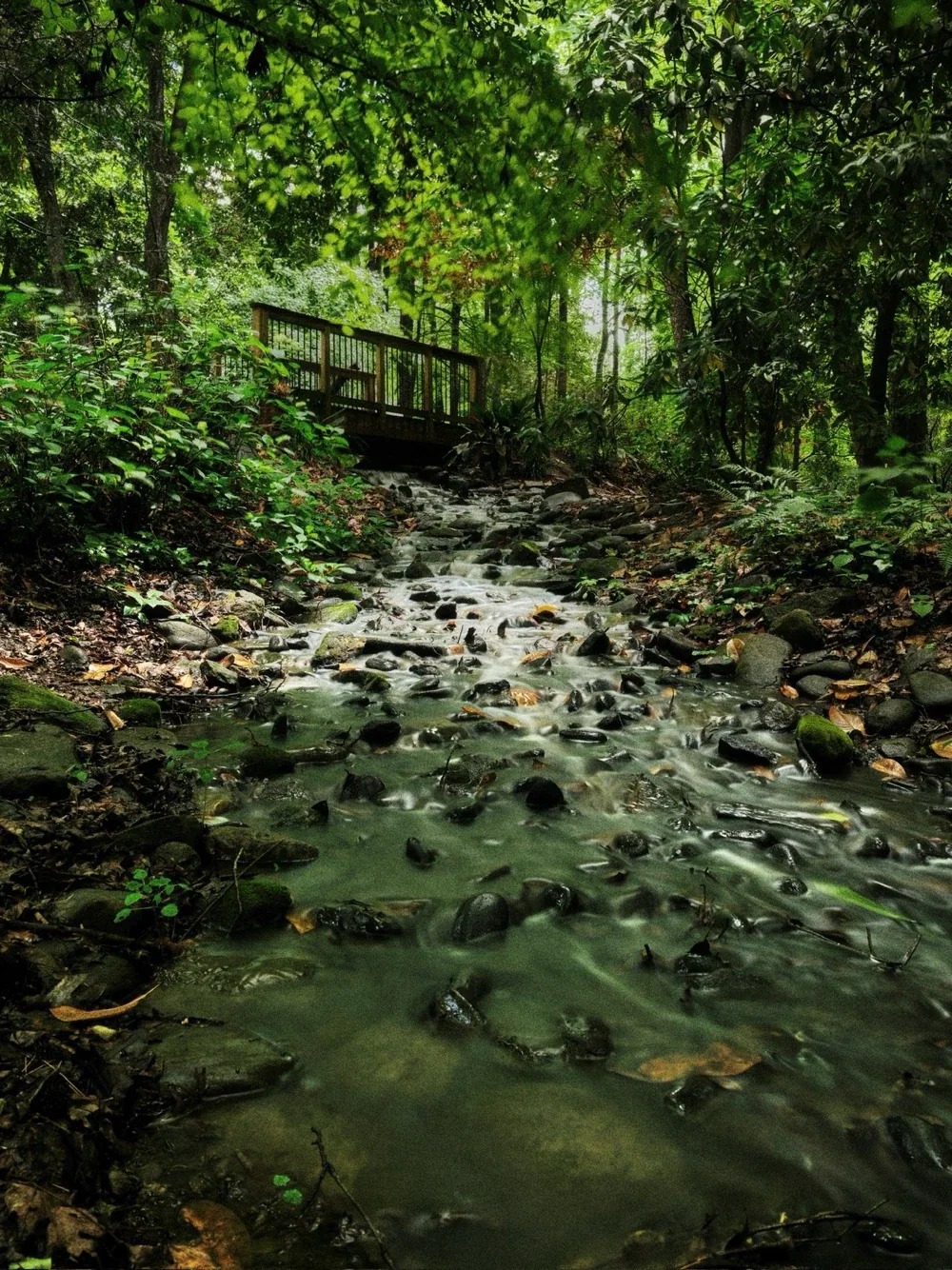 Portra 800, shared on FujiStyle by PNR_filmgraph (shot on GFX100RF · 142+ likes — compatible with GFX100RF, GFX100 II, GFX100S II, GFX100S, and GFX50S II).
| Setting | Value |
|---|---|
| Film Simulation | Nostalgic Neg. |
| White Balance | Daylight (R+3 / B-5) |
| Dynamic Range | DR400 |
| Highlight / Shadow | -2 / -1 |
| Color / Sharpness / NR | -3 / -2 / -4 |
| Clarity | -4 (set to 0 on 102MP bodies for fast continuous shooting) |
| Grain Effect | Strong / Small (or Weak / Large on 102MP) |
| Color Chrome / FX Blue | Weak / Weak |
2. For GFX100RF, GFX100 II & GFX100S II: Scotland · Reala Ace
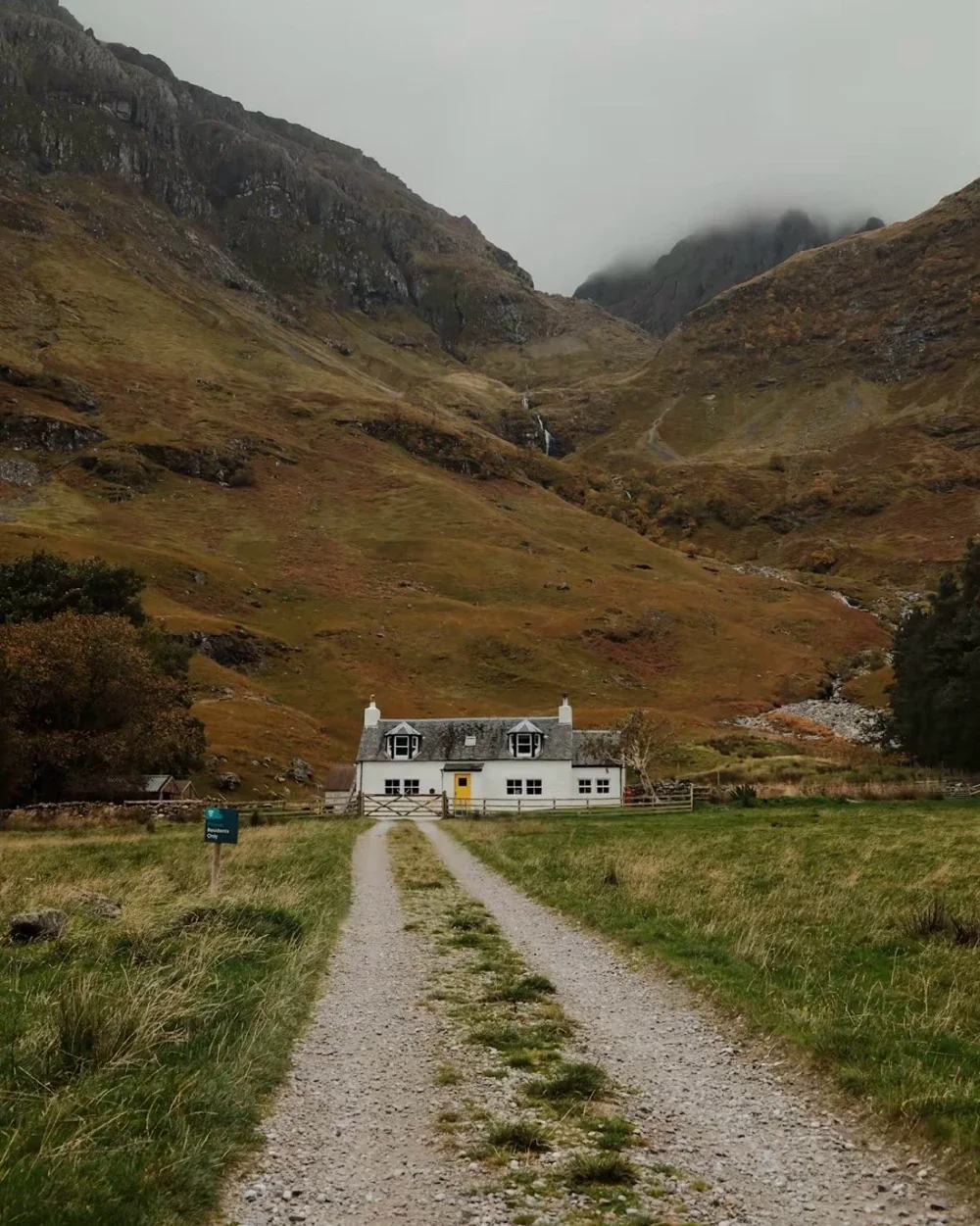 Scotland, shared on FujiStyle by emma (560+ likes — crisp tonal separation and
Clarity 0 for 102MP landscapes).
| Setting | Value |
|---|---|
| Film Simulation | Reala Ace (5th-gen GFX bodies) |
| White Balance | Daylight (R+3 / B-5) |
| Dynamic Range | Auto |
| Highlight / Shadow | -2 / +1 |
| Color / Sharpness / NR | +3 / -1 / -4 |
| Clarity | 0 |
| Grain / Color Chrome / FX Blue | Weak / Weak / Off |
3. For All 8 GFX Bodies (incl. GFX 50R, GFX 50S & GFX100): Black & White · Acros+Ye
 Black & White, shared on FujiStyle by Alessio Rinci — dramatic Acros+Yellow monochrome that runs on every single GFX body from the original GFX 50S to GFX100RF.
| Setting | Value |
|---|---|
| Film Simulation | Acros+Ye (All 8 GFX cameras) |
| White Balance | Auto (R0 / B0) |
| Dynamic Range | DR400 |
| Highlight / Shadow | +4 / +4 |
| Sharpness / High ISO NR | +3 / -4 |
| Clarity | 0 |
| Grain Effect | Strong / Small |
Frequently asked questions
Can Fujifilm GFX medium-format cameras use X-Series film simulation recipes?
Yes. Fujifilm GFX bodies share the exact same Film Simulations, White Balance R/B grid, Dynamic Range (DR100–DR400), Highlight/Shadow tone curves, Grain Effect, and Color Chrome parameters as X-Series cameras of the same processor generation. Any X100VI or X-T5 recipe loads cleanly onto a GFX100RF, GFX100 II, or GFX100S II.
Why does my Fujifilm GFX camera only show C1–C6 instead of C1–C7?
Most GFX bodies — GFX100 II, GFX100S II, GFX100S, GFX50S II, GFX100, and GFX 50S — place six physical C1–C6 custom positions directly on the top mode dial rather than seven menu-only banks. Only the rangefinder-styled GFX100RF and GFX 50R use seven menu-based custom slots (C1–C7).
Which Fujifilm GFX cameras support wireless Bluetooth recipe import?
Six GFX bodies support wireless Bluetooth recipe import in FujiStyle: GFX100RF, GFX100 II, GFX100S II, GFX100S, and GFX50S II on both iPhone and Android, plus GFX 50R on iOS. Earlier bodies without Bluetooth backup support — GFX100 and GFX 50S — import recipes over a USB cable instead.
Why didn’t my custom slot name change on GFX100S II over Bluetooth?
On the GFX100S II over Bluetooth, FujiStyle writes every image-quality parameter into C1–C6 accurately, while the custom slot label stays read-only for now. You can rename the slot in seconds inside IMAGE QUALITY SETTING › EDIT/SAVE CUSTOM SETTING on the camera, or import over USB.
Which GFX cameras have Reala Ace and Nostalgic Neg?
GFX100RF, GFX100 II, and GFX100S II include all 20 current Fujifilm film simulations, including both Reala Ace and Nostalgic Neg. GFX100S and GFX50S II include 19 simulations including Nostalgic Neg and Classic Neg (no Reala Ace). GFX100 gained Classic Neg via firmware, while GFX 50R and GFX 50S top out at Classic Chrome and Acros.
Should I adjust Grain Effect or Clarity when using X-Series recipes on 102MP GFX sensors?
Because a 102MP 44×33mm file resolves much finer detail than a 26MP APS-C frame, Strong/Large grain can appear subtler when viewed full-screen and sharper at 100% crop, while Clarity non-zero values pause longer when buffering huge 102MP JPEGs. Keep Clarity at 0 for handheld shooting and test Large vs Small grain at your target print or display size.

Import to Camera
Use the FujiStyle App to apply recipes to your Fujifilm camera.