FujiStyle vs FUJIFILM XApp vs X RAW Studio: Which Tool Imports Film Recipes Best?
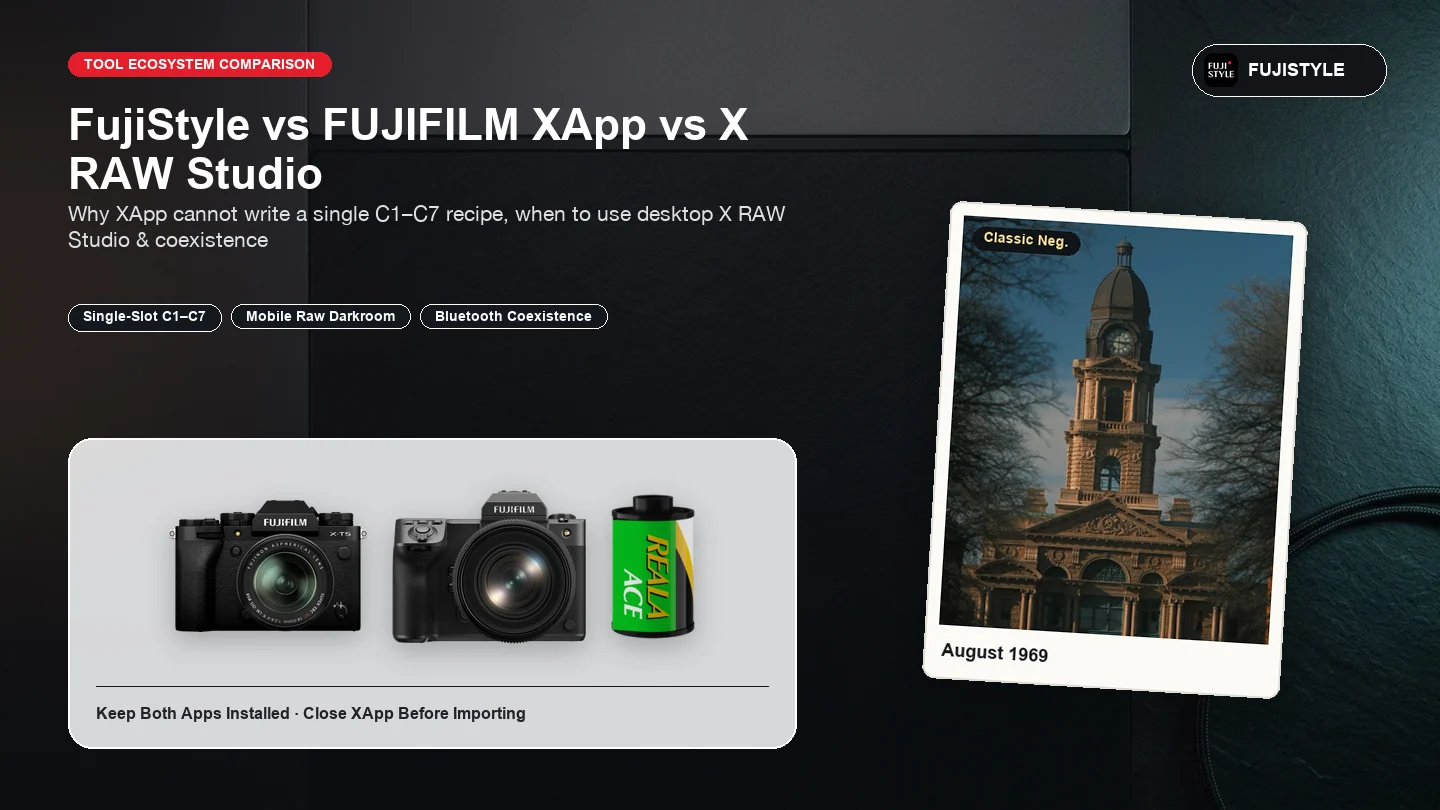
Fujifilm photographers actually need different tools for different jobs — yet one of the biggest frustrations for new X100VI, X-T5, and X-S20 owners is installing Fujifilm’s official smartphone app expecting to download film recipes into C1–C7, only to discover there is no recipe library or single-slot import button inside it.
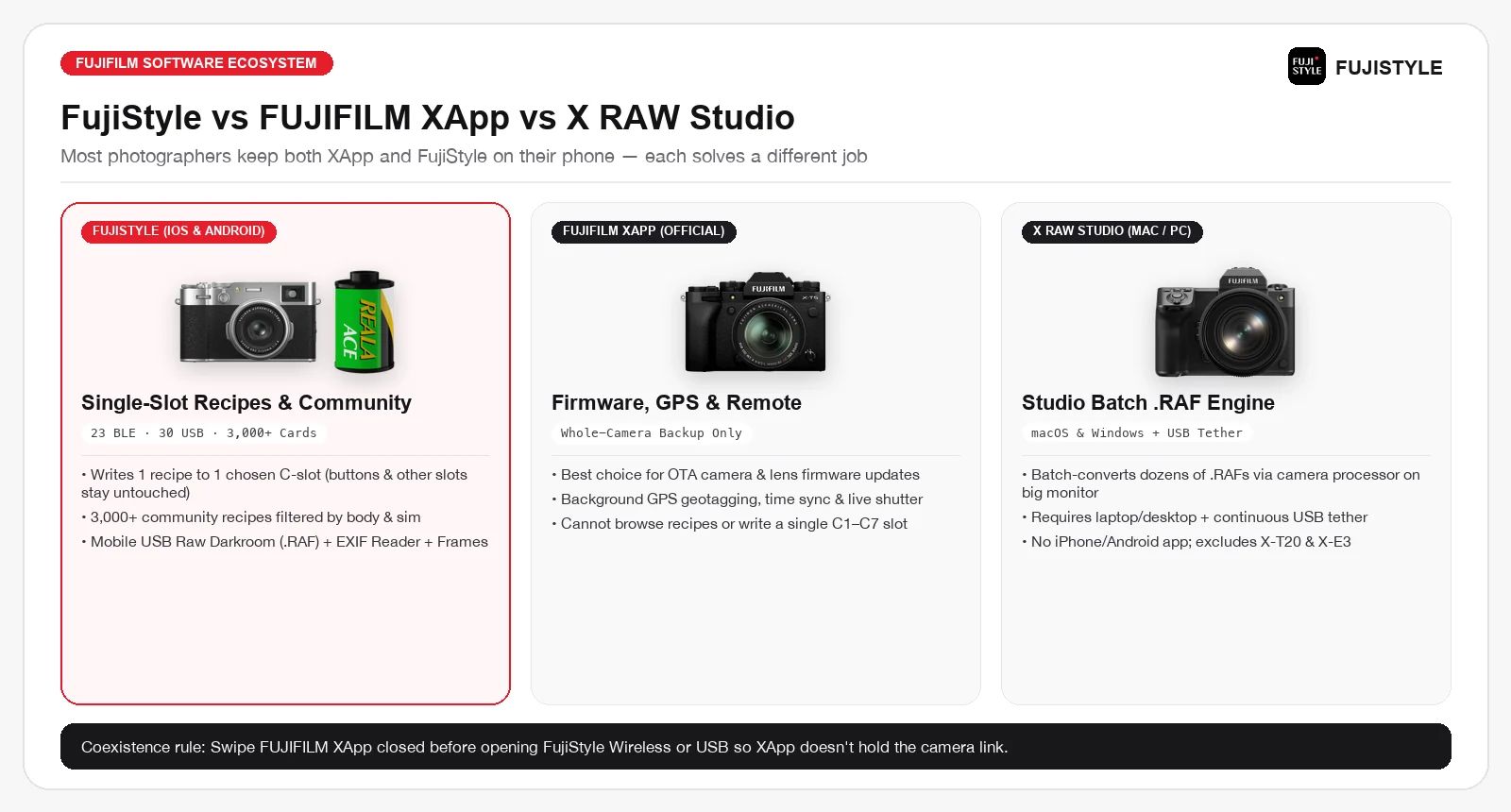 How FujiStyle (iOS & Android), FUJIFILM XApp, and desktop FUJIFILM X RAW Studio complement each other in a Fujifilm workflow.
In short: use FUJIFILM XApp for camera firmware updates, GPS time/location sync, and remote live-view shooting; use FUJIFILM X RAW Studio when batch-converting dozens of RAF files on a studio Mac or Windows PC; and use FujiStyle on iPhone or Android when you want to browse 3,000+ community recipes and write individual custom slots over Bluetooth or mobile USB.
Key takeaways:
- FUJIFILM XApp backs up whole-camera configuration clones, syncs GPS, and updates firmware — it cannot write a single community recipe into
C3without replacing your entire camera setup. - FUJIFILM X RAW Studio writes custom slots and processes RAFs accurately, but requires a macOS or Windows computer and a USB cable.
- FujiStyle (iOS & Android) writes individual recipes directly into
C1–C7(orC1–C4/C1–C6) wirelessly over Bluetooth on 23 cameras and over USB on 30 cameras, plus includes EXIF recipe recognition, Raw Darkroom, and borders.
Side-by-side comparison: FujiStyle vs FUJIFILM XApp vs X RAW Studio
Every column below reflects current production capabilities across iOS, Android, macOS, and Windows:
| Capability | FujiStyle App | FUJIFILM XApp | FUJIFILM X RAW Studio | Manual Camera Menu |
|---|---|---|---|---|
| Platforms | iPhone, iPad & Android | iPhone, iPad & Android | macOS & Windows only | Any Fujifilm camera |
| Write 1 recipe to 1 chosen C slot | Yes (keeps other slots & button setup untouched) | No (whole-camera backup/restore only) | Yes (via USB on desktop) | Yes (12–16 menu fields by hand) |
| Wireless Bluetooth recipe import | Yes — 23 cameras (iOS & Android; GFX 50R iOS) | Whole-camera clone only on newer bodies | No (USB tether required) | N/A |
| Mobile USB-C / Lightning import | Yes — 30 cameras (22 iOS & Android; 8 iOS) | No | No (desktop only) | N/A |
| Built-in 3,000+ recipe community | Yes (filter by camera & simulation) | No | No | No |
| Read recipe from SOOC JPEG EXIF | Yes (in-app + free web Recipe Reader) | No (basic shooting log only) | Yes (from .RAF files only) |
No |
In-camera .RAF re-rendering |
Yes (Raw Darkroom over USB) | No | Yes (batch desktop workflow) | Basic in-body RAW conversion |
| Firmware updates & GPS geotagging | No | Yes (Best choice) | No | SD card firmware update |
| Live-view remote shutter | No | Yes (Best choice) | No (use Tether App) | Self-timer |
For model-by-model Bluetooth and USB compatibility across X-Series and GFX bodies, check the supported Fujifilm cameras matrix.
What FUJIFILM XApp is built for (and why it doesn’t import single recipes)
Released in 2023 to replace the older Camera Remote app, FUJIFILM XApp is engineered as a daily companion for camera housekeeping:
- OTA firmware updates: Downloading body and lens firmware updates — including the updates that unlocked Reala Ace on X-T5, X-H2, X-H2S, and X-S20 — without formatting an SD card on a computer.
- Activity log & GPS sync: Embedding accurate smartphone coordinates and local time zones into every frame while traveling.
- Whole-camera Backup/Restore: Saving a binary snapshot of your entire camera state (autofocus tracking sensitivity, Fn button assignments, EVF brightness, copyright tag, and all custom slots bundled together).
Because XApp treats camera settings as an all-or-nothing snapshot, you cannot download a community Classic Neg recipe and drop it into C4. Restoring someone else’s XApp backup file would wipe your Fn buttons, shutter type, and C1–C3 slots at the same time.
What FUJIFILM X RAW Studio excels at
FUJIFILM X RAW Studio is a free desktop utility for macOS and Windows. Instead of simulating Fujifilm colors on your computer’s CPU (the way Lightroom or Capture One tries to approximate film simulations), X RAW Studio sends the .RAF file over a USB cable into your physical camera’s X-Processor, renders a genuine Fujifilm JPEG, and sends it back to your monitor.
Where X RAW Studio shines:
- Batch-exporting 50+
.RAFfiles from a studio shoot on a big calibrated monitor. - Building new custom recipes from scratch on a desktop keyboard (how to make your own recipe) and saving user profiles to Mac/PC folders.
Where X RAW Studio falls short:
- Zero mobile or wireless support: You cannot take X RAW Studio on a street walk or weekend flight without packing a laptop.
- Excludes several popular bodies: Compact X-Trans III cameras like the X-T20 and X-E3 were never supported by X RAW Studio (whereas FujiStyle on iOS supports both over USB).
- Same-camera rule: You must plug in the exact camera model that shot the
.RAFfile.
Where FujiStyle fits into your camera bag
FujiStyle was built specifically to bridge the gap between recipe discovery and in-camera custom slots — right from the phone already in your pocket:
- Discover recipes matched to your sensor: Filter 3,000+ Fujifilm recipes by base simulation (Classic Chrome, Reala Ace, Nostalgic Neg, Acros) or camera hub so you don’t waste slots on simulations your body lacks.
- Write one slot at a time — wirelessly or wired: Send a recipe into
C3over Bluetooth on 23 cameras or USB on 30 cameras while leavingC1,C2, and all your custom buttons completely untouched. See is Fujifilm recipe import safe for protocol and warranty details. - Mobile Raw Darkroom + EXIF frames: Re-develop
.RAFfiles via your camera’s hardware engine on iPhone/iPad (Raw Darkroom guide), inspect any JPEG’s MakerNote tags, and add clean Fujifilm EXIF gallery borders before sharing.
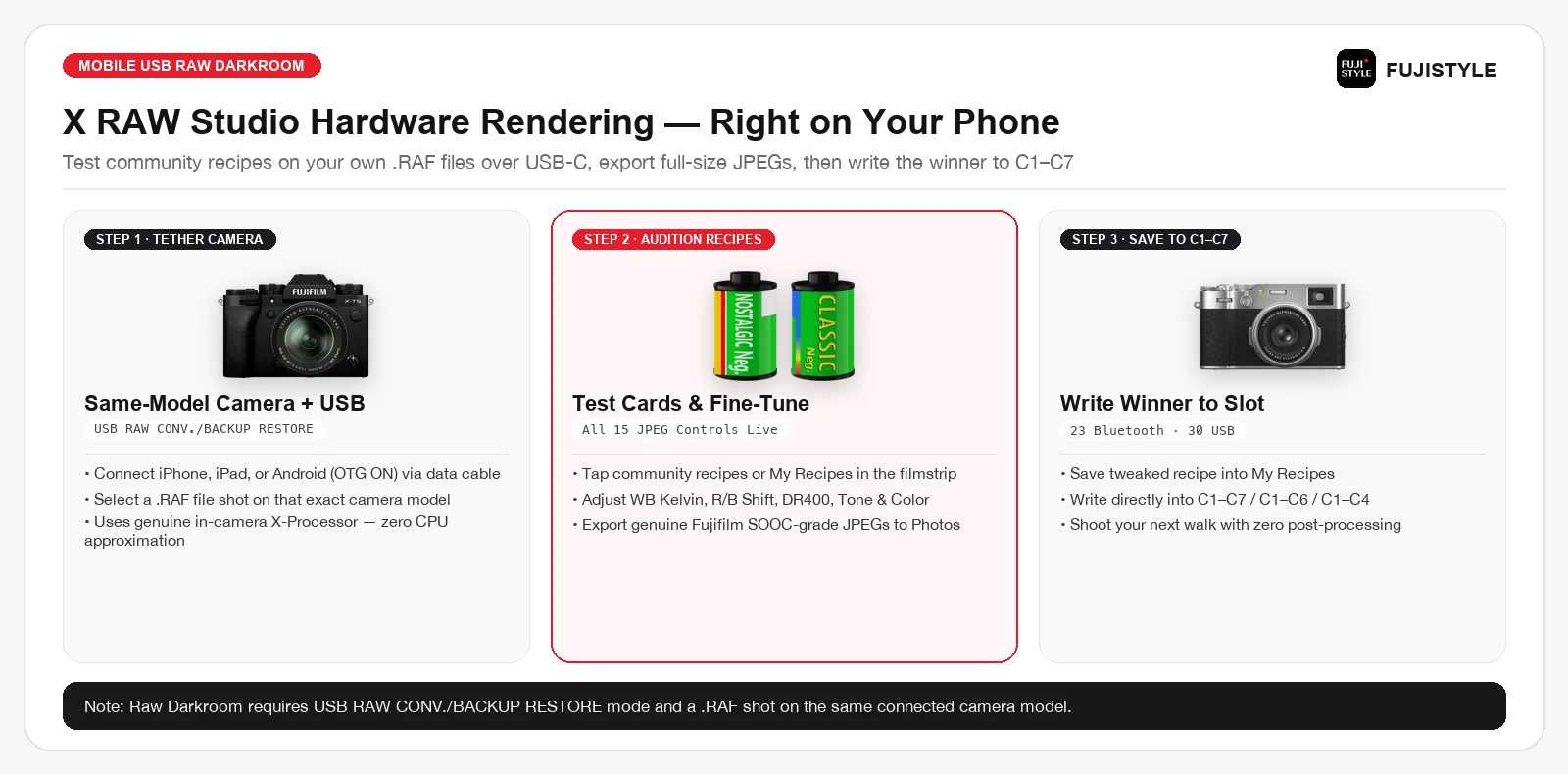 FujiStyle Raw Darkroom brings X RAW Studio’s genuine in-camera
.RAF rendering to iPhone, iPad, and Android over a USB-C cable.
Benchmark recipe to test in C1 or Raw Darkroom: August 1969
Want to compare a direct single-slot Bluetooth/USB write against desktop X RAW Studio? Try August 1969 — its fixed 6000K white balance, Shadow -2, and Clarity 0 show off Fujifilm’s Classic Neg. color engine immediately:
 August 1969, shared on FujiStyle by BenTakesPicturesofStuff (shot on X-T5 · 190+ likes).
| Setting | Value |
|---|---|
| Film Simulation | Classic Neg. |
| White Balance | 6000K (R-2 / B0) |
| Dynamic Range | DR400 |
| Highlight / Shadow | -1.5 / -2 |
| Color / Sharpness / NR | +4 / 0 / -4 |
| Clarity | 0 |
| Grain Effect | Weak / Small |
| Color Chrome / FX Blue | Strong / Off |
| ISO | 800 |
How to run XApp and FujiStyle peacefully on the same phone
Most experienced shooters keep both FUJIFILM XApp and FujiStyle on their phone. Follow two simple rules so their Bluetooth sessions never collide:
- Do not pair the camera inside your phone’s system Bluetooth Settings screen first — pair inside the app workflow while the camera sits on
PAIRING REGISTRATION. - Swipe XApp closed before opening FujiStyle’s Wireless or USB sheet (and turn XApp’s background
AUTO IMAGE TRANSFERoff if the camera refuses to release its Bluetooth link). When a Fujifilm camera switches between two different paired apps on older firmware, you may occasionally need to re-confirmPAIRING REGISTRATION— see the troubleshooting table in our Bluetooth import guide.
Frequently asked questions
Can FUJIFILM XApp import a single community film recipe into C1–C7?
No. FUJIFILM XApp can back up and restore an entire camera settings bundle (including buttons, AF preferences, and all custom slots together) on compatible cameras, and transfer JPEGs, geotags, and firmware updates. However, XApp has no community recipe browser, no parameter editor, and no way to write one standalone recipe into a specific C1–C7 slot without overwriting the rest of your camera configuration.
What is the difference between FujiStyle and FUJIFILM X RAW Studio?
X RAW Studio is Fujifilm’s official macOS and Windows desktop app that tethers your camera over USB to convert .RAF files and manage custom profiles at a desk. FujiStyle runs natively on iPhone, iPad, and Android — letting you browse 3,000+ community recipes, write individual C1–C7 slots wirelessly over Bluetooth (23 cameras) or over mobile USB (30 cameras), extract recipes from JPEG EXIF, and re-render .RAF files via Raw Darkroom without carrying a laptop.
Can I keep both FUJIFILM XApp and FujiStyle installed on the same phone?
Yes, most Fujifilm photographers keep both apps installed: XApp for firmware updates, GPS geotagging, and remote shutter, and FujiStyle for discovering, organizing, and importing film recipes. Just force-close XApp before starting a Bluetooth or USB recipe import in FujiStyle so XApp does not hold the camera’s single active connection.
Does X RAW Studio work on iPhone, iPad, or Android?
No. FUJIFILM X RAW Studio is available strictly for macOS and Windows computers and requires a continuous wired USB connection to the matching Fujifilm camera body.
Which tool supports older Fujifilm cameras like X100F, X-T2, and X-Pro2?
FUJIFILM XApp does not support pre-Bluetooth X-Trans III cameras such as X100F, X-T2, X-T20, or X-Pro2. Both X RAW Studio (on Mac/PC for supported X-Processor Pro/4/5 models — note X-T20 and X-E3 are excluded from X RAW Studio) and FujiStyle on iOS over USB (covering all 30 supported cameras including X100F, X-Pro2, X-T2, X-T20, and X-E3) can write custom slots on earlier bodies.
Is using FujiStyle alongside official Fujifilm software safe for my camera?
FujiStyle writes standard image-quality parameters into the custom slot you pick and never modifies camera firmware or touches photos on your SD card. For full transparency on how slot protocols and Fujifilm’s third-party app warranty terms work, read is Fujifilm recipe import safe.

Import to Camera
Use the FujiStyle App to apply recipes to your Fujifilm camera.