Is Fujifilm Recipe Import Safe? How USB-C and Bluetooth C1–C7 Sync Works (Warranty & Safety Explained)
Is Fujifilm recipe import safe? Here is what actually happens. When FujiStyle imports a recipe into a Fujifilm camera (wirelessly over Bluetooth, or over a USB-C cable, on iOS and Android), it talks to the camera through its public connection interface and writes image quality settings into the one native custom slot you pick (C1–C7, C1–C6 or C1–C4, depending on the body). It doesn't modify the firmware or touch drivers, and the result is the same as setting those values in the camera menu and saving them yourself. To date, we've had no reports of the app damaging a camera. A write only replaces the slot you chose (save it to My Recipes first and you can write it back any time), and warranty questions are decided by Fujifilm's own terms.
The first time people hear "connect your phone and write a recipe to C1–C7," three worries usually come up: will it touch the camera's firmware, what about the warranty, and what if I write to the wrong slot or the transfer stops halfway? This guide takes them one at a time.
What gets written to the camera
FujiStyle communicates with the camera through its public connection interface (USB or Bluetooth), and it does exactly one thing: it writes one recipe's settings into the C slot you selected.
| Changed when you write a recipe? | Details | |
|---|---|---|
| Camera firmware | No | No firmware changes and no drivers touched. Update firmware the way Fujifilm's website describes; see firmware updates and recipes |
| The C slot you picked | Yes, the write overwrites this slot | It writes the film simulation, white balance and WB shift, dynamic range, highlight / shadow, color, sharpness, noise reduction, clarity, grain and both Color Chrome settings, the same as setting them up yourself and saving them under EDIT/SAVE CUSTOM SETTING |
| Your other C slots | No | Each write goes to the one slot you chose; recipes in the other slots stay as they were |
Two things to know before you start:
- A write overwrites that slot, with no undo. Save the recipe that was there to My Recipes first, or note down its settings.
- A film simulation your camera doesn't have can't be written, and it won't be swapped for another. Write a Reala Ace recipe to a body without Reala Ace, for example, and that slot won't end up with some other simulation instead. Check that your camera's menu has the simulation before you write (for which bodies have the newest ones, see fifth-generation-processor cameras).
What about the warranty?
What we can tell you are the facts: writing a recipe changes only the settings stored in a custom slot, not the firmware, and the result is the same as saving those settings from the camera menu. To date, we've had no reports of the app damaging a camera.
What we can't tell you is that it will never affect your warranty. That's Fujifilm's call. Fujifilm's warranty generally doesn't cover misuse, and some community discussions suggest that changing settings through third-party software, or even through official developer tools, could be treated as misuse. Check the warranty terms for your region and weigh it up for yourself.
If it worries you, two simple precautions:
- Before sending the camera in for service, set each slot back to the settings you want, or redo them yourself in the camera menu.
- For slots you've set up by hand in the camera, write their settings down, or back up the camera's settings with Fujifilm's own FUJIFILM X Acquire (set the camera's CONNECTION MODE to USB RAW CONV./BACKUP RESTORE).
Wrote the wrong slot, or the transfer stopped? Here's how to recover
- Wrong slot, or you don't like the result: open the original recipe in the app and tap Apply Recipe to write it back to the same slot. You can also change that slot by hand under EDIT/SAVE CUSTOM SETTING in the camera menu; the exact options are in your manual. There's no need to reset the whole camera.
- If the transfer is interrupted: reconnect and write that slot again. Afterwards, tap Camera Recipes to see what each slot on the camera holds right now, and go by what it shows.
- If a Bluetooth transfer stops partway: keep the camera battery above 30%, bring the phone closer to the camera, move away from sources of interference, and try again; or switch to a USB cable.
Bluetooth and USB-C: what each one needs
Full steps are in our guide on how to add recipes to your camera and our Bluetooth import guide.
1. Bluetooth (iOS and Android)
FujiStyle writes recipes over Bluetooth on 23 supported cameras with iPhone and 22 with Android; the list in the app is the reference. Turn Bluetooth on in the camera (on newer bodies, NETWORK/USB SETTING › Bluetooth/SMARTPHONE SETTING › Bluetooth ON; on older ones the same setting sits under CONNECTION SETTING), pair once, and the camera reconnects automatically after that. Cameras without Bluetooth (X-Pro2, X100F, X-T2, X-T20) can only use USB.
2. USB-C cable (iOS and Android)
- The cable has to carry data; a charge-only cable won't work. On a Lightning iPhone, use Apple's Lightning to USB Camera Adapter. Android phones may need OTG turned on.
- Set the camera's CONNECTION MODE to USB TETHER SHOOTING FIXED (recommended) or USB RAW CONV./BACKUP RESTORE. Other modes don't accept a write.
- Close apps that hold the USB connection, such as XApp or Lightroom. The first time an iPhone connects, it asks "Allow This Accessory to Communicate?"; tap Allow.
Slot counts: the X100VI, X-T5, X-T50, X-T30 III and X-E5 have seven slots, C1–C7. The X-S20, X-S10 and X-M5 have four, C1–C4 (see our guide to C1–C7 custom settings).
Four recipes for a first write
The first time you connect your camera, pick a few recipes that look clearly different, write them to different slots and take a few shots. You'll see right away whether the write gave you what you expected. (To browse by base, see all film simulations.)
01. Clockwise Negative (Classic Neg., by clockwise_yvr)
 Clockwise Negative by clockwise_yvr.
Shared by its author, clockwise_yvr, who agreed to have it included here. Auto white balance with R+1 / B-3, Color +4 and Color Chrome Effect Strong, with grain on Strong / Large. The sample is a red running track and a green field on a sunny day: dense red, pale sky. When you write it, you can give the slot a short name in the app.
| Setting | Value |
|---|---|
| Film Simulation | Classic Neg. |
| White Balance | Auto |
| WB Shift | R+1 / B-3 |
| Dynamic Range | DR400 |
| Highlight | -1 |
| Shadow | -1.5 |
| Color | +4 |
| Sharpness | -2 |
| High ISO NR | -4 |
| Clarity | 0 |
| Grain Effect | Strong / Large |
| Color Chrome Effect | Strong |
| Color Chrome FX Blue | Weak |
| Exposure Compensation | — |
| ISO | — |
02. Scotland (Reala Ace, shared by emma)
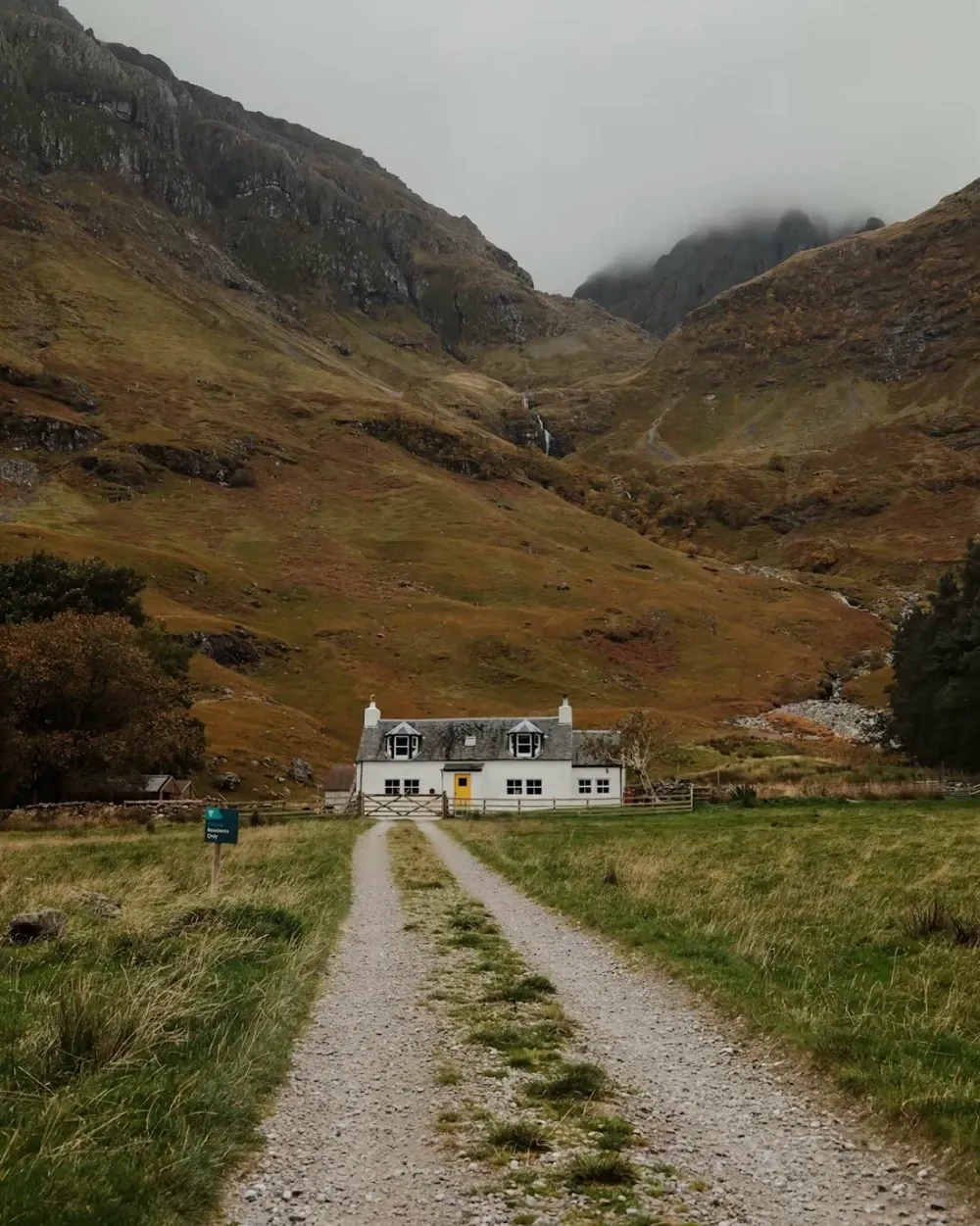 Scotland, shared on FujiStyle by emma.
Scotland uses Reala Ace, so it can only be written to cameras whose menu has REALA ACE (the X100VI, X-T5, X-T50, X-M5, X-E5, X-T30 III, X-S20 and others; the X-T5 and X-S20 need the firmware update that added Reala Ace). Daylight with R+3 / B-5 and Highlight -2 / Shadow +1; the sample is an overcast valley with a cottage, color that feels solid without being loud. It's also a handy check of the rule above: on a camera without Reala Ace, this simulation won't be written.
| Setting | Value |
|---|---|
| Film Simulation | Reala Ace |
| White Balance | Daylight |
| WB Shift | R+3 / B-5 |
| Dynamic Range | Auto |
| Highlight | -2 |
| Shadow | +1 |
| Color | +3 |
| Sharpness | -1 |
| High ISO NR | -4 |
| Clarity | 0 |
| Grain Effect | Weak |
| Color Chrome Effect | Weak |
| Color Chrome FX Blue | Off |
| Exposure Compensation | 0 |
| ISO | — |
03. Classic Blue (Classic Neg., shared by Shareal_willie)
 Classic Blue, shared on FujiStyle by Shareal_willie; the card lists an X100VI.
To see the difference a write makes at a glance, put this one and Clockwise Negative in neighboring slots. Both are Classic Neg., but this one uses the White Priority auto white balance (the card says Auto (White Priority)) with R-2 / B+2 and Color 0. The sample is a street corner on a clear day after snow: cool and clean.
| Setting | Value |
|---|---|
| Film Simulation | Classic Neg. |
| White Balance | Auto (White Priority) |
| WB Shift | R-2 / B+2 |
| Dynamic Range | DR100 |
| Highlight | -2 |
| Shadow | -2 |
| Color | 0 |
| Sharpness | 0 |
| High ISO NR | 0 |
| Clarity | 0 |
| Grain Effect | Off |
| Color Chrome Effect | Strong |
| Color Chrome FX Blue | Strong |
| Exposure Compensation | 0 |
| ISO | — |
04. Daily Gold 6K (Classic Chrome, shared by Udo Wuerth)
 Daily Gold 6K, shared on FujiStyle by Udo Wuerth; the card lists an X100VI.
White balance is fixed at 6000K with R+2 / B-5 on top, so it comes out warmer than auto white balance would in the same light. The sample is a viewing deck on a snowy mountain above a sea of clouds, and the snow and sky stay clean. Because the white balance is locked to one color temperature, it looks very different under indoor lighting, which makes it a good way to confirm the written settings are really active in the camera.
| Setting | Value |
|---|---|
| Film Simulation | Classic Chrome |
| White Balance | 6000K |
| WB Shift | R+2 / B-5 |
| Dynamic Range | DR200 |
| Highlight | -2 |
| Shadow | +1 |
| Color | +2 |
| Sharpness | 0 |
| High ISO NR | -4 |
| Clarity | -2 |
| Grain Effect | Weak / Small |
| Color Chrome Effect | Strong |
| Color Chrome FX Blue | Off |
| Exposure Compensation | 0 |
| ISO | — |
Frequently asked questions
Does writing recipes to a Fujifilm camera over USB-C or Bluetooth touch the firmware, and what about the warranty?
FujiStyle talks to the camera through its public connection interface and writes settings only to the custom slot you choose (C1–C7; C1–C4 on the X-S20, X-S10 and X-M5). It doesn't modify the firmware or touch drivers, and the result is the same as setting those values in the camera menu and saving them to that slot yourself. To date, we've had no reports of the app damaging a camera. The warranty is Fujifilm's decision, and we can't make promises on Fujifilm's behalf: Fujifilm's warranty generally doesn't cover misuse, and some community discussions suggest that changing settings through third-party software, or even through official developer tools, could be treated as misuse. Check the warranty terms for your region and decide for yourself.
Which cameras can import recipes over Bluetooth, and when do I need a USB-C cable?
FujiStyle writes recipes over Bluetooth on 23 supported cameras with iPhone and 22 with Android (the GFX 50R is iPhone-only for now; the list in the app is the reference). Cameras that aren't on the Bluetooth list, or a link that keeps dropping, can use a USB-C data cable, which works on both iPhone and Android and puts the same settings into the camera as Bluetooth does. Android phones may need OTG turned on.
I don't like a recipe I wrote to my camera. How do I change it back?
Writing a recipe overwrites that slot with no undo, so save the recipe that was there to My Recipes before you write. To go back, open the original recipe in the app and tap Apply Recipe to write it to the same slot. You can also change that slot by hand under EDIT/SAVE CUSTOM SETTING in the camera menu; the exact options are in your manual. There's no need to reset the whole camera.
About the photos in this guide
Every recipe and sample photo here comes from the FujiStyle community, and the settings are listed exactly as they appear on each card. Clockwise Negative is by clockwise_yvr, who made the recipe and agreed to have it shared here, so it's credited by name.
For the other three cards, each name is the person who shared the card on FujiStyle, not necessarily the recipe's creator. If you know who made it first, or spot a wrong name or setting, tell us through the feedback option in the app and we'll correct it.
Bring it into your camera with FujiStyle
If you'd like to start carefully, here's a cautious first run with FujiStyle:
- See what the camera holds now. Connect the camera and tap Camera Recipes to see what each C slot contains, then pick an empty or rarely used slot for the test. If you have an unstripped Fujifilm JPEG straight out of camera that you shot with one of your slots, you can also keep a record of it first: use + › Import from Photo in the app or the web Recipe Reader to read 14–15 recipe settings from its
MakerNotesand save them to My Recipes. - Write one recipe and take a few shots. In Fujifilm Community in the bottom bar, search for any of the recipes above (the community has over 10,000 recipes, each with sample photos and full settings), save it to My Recipes, tap Apply Recipe, choose USB Cable or Wireless, pick the slot, and wait for
Recipe Transferred. You can use Bluetooth (23 supported cameras on iPhone and 22 on Android, currently free for a limited time) or a USB-C cable. - Confirm it, and swap it if you don't like it. Tap Camera Recipes again to check the recipe went into the slot you chose. If it's not for you, write a different one from My Recipes; no need to dig through the camera menu.
- Try recipes on
.RAFfiles without touching a slot. If you only want to see a community recipe on photos you've already shot, connect the camera to your phone over USB-C (camera set toUSB RAW CONV./BACKUP RESTORE, OTG on for Android) and open Raw Darkroom (iOS and Android). The camera's own engine re-renders a.RAFshot on that same model, and you write the recipe to a C slot only once you're happy with it (some bodies aren't supported; the app tells you when you connect).
Next step: open FujiStyle and tap Camera Recipes to see what your camera's slots hold right now.

Import to Camera
Use the FujiStyle App to apply recipes to your Fujifilm camera.