Before You Update Fuji Firmware: Reala Ace, Your C1–C7 Recipes and Bluetooth
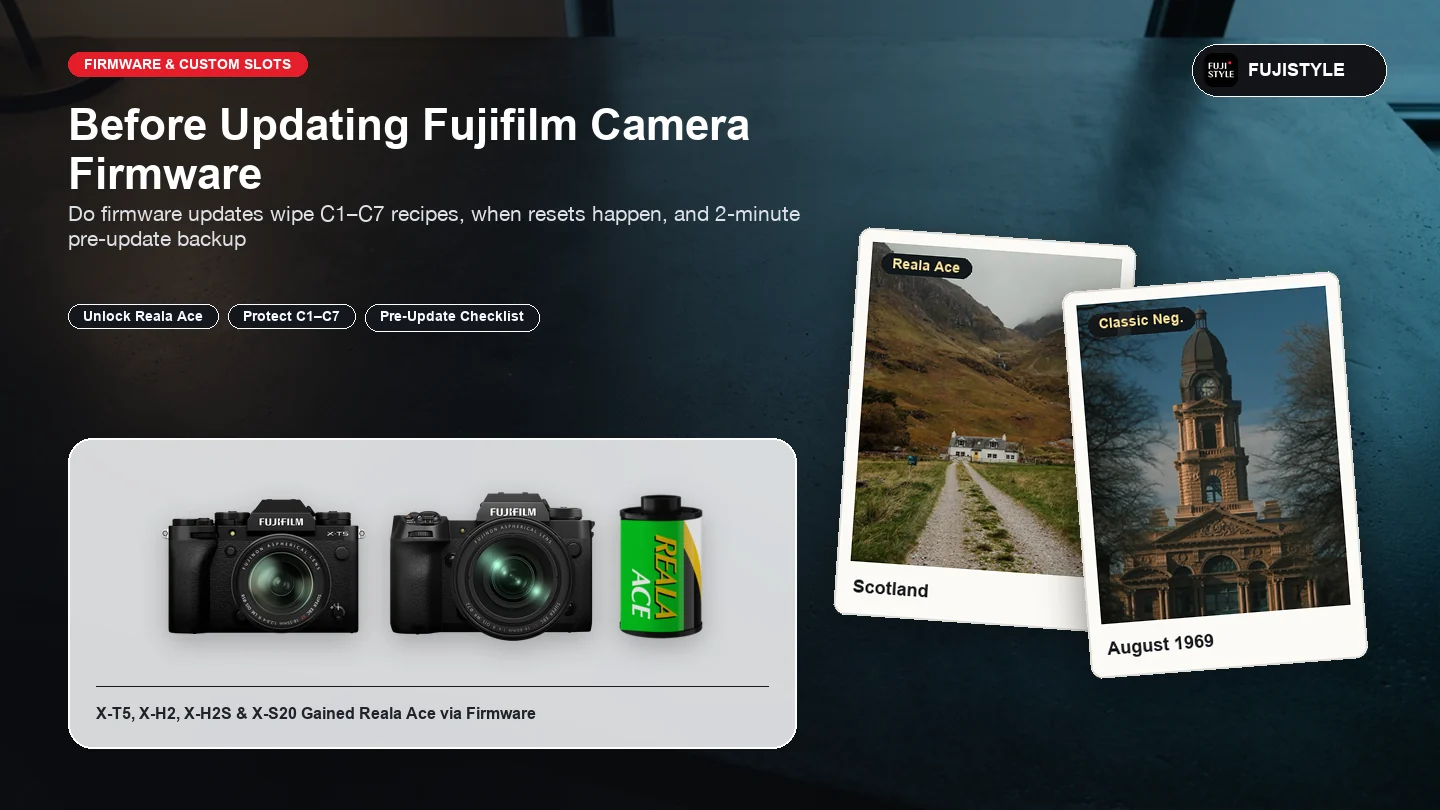
Before you update Fuji firmware, recipe users usually have three questions:
- Will the update touch the C1–C7 custom settings I've saved?
- Why did the X-T5 and X-S20 gain Reala Ace after an update, while the X100V and X-T4 still don't have it on their latest firmware?
- My phone won't connect to the camera after the update. What now?
In short:
- Recording your C slots: Whether a firmware update touches the custom slots depends on Fujifilm's release notes for that camera and that version. The safest routine is to connect to FujiStyle before you update, tap
Camera Recipesto check every slot, and save the recipes toMy Recipes(for a slot tuned by hand in the camera, copy its settings down or shoot an original JPEG on it). If a slot changes, tapApply Recipeto write it back. - Which cameras get
Reala Ace: TheX-T5,X-H2,X-H2SandX-S20gotReala Acein firmware released on June 27, 2024 (theX100VI,X-T50,X-M5,X-E5,X-T30 III,GFX100 II,GFX100RFand others have it built in). Fourth-generation processor bodies such as theX100V,X-T4,X-Pro3andX-T30 IIdon't have it, and no recipe app can add a film simulation that isn't in the camera's menu. - Bluetooth after the update: If your phone won't connect over Bluetooth after updating, forget the camera in your phone's Bluetooth settings, then run
RESET WIRELESS SETTINGin the camera'sCONNECTION SETTINGmenu and pair again. (Writing recipes over Bluetooth works on 23 supported bodies with iPhone and 22 with Android; on both, supported models can also write over a USB-C cable, with the current list in the app.)
The sections below take these three questions in turn, and the guide ends with five community recipes for trying out Reala Ace after you update.
Which cameras got Reala Ace through firmware
The full camera list is in Which Fujifilm cameras have Reala Ace; here are just the groups that relate to firmware:
| Body | Where Reala Ace came from | What to watch for |
|---|---|---|
| X-T5, X-H2, X-H2S, X-S20 | Not at launch; added in the firmware of June 27, 2024 (X-T5 Ver.4.00, X-H2 Ver.5.00, X-H2S Ver.7.00, X-S20 Ver.3.00) | If REALA ACE isn't in your menu, update to that version or later; check Fujifilm's firmware page for each camera for version numbers |
| GFX100 II, X100VI, GFX100S II, X-T50, X-M5, GFX100RF, X-E5, X-T30 III | Built in from the start | The X-S20, X-M5 and X-T30 III pair an X-Trans CMOS 4 sensor with X-Processor 5, which makes them fifth-generation processor bodies, so they have it too |
| X100V, X-T4, X-Pro3, X-S10, X-E4, X-T30 II (fourth-generation processor bodies) | Not available, and no firmware has added it | No Nostalgic Neg. either; the X-Pro3 and X100V also lack Eterna Bleach Bypass |
| X-T3, X-T30 | Not available, and no firmware has added it | Also no Classic Neg., Eterna Bleach Bypass, Color Chrome FX Blue or Clarity, and grain has no size setting |
Why fourth-generation processor bodies didn't get the new simulations
Fujifilm has never published a reason. A common view is that Nostalgic Neg. and Reala Ace are tied to the fifth-generation processor, which is why firmware filled them in only on the X-Processor 5 bodies (whether fourth- and fifth-generation recipes can be mixed is covered in our guide to fourth- and fifth-generation recipes). Two things you can check for yourself:
- whether your camera's film simulation menu includes REALA ACE and NOSTALGIC Neg.;
- whether any update notes on Fujifilm's firmware page for your camera mention a new film simulation.
So far, none of the firmware update notes for the fourth-generation processor bodies in the table above have added either one. Don't count on a recipe app to fill the gap either: a film simulation your camera doesn't have can't be written in, and it won't be swapped for a different one; check that your camera's menu has that simulation before you write.
How to update Fuji firmware without losing track of C1–C7: three steps
Whether a given firmware version affects custom settings, Bluetooth pairing or USB settings is a question for that version's update notes on the camera's firmware page. Rather than guess, spend a few minutes recording things before you update:
- Before the update: check every slot with Camera Recipes. Connect the camera to FujiStyle with a USB-C cable (iOS or Android) or over Bluetooth (23 bodies on iPhone, 22 on Android), tap Camera Recipes, and see what each C slot holds right now. For recipes you wrote from the community, make sure they're saved in My Recipes. For a slot you tuned by hand in the camera, copy its settings down, or switch to that slot and shoot an original JPEG you can read the settings back from later.
- After the update: check the connection first.
- If Bluetooth won't connect: forget the camera in your phone's system Bluetooth settings, then run RESET WIRELESS SETTING in the camera's CONNECTION SETTING menu and pair again (details in our Bluetooth import guide). Keep the camera battery above 30% while pairing and writing.
- For USB writing: make sure the camera's CONNECTION MODE is USB TETHER SHOOTING FIXED or USB RAW CONV./BACKUP RESTORE; other modes don't accept writes.
- After the update: check every slot and write back anything missing. Tap Camera Recipes again and compare with what you saw before. If a slot has changed, open that recipe in My Recipes and tap Apply Recipe to write it back to its original slot. If your body has just gained Reala Ace, pick an empty slot while you're at it and write in any of the recipes below.
Five Reala Ace community recipes to try first after updating
All five use Reala Ace. Two of them, Cinematic Reala Ace and Oldscene, list the X-T5 on their cards, one of the four bodies that got Reala Ace through firmware. Likes are as of October 2026.
| Recipe | Camera listed on the card | Light and scenes it suits | White balance and shift | Highlight / Shadow / Clarity |
|---|---|---|---|---|
| Scotland | — | Overcast days, open valleys and grassland (560 likes) | Daylight (R+3 / B-5) |
-2 / +1 · 0 |
| Cinematic Reala Ace | X-T5 | Warm light sources in the dark, night and interiors (84 likes) | Auto (White Priority) (R+4 / B-5) |
-2 / +1 · 0 |
| Oldscene | X-T5 | Bright interiors, a low-saturation creamy look (43 likes) | Daylight (R+3 / B-4) |
-2 / +1.5 · +4 |
| Warm Haze II | X100VI | City and travel street scenes (34 likes) | Auto (Ambience Priority) (R+4 / B-5) |
-2 / +1 · 0 |
| Winter Ace | X100VI | Snow, high-contrast outdoor scenes under clear sky (12 likes) | 6000K (R+3 / B-4) |
0 / 0 · -3 |
01. Scotland: see Reala Ace's own color first (shared by emma)
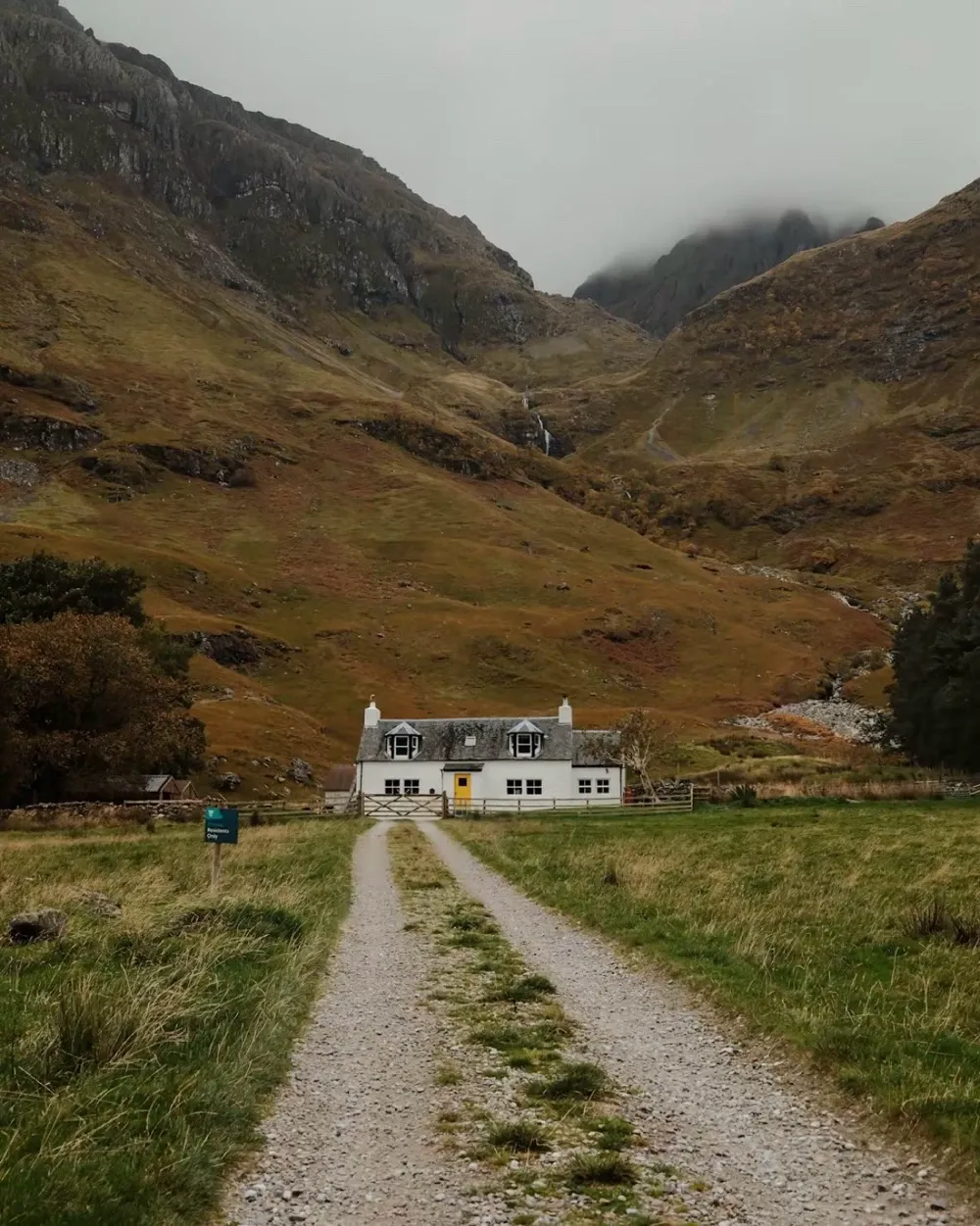 Scotland, shared on FujiStyle by emma (560 likes as of October 2026).
| Setting | Value |
|---|---|
| Film Simulation | Reala Ace |
| White Balance | Daylight |
| WB Shift | R+3 / B-5 |
| Dynamic Range | Auto |
| Highlight | -2 |
| Shadow | +1 |
| Color | +3 |
| Sharpness | -1 |
| High ISO NR | -4 |
| Clarity | 0 |
| Grain Effect | Weak |
| Color Chrome Effect | Weak |
| Color Chrome FX Blue | Off |
| Exposure Compensation | 0 |
| ISO | — |
When you first get Reala Ace, a few shots at default settings may look much like Provia. Scotland, shared on FujiStyle by emma (560 likes), changes relatively little, which makes it a good first recipe: Daylight with R+3 / B-5 adds a little warmth, Highlight -2 holds the overcast clouds, and Shadow +1 with Color +3 gives the grass and hillsides more solid color. The sample is an overcast valley; on a sunny day, shoot a round with it anyway to see how Reala Ace looks in the light you usually shoot.
02. Cinematic Reala Ace: warm light in the dark (shared by theo-s)
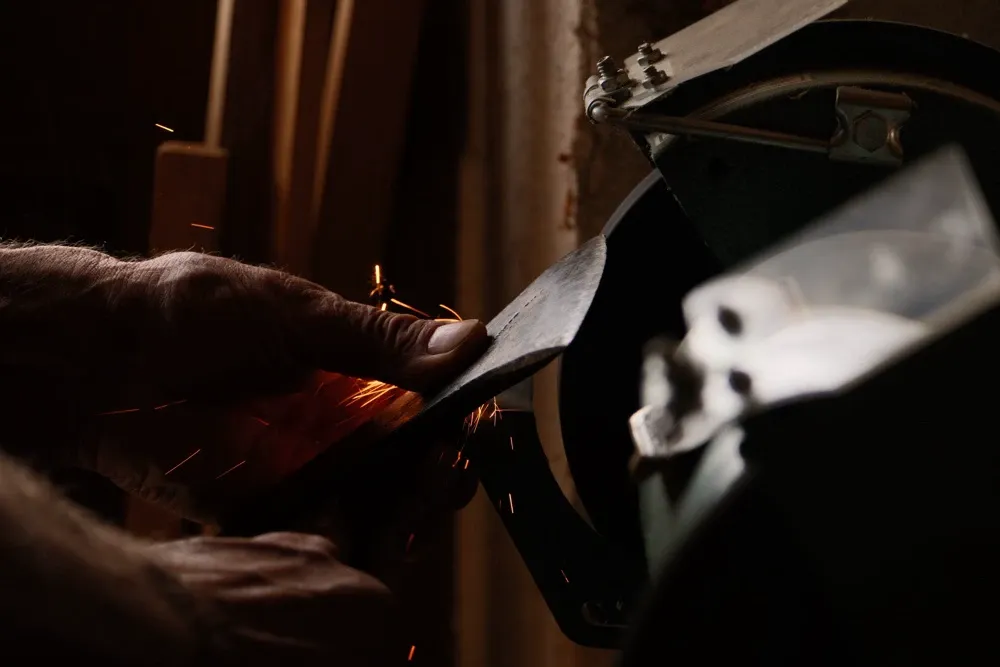 Cinematic Reala Ace, shared on FujiStyle by theo-s (84 likes as of October 2026; the camera listed on the card is the X-T5).
| Setting | Value |
|---|---|
| Film Simulation | Reala Ace |
| White Balance | Auto (White Priority) |
| WB Shift | R+4 / B-5 |
| Dynamic Range | DR400 |
| Highlight | -2 |
| Shadow | +1 |
| Color | +3 |
| Sharpness | -2 |
| High ISO NR | -4 |
| Clarity | 0 |
| Grain Effect | Off |
| Color Chrome Effect | Weak |
| Color Chrome FX Blue | Strong |
| Exposure Compensation | 0 |
| ISO | — |
Cinematic Reala Ace, shared on FujiStyle by theo-s (84 likes), lists the X-T5 on its card. It uses the WHITE PRIORITY option of auto white balance (written Auto (White Priority) on the card) so whites don't turn yellow along with warm light, then pushes the whole frame warmer with R+4 / B-5; DR400 and Highlight -2 protect the bright areas, and the shadows stay fairly deep. The sample is sparks in the dark, so it suits night scenes and indoor lamplight, where the light source itself is warm. DR400 can only be selected at or above a minimum ISO; check your camera's manual for the details.
03. Oldscene: a low-saturation, creamy warm tone (shared by Diana)
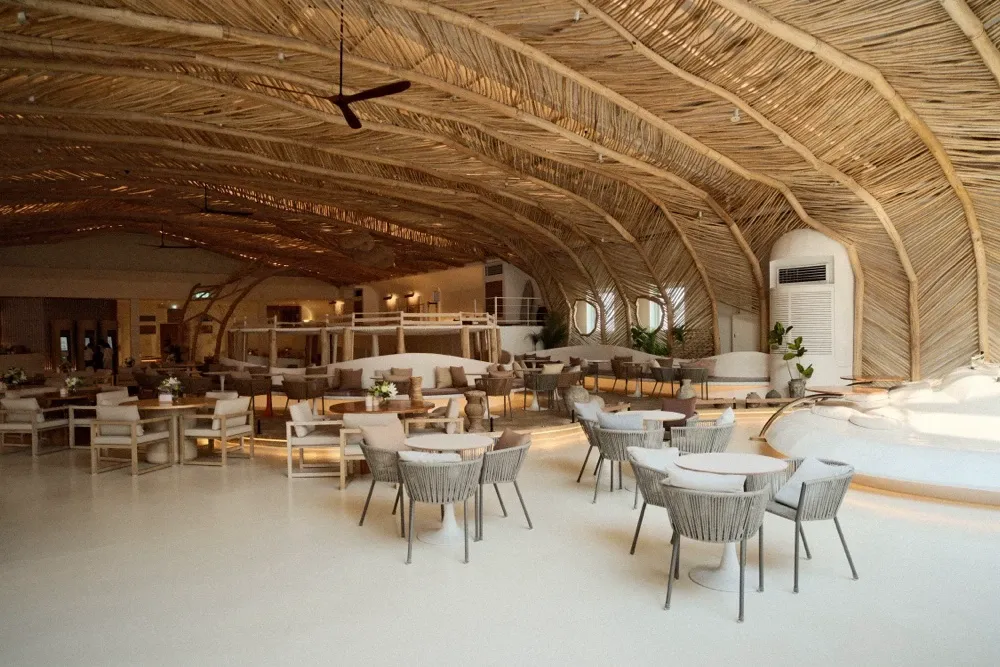 Oldscene, shared on FujiStyle by Diana (43 likes as of October 2026; the camera listed on the card is the X-T5).
| Setting | Value |
|---|---|
| Film Simulation | Reala Ace |
| White Balance | Daylight |
| WB Shift | R+3 / B-4 |
| Dynamic Range | DR400 |
| Highlight | -2 |
| Shadow | +1.5 |
| Color | -2 |
| Sharpness | -3 |
| High ISO NR | +1 |
| Clarity | +4 |
| Grain Effect | Strong / Large |
| Color Chrome Effect | Strong |
| Color Chrome FX Blue | Strong |
| Exposure Compensation | 0 |
| ISO | — |
Oldscene, shared on FujiStyle by Diana (43 likes), also lists the X-T5 on its card. It lowers Color to -2 and uses Sharpness -3 to soften edges, while turning on Clarity +4, Strong / Large grain and both Color Chrome settings at Strong. The sample is a bright restaurant interior, and the result is a creamy, pale-brown, low-saturation look that suits interiors and still life.
04. Warm Haze II: a warm tone for city streets (shared by tonydeli7)
 Warm Haze II, shared on FujiStyle by tonydeli7 (34 likes as of October 2026; the camera listed on the card is the X100VI).
| Setting | Value |
|---|---|
| Film Simulation | Reala Ace |
| White Balance | Auto (Ambience Priority) |
| WB Shift | R+4 / B-5 |
| Dynamic Range | DR400 |
| Highlight | -2 |
| Shadow | +1 |
| Color | +2 |
| Sharpness | 0 |
| High ISO NR | -4 |
| Clarity | 0 |
| Grain Effect | Off |
| Color Chrome Effect | Strong |
| Color Chrome FX Blue | Strong |
| Exposure Compensation | 0 |
| ISO | — |
The opposite of recipe 2's white priority: Warm Haze II, shared on FujiStyle by tonydeli7 (34 likes), uses the AMBIENCE PRIORITY option of auto white balance (written Auto (Ambience Priority) on the card), which keeps the warmth of the light on location, then adds R+4 / B-5, with both Color Chrome settings at Strong. The sample looks down on a city street corner from a stone tower; the stonework and buildings lean warm without the color getting loud. With no grain, it suits city streets when you travel.
05. Winter Ace: crisp Reala Ace for snow and clear skies (shared by Udo Wuerth)
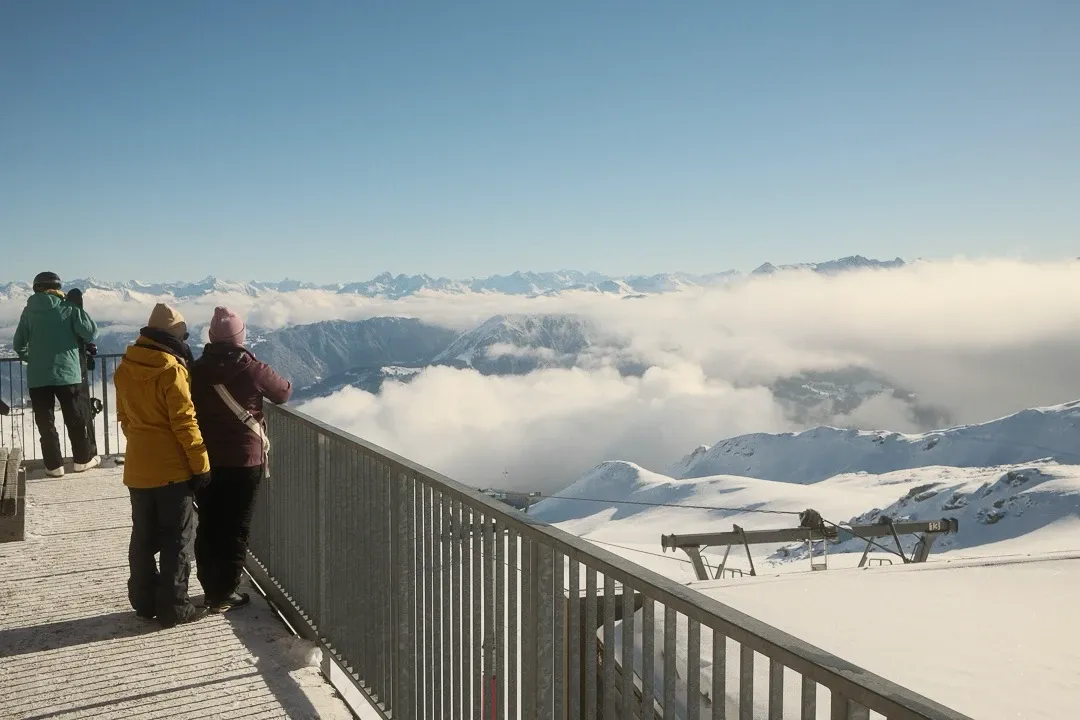 Winter Ace, shared on FujiStyle by Udo Wuerth (12 likes as of October 2026; the camera listed on the card is the X100VI).
| Setting | Value |
|---|---|
| Film Simulation | Reala Ace |
| White Balance | 6000K |
| WB Shift | R+3 / B-4 |
| Dynamic Range | DR400 |
| Highlight | 0 |
| Shadow | 0 |
| Color | -2 |
| Sharpness | 0 |
| High ISO NR | -4 |
| Clarity | -3 |
| Grain Effect | Weak / Small |
| Color Chrome Effect | Strong |
| Color Chrome FX Blue | Off |
| Exposure Compensation | 0 |
| ISO | — |
For snow or high-contrast outdoor scenes, Winter Ace, shared on FujiStyle by Udo Wuerth (12 likes; the camera listed on the card is the X100VI), takes a different route: it leaves both Highlight and Shadow at 0, relies on DR400 to hold the glare off the snow, and uses Color -2 and Clarity -3 to take the digital edge off, with 6000K (R+3 / B-4) and fine Weak / Small grain. The sample is a snowy mountain viewpoint above the clouds: the snow is clean and the blue of the sky is restrained. With Clarity at anything other than 0, the camera takes longer to save each shot, per Fujifilm's manuals; how much longer depends on the body, and for fast moments you can set Clarity back to 0.
Frequently asked questions
Does updating Fujifilm camera firmware erase my saved C1–C7 custom recipes?
Whether a firmware update affects custom settings is something to check in Fujifilm's release notes for that camera and that version. The safest routine is to record everything before you update: connect the camera to FujiStyle and tap Camera Recipes to see what each slot holds, make sure the community recipes you wrote to the camera are saved in My Recipes, and for any slot you tuned by hand in the camera, copy its settings down or shoot an original JPEG on it. If a slot has changed after the update, open that recipe in My Recipes and tap Apply Recipe to write it back.
Which Fujifilm cameras received Reala Ace through a firmware update?
The X-T5, X-H2, X-H2S and X-S20 didn't ship with Reala Ace; it was added in the firmware released on June 27, 2024 (X-T5 Ver.4.00, X-H2 Ver.5.00, X-H2S Ver.7.00 and X-S20 Ver.3.00; check Fujifilm's firmware page for each camera for the latest version). The GFX100 II, X100VI, GFX100S II, X-T50, X-M5, GFX100RF, X-E5 and X-T30 III have it out of the box. The final check is whether REALA ACE appears in your camera's film simulation menu.
Why don't the X100V, X-T4 and X-Pro3 have Reala Ace or Nostalgic Neg. after a firmware update?
Fujifilm hasn't published a reason. A common view is that these two simulations are tied to the fifth-generation processor (X-Processor 5). What is certain is that, so far, firmware updates for fourth-generation processor bodies such as the X100V, X-T4, X-Pro3, X-S10, X-E4 and X-T30 II haven't added either one; check Fujifilm's firmware page for each camera. A recipe app can't add them either: a film simulation your camera doesn't have can't be written in, and it won't be swapped for a different one.
What should I do if my phone won't reconnect over Bluetooth after a Fujifilm firmware update?
First forget the camera in your phone's system Bluetooth settings, then run RESET WIRELESS SETTING in the camera's CONNECTION SETTING menu and pair again, ideally with the camera battery above 30%. Writing recipes over Bluetooth is supported on 23 bodies with iPhone and 22 with Android; bodies not on that list write over a USB-C cable, which works on both iOS and Android.
Which Reala Ace recipes can I write to my camera right after updating an X-T5, X-S20 or X-H2?
This guide lists five Reala Ace community recipes: Scotland, Cinematic Reala Ace, Oldscene, Warm Haze II and Winter Ace. Search the recipe name in the FujiStyle community, open the card and tap Apply Recipe, choose USB Cable or Wireless (Bluetooth on 23 supported bodies with iPhone and 22 with Android, list in the app; USB-C works on both), pick a C slot and write it, then tap Camera Recipes to confirm. Writing overwrites that slot, so save the recipe that was there to My Recipes first.
About the photos in this guide
The recipes and sample photos in this guide all come from the FujiStyle community, with settings listed exactly as they appear on the cards. Each name here is the person who shared the card on FujiStyle, not necessarily the recipe's creator. If you know who made it first, or spot a wrong name or setting, tell us through the feedback option in the app and we'll correct it.
Bring it into your camera with FujiStyle
Before and after a firmware update, what FujiStyle saves you is copying a menu down item by item, then dialing it all back in item by item:
- See every slot before you update: Connect the camera and tap Camera Recipes, and what each C slot holds is clear at a glance. Save the recipes you wrote from the community to My Recipes; if a slot changes after the update, open that recipe and tap Apply Recipe to write it back to its original slot, without dialing anything in again by hand.
- Record hand-tuned slots with Recipe Reader: If you have an unstripped original Fujifilm SOOC JPEG shot on a hand-tuned slot before the update, use
Import from Photoin the app or our web-based Recipe Reader to read 14–15 recipe settings from itsMakerNotesand save them to My Recipes. - Write Reala Ace into an empty slot after the update: Open Fujifilm Community in the bottom bar and search for any of the recipe names above (the community has over 10,000 recipes, each with sample photos and full settings), tap Apply Recipe, choose USB Cable or Wireless, pick an empty C slot, wait for
Recipe Transferred, then tap Camera Recipes to confirm. You can use Bluetooth (23 supported bodies on iPhone and 22 on Android, list in the app) or a USB-C cable. Writing overwrites that slot, so choose an empty one or save the original recipe first. - Try new recipes on RAFs you've already shot in Raw Darkroom: Connect the camera to your phone with a USB-C cable (iOS or Android; turn on OTG on Android), set the camera's
CONNECTION MODEtoUSB RAW CONV./BACKUP RESTORE, open Raw Darkroom, choose a.RAFshot on the same model, and apply a recipe such as Scotland; the camera's own processor re-renders it, and if you like the result, save it as a recipe and write it to a C slot (some bodies don't support Raw Darkroom; the app tells you when you connect).
Next step: open FujiStyle and tap Camera Recipes to look at your camera's seven slots (four on the X-S20), then decide whether to update.

Import to Camera
Use the FujiStyle App to apply recipes to your Fujifilm camera.