How to Import Fujifilm Recipes Over USB-C (iPhone & Android Cable Guide + 30 Supported Cameras)
If you own a USB-C data cable, plugging your iPhone or Android phone straight into your Fujifilm camera is the fastest, broadest way to write community film recipes into custom slots — covering 30 Fujifilm cameras across X100, X-T, X-H, X-S, X-M, X-E, X-Pro, and GFX series, with zero Bluetooth pairing required.
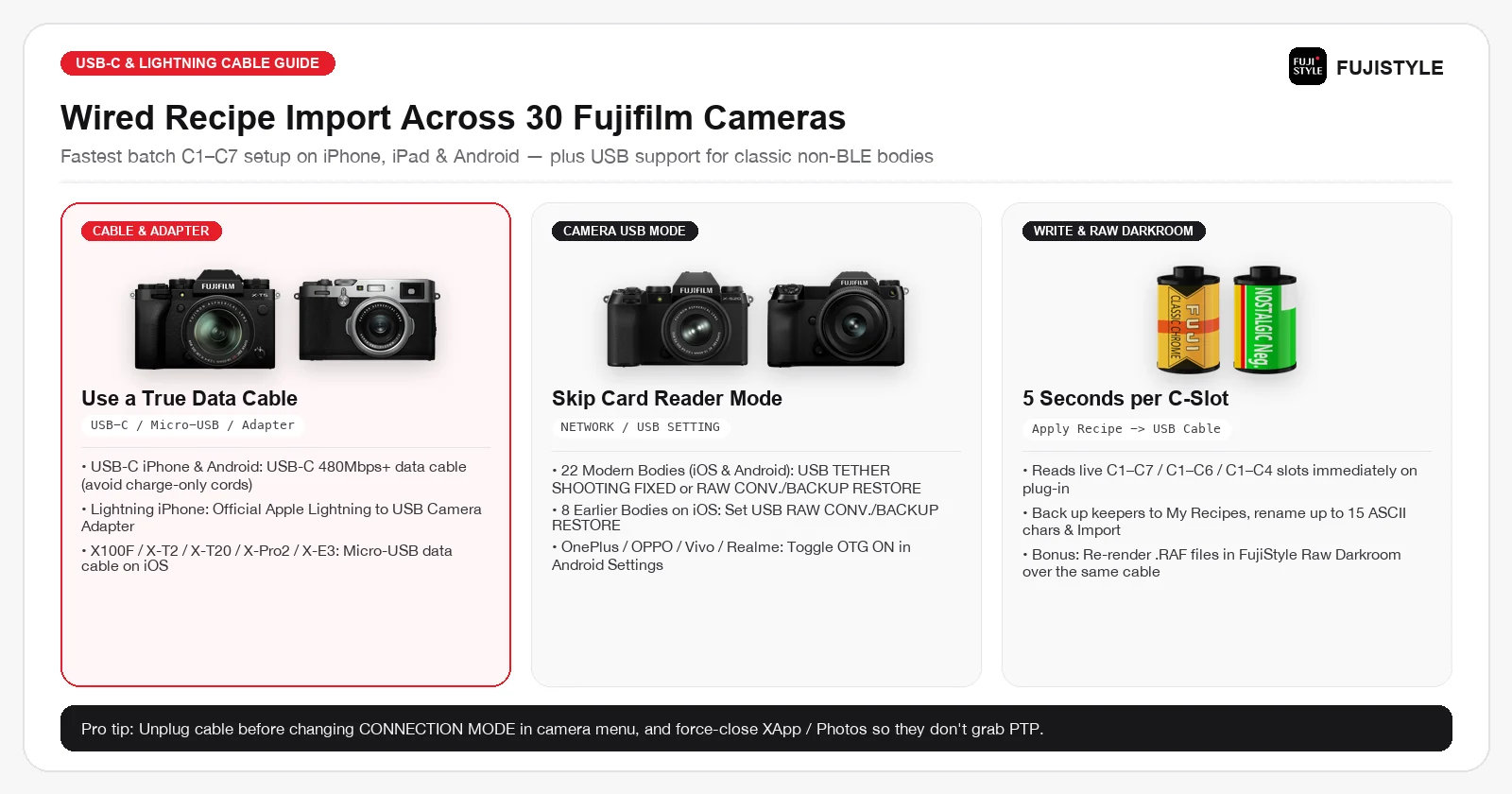 Overview of wired recipe import across 30 Fujifilm X-Series and GFX bodies on iOS and Android.
This guide is for Fujifilm photographers who want a reliable wired workflow: whether your body lacks Bluetooth (X100F, X-Pro2, X-T2, X-T20, X-E3), you are loading an entire C1–C7 travel set before a flight, or you want to pair recipe import with FujiStyle Raw Darkroom. If you prefer cable-free transfers in the field on one of the 23 supported bodies, see our Bluetooth wireless import guide instead.
Key takeaways:
- Coverage: 22 modern X-Processor 4 / 5 and GFX bodies work over USB on both iOS and Android; 8 earlier bodies (X100F, X-Pro2, X-T2, X-T20, X-E3, X-T3, X-T30, GFX100) work over USB on iOS.
- Critical camera setting: Switch USB mode from Card Reader to
USB TETHER SHOOTING FIXEDorUSB RAW CONV./BACKUP RESTOREbefore plugging the cable in. - Most common failure: Charge-only USB-C cables and third-party Lightning cables. Always use a true data cable (and Apple’s official Camera Adapter on Lightning iPhones).
Which Fujifilm cameras support USB recipe import? (30 models)
Under the hood, Fujifilm cameras expose custom slots over USB in two different ways depending on when the camera was designed. FujiStyle supports both protocols automatically, though platform support differs slightly for pre-2020 bodies. For a side-by-side search tool including Bluetooth, open the supported Fujifilm cameras matrix.
| USB Channel | Supported Fujifilm Bodies | Platforms | Custom Slots | Required Camera USB Mode |
|---|---|---|---|---|
| Direct PTP Slot Channel (22 bodies) | X100VI, X100V, X-T5, X-T50, X-T4, X-T30 III, X-T30 II, X-H2, X-H2S, X-S20, X-S10, X-M5, X-E5, X-E4, X-Pro3, GFX100RF, GFX100 II, GFX100S II, GFX100S, GFX50S II, GFX 50R, GFX 50S | iOS & Android | C1–C7 (X-S20/S10/M5: C1–C4; most GFX: C1–C6) | USB TETHER SHOOTING FIXED or USB RAW CONV./BACKUP RESTORE |
| Backup-Package USB Channel (8 bodies) | X100F, X-Pro2, X-T2, X-T20, X-E3, X-T3, X-T30, GFX100 | iOS (iPhone & iPad) | C1–C7 (GFX100: C1–C6) | USB RAW CONV./BACKUP RESTORE |
Entry-level Bayer and early X-Trans I/II bodies (such as X-T100, X-T200, X-A5, X-A7, X-H1, X-T1, X-E2, and X100T) do not expose writable custom recipe slots over USB; on those cameras, open any card in the recipe library and dial the parameters into the camera menu by hand.
Choosing the right cable and adapter
Roughly four out of five "Camera Not Connected" reports trace back to the physical cable rather than a camera setting. Check your phone’s port against this table before troubleshooting menus:
| Phone Port | Camera Port | What to Use | What to Avoid |
|---|---|---|---|
| USB-C iPhone (iPhone 15 / 16 or newer) or Android | USB-C (X100VI, X100V, X-T5, X-T4, X-T3, X-S20, X-M5, GFX…) | Any short USB-C to USB-C data cable (USB 2.0 480 Mbps or USB 3.x, e.g., SSD cable or MacBook data cable) | White power-bank / headphone charging cables with no data pins |
| USB-C iPhone or Android | Micro-USB (X100F, X-Pro2, X-T2, X-T20, X-E3) | USB-C to Micro-USB data cable, or USB-C OTG adapter + Micro-USB data cable | Loose micro-B charging cords from old accessories |
| Lightning iPhone (iPhone 14 or older) | USB-C or Micro-USB | Official Apple Lightning to USB Camera Adapter (or USB 3 version) + USB-A data cable | Uncertified third-party single-piece Lightning-to-USB-C OTG cables |
Tip on camera USB power supply: On newer X-Series bodies, turning USB POWER SUPPLY to OFF under SET UP › POWER MANAGEMENT or CONNECTION SETTING prevents your camera from trying to trickle-charge off your phone battery, which stabilizes connection handshake on older iPhones and mid-range Android devices.
Step 1: Set your camera’s USB Connection Mode
Unplug the USB cable before changing this setting — most Fujifilm bodies grey out CONNECTION SETTING while a live USB cable is attached.
- Switch the camera ON with at least 30% battery.
- Press
MENU/OK, navigate to the wrench icon (SET UP), and openCONNECTION SETTING(labeledNETWORK/USB SETTINGon newer X-Processor 5 menus). - Open
CONNECTION MODE(orUSB SETTINGon X-Trans III bodies) and choose:- On 2020+ bodies (X100VI, X100V, X-T5, X-T4, X-S20, X-M5, X-E5, X-Pro3, GFX): Pick
USB TETHER SHOOTING FIXEDorUSB RAW CONV./BACKUP RESTORE. Both expose custom slots; pickUSB RAW CONV./BACKUP RESTOREif you also plan to open Raw Darkroom. - On X100F, X-Pro2, X-T2, X-T20, X-E3, X-T3, and X-T30 (iOS): Pick
USB RAW CONV./BACKUP RESTORE.
- On 2020+ bodies (X100VI, X100V, X-T5, X-T4, X-S20, X-M5, X-E5, X-Pro3, GFX): Pick
- On Android phones (OnePlus / OPPO / Vivo / Realme): Open Android
Settings, search forOTG, and toggle OTG Connection ON.
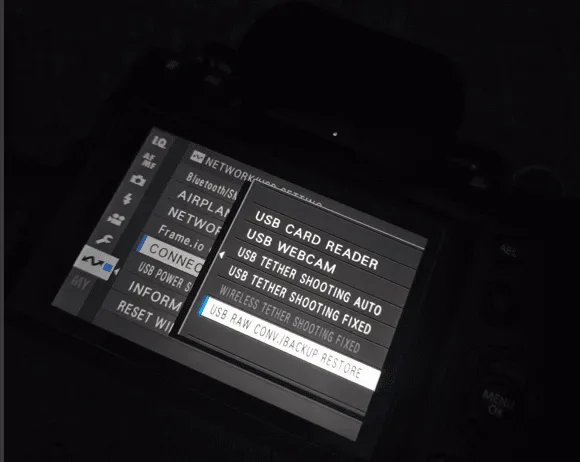 Switch your Fujifilm camera out of USB Card Reader mode and select
USB RAW CONV./BACKUP RESTORE or USB TETHER SHOOTING FIXED before plugging the cable in.
Step 2: Write a recipe to C1–C7 in FujiStyle
Once the camera mode is set, the transfer itself takes under five seconds per slot:
- Open FujiStyle first, then plug in the cable. If iOS or Android pops up a system prompt asking whether to allow FujiStyle to access the USB camera, tap Allow / OK.
- Browse the 3,000+ community recipes or open My Recipes, select a recipe that matches a film simulation your camera has (check which cameras have Reala Ace if unsure), and tap Apply Recipe.
- Choose USB Cable on the connection sheet. FujiStyle reads your camera’s current custom slots and displays C1–C7 (or C1–C4 / C1–C6).
- Back up before overwriting: Writing to a slot replaces what was stored there with no undo (see does importing overwrite custom settings). Save any existing slot you care about to My Recipes first.
- Select your target slot, optionally edit the Custom Recipe Name (up to 15 ASCII letters/numbers), and tap Import.
- Wait for Recipe Transferred, then tap Camera Recipes to inspect the read-back values from the camera. Unplug the cable, select that custom slot via the Q menu or mode dial, and shoot in P, A, S, or M (never
AUTOorSP).
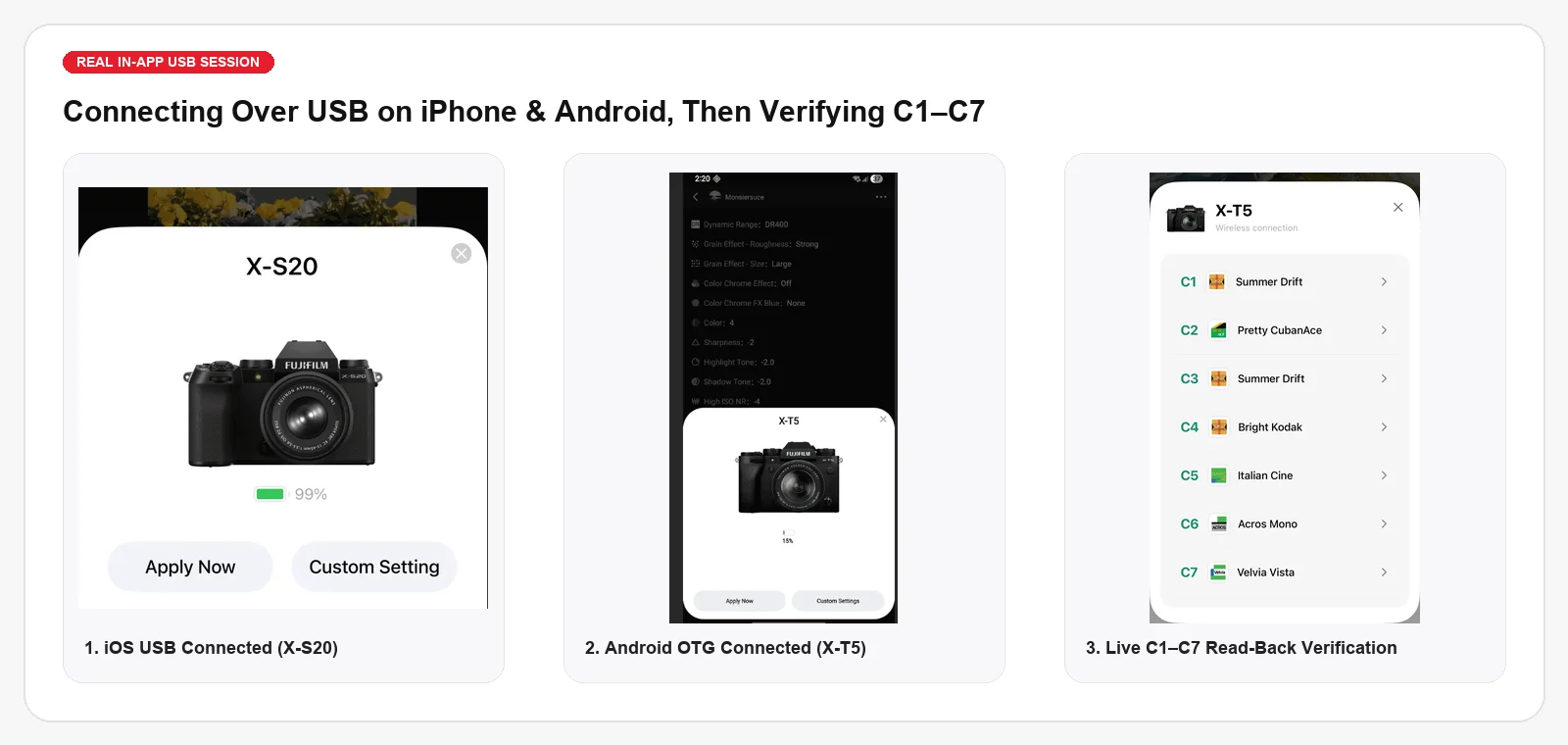 Left to right: iPhone USB session connected to X-S20, Android OTG session connected to X-T5, and live C1–C7 read-back verification.
2 community recipes ready to test over USB (all 30 cameras)
Whether you are plugging in a brand-new X-T5 or reviving a classic X100F, X-T2, or X-T20 over iOS USB, these two verified community cards use Classic Chrome so every supported body can load them:
1. Green Chrome · Classic Chrome (Works on All 30 USB Bodies)
 Green Chrome, shared on FujiStyle by Karaka (shot on X-T20 — compatible with X100F, X-T2, X-Pro2, X-E3, GFX 50S/50R, and all newer bodies).
| Setting | Value |
|---|---|
| Film Simulation | Classic Chrome |
| White Balance | Daylight |
| WB Shift | R-2 / B-8 |
| Dynamic Range | DR400 |
| Highlight | -1 |
| Shadow | +1 |
| Color | +2 |
| Sharpness | -1 |
| High ISO NR | 0 |
| Clarity | 0 |
| Grain Effect | Strong / Small |
| Color Chrome Effect | Off |
| Color Chrome FX Blue | Off |
2. Coastal Chrome · Classic Chrome (X-Trans IV, V & GFX)
 Coastal Chrome, shared on FujiStyle by ramblinreiss (605+ likes — warm coastal daylight recipe for C1–C7).
| Setting | Value |
|---|---|
| Film Simulation | Classic Chrome |
| White Balance | Auto |
| WB Shift | R+4 / B-5 |
| Dynamic Range | Auto |
| Highlight | -1.5 |
| Shadow | -0.5 |
| Color | +3 |
| Sharpness | 0 |
| High ISO NR | -4 |
| Clarity | -2 (set to 0 for zero lag) |
| Grain Effect | Weak / Large |
| Color Chrome Effect | Strong |
| Color Chrome FX Blue | Weak |
Troubleshooting common USB connection issues
| What You See | Root Cause | Quick Fix |
|---|---|---|
| Nothing happens when plugged in | Charge-only cable or wrong USB mode | Unplug, confirm camera is in USB RAW CONV./BACKUP RESTORE or TETHER SHOOTING FIXED, and swap to a verified SSD/laptop data cable |
| Camera LCD says "BUSY" or freezes | Another app grabbed the PTP session | Force-close FUJIFILM XApp, Photos, and Lightroom Mobile, then unplug and reconnect |
| Android doesn’t detect camera | OTG switch disabled | Enable OTG Connection in Android Settings; reconnect within 10 minutes |
| Lightning iPhone disconnects mid-read | Insufficient port power or clone adapter | Use Apple’s official Lightning to USB 3 Camera Adapter (with external power port if needed) and turn camera USB POWER SUPPLY OFF |
| Recipe transferred, but JPEGs look unchanged | Slot not active or dial override | Switch exposure mode out of AUTO, select the C slot in the Q menu, and check the film simulation dial on X-T50 / X-M5 / X-T30 III |
| Film simulation stayed on Provia | Camera firmware lacks that simulation | Update firmware on X-T5 / X-H2 / X-S20 (firmware guide), or choose a recipe built on Classic Neg / Classic Chrome |
Frequently asked questions
Which Fujifilm cameras support USB recipe import in FujiStyle?
30 Fujifilm bodies support USB cable recipe import in FujiStyle. 22 bodies — including the X100VI, X100V, X-T5, X-T50, X-T4, X-T30 III, X-T30 II, X-H2, X-H2S, X-S20, X-S10, X-M5, X-E5, X-E4, X-Pro3, GFX100RF, GFX100 II, GFX100S II, GFX100S, GFX50S II, GFX 50R, and GFX 50S — work on both iPhone and Android. An additional 8 earlier bodies — X100F, X-Pro2, X-T2, X-T20, X-E3, X-T3, X-T30, and GFX100 — work over USB on iOS.
Which camera USB connection mode should I choose for recipe import?
Set your Fujifilm camera to USB TETHER SHOOTING FIXED or USB RAW CONV./BACKUP RESTORE under SET UP › CONNECTION SETTING › CONNECTION MODE (or USB SETTING on older menus). For X100F, X-Pro2, X-T2, X-T20, X-E3, X-T3, and X-T30 on iOS, use USB RAW CONV./BACKUP RESTORE. Standard USB CARD READER mode transfers photos only and cannot write custom slots.
Why does my USB-C cable charge the camera instead of connecting to FujiStyle?
Many bundled phone or power-bank cables wire only the power pins and omit the USB 2.0/3.0 data lanes. Swap to a certified USB-C data cable (USB 2.0 480 Mbps or USB 3.x), make sure the camera is switched on after setting Connection Mode, and close FUJIFILM XApp or Photos so they do not claim the USB session.
Can I connect a Lightning iPhone (iPhone 14 or older) to a Fujifilm camera?
Yes, by using an official Apple Lightning to USB Camera Adapter or Apple Lightning to USB 3 Camera Adapter paired with a USB-A to USB-C (or Micro-USB) data cable. Direct third-party Lightning-to-USB-C cables frequently fail iOS accessory negotiation with cameras.
Do I need to turn on OTG on Android for USB recipe import?
On Pixel, Samsung Galaxy, and Xiaomi phones, USB OTG is active automatically. On several OnePlus, OPPO, Vivo, and Realme models, OTG defaults to off and times out after 10 minutes of inactivity — search Settings for OTG Connection and switch it on before plugging in the camera.
When should I pick USB cable import instead of wireless Bluetooth?
Use USB when shooting on a camera without Bluetooth recipe support (X100F, X-Pro2, X-T2, X-T20, X-E3, GFX100, GFX 50S), when setting up all seven C1–C7 slots rapidly at your desk before a trip, or when you also want to re-render RAF files in FujiStyle Raw Darkroom during the same session. For cable-free updates in the field, compare our Bluetooth wireless import guide and safety & warranty guide.

นำเข้าสู่กล้อง
ใช้ แอป FujiStyle เพื่อนำสูตรไปใช้กับกล้อง Fujifilm ของคุณ