Does Importing a Fujifilm Recipe Overwrite Custom Settings?
Does importing a Fujifilm recipe overwrite custom settings? Yes, but only the one custom slot you choose (C1, for example): its previous settings are replaced, and the camera has no undo. JPEGs and RAFs you've already shot aren't affected. The custom slots here are the C1, C2 and so on that people use to store their settings (CUSTOM SETTING in the menu). When people ask "will the settings already in my camera be overwritten?", these are the slots they mean.
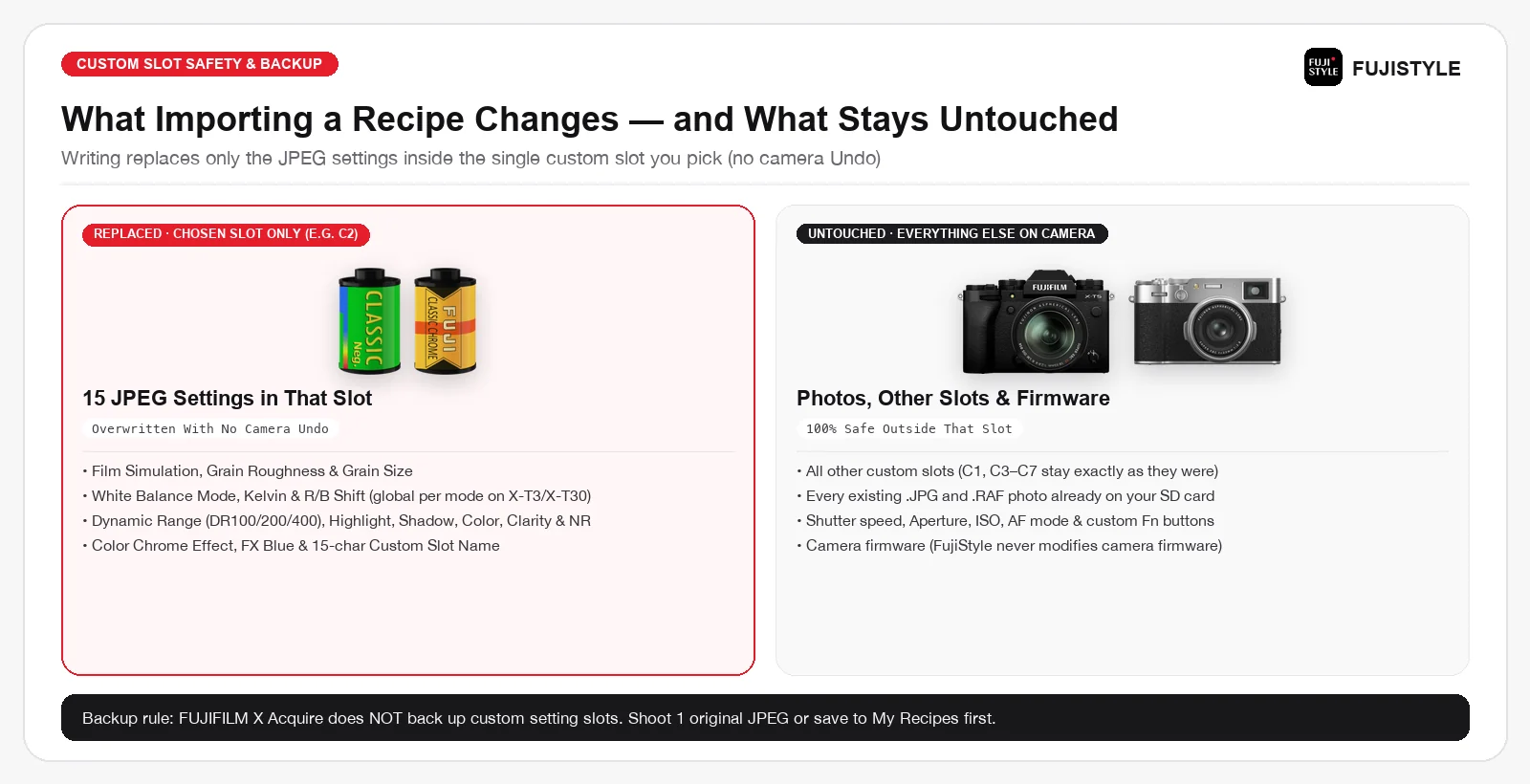 One write replaces only the 15 JPEG settings in the slot you selected — photos on your SD card, other slots, and firmware are never touched.
But I want to push the question one step further. Most people who ask "will it overwrite?" already know the answer; write into a slot and what was there is gone. What they're really worried about is this: is there something in that slot that exists only in this camera and can't be found anywhere else? Overwriting is the feature itself; importing exists to overwrite. The danger comes from not knowing what you're overwriting.
So this guide's position is: don't rest your sense of safety on "it won't overwrite" or "it'll warn me." What actually works is a deliberately simple routine: look before you write, record anything that lives only in the camera, and check every slot after writing. Below I'll go through it step by step, and also say where the routine's limits are.
Copy this checklist: one minute before, one minute after
If you don't want to read the whole guide, these five steps are enough; each one is expanded below:
- Go through every slot and ask of each one: is there a copy of these settings anywhere else?
- Record the slots that exist only in the camera: shoot an original JPEG on that slot, or copy the settings down.
- Before you tap write, look at the slot number once more, and give the slot a name you'll recognize.
- After writing, check every slot: is the one you wrote correct, and are the others unchanged?
- Switch to that C slot and take a test shot in P/A/S/M; test in AUTO or SP and you'll think nothing was written.
The easiest trap is step 1: a community recipe you've tweaked by a setting or two in the camera. Import it again and you get the card's original values back; the settings you changed are gone.
Does importing a Fujifilm recipe overwrite C1? What gets replaced and what doesn't
Importing a recipe writes a set of image settings into one of the camera's custom slots (one of C1–C7; the number depends on the body). It replaces that slot's settings, with the same effect as setting things up in the camera menu and saving them to that C slot yourself, and it doesn't change any file you've already shot.
If you're not sure what C1–C7 are, or why some bodies have only four, start with What are Fujifilm custom settings (C1–C7). Here you only need one idea: custom slots are "boxes" in the camera, and a recipe is what goes in a box. Importing means swapping out what was in the box.
This table is my answer to "what happens to each thing when I import into the slot I chose," limited to what I can confirm:
| Item | When you import into the slot you chose |
|---|---|
| The slot you chose | Its previous settings are replaced by this recipe, with no undo in the camera |
| Other slots | By design, one write covers only the slot you chose; afterward you can check them in Camera Recipes |
| JPEGs and RAFs already shot | Not rewritten |
| Camera firmware | Not changed; only the custom slot is written |
| Does it re-render your RAFs? | No. Importing only affects JPEGs shot afterward |
| Camera warranty | See the FujiStyle FAQ |
What actually happens in the camera: one slot at a time, then check
This section is from my other role, as FujiStyle's developer: a few things that happen in the camera when FujiStyle writes.
- Where it writes. The app talks to the camera through its public interface and touches only the custom slots, not the firmware or drivers. One write corresponds to one slot number: if you tap C3 in the app, C3's set of settings is what gets sent.
- Where the slot count comes from. The number of C slots the app shows comes from the slot count recorded for each body in its camera table; it isn't "counted" from the camera. That's why the X-S20, X-S10 and X-M5 show C1–C4 in the app. If the table doesn't match the body in your hands, go by the camera's menu.
- How the camera needs to be set before connecting. USB connection mode and other settings are covered in how to add recipes to a Fujifilm camera, and the full iPhone steps in our iOS connection and import guide. Only one point matters here: no connection mode backs anything up for you on its own.
- What you can see afterward. Tap Camera Recipes and the app lists what each slot on the camera holds right now, so the slot you wrote and all the others line up on one screen, without paging through the camera menu slot by slot.
Two misunderstandings that point in opposite directions
Misunderstanding one: importing a recipe wipes all seven slots. It doesn't. Choose C3 and C3 is what gets written. People often ask: can I store several recipes in the camera and just pick one each time? Yes; how many depends on how many slots your body has, and each slot is independent. The camera stores custom slots one by one, so you can pick as many recipes as your body has slots (C1–C7 on most bodies; C1–C4 on the X-S20, X-S10 and X-M5), write them in one at a time, and have every slot loaded before you head out.
Misunderstanding two: it's fine to write without looking at the slot number. Each write targets only the slot you chose, but a finger sliding onto the wrong row, or mixing up which slot holds your everyday recipe, is common when you're switching recipes on the street. The safest habit: look at the slot number before you write, and tap Camera Recipes afterward to check.
What you can really lose is a slot that exists only in the camera
The risk of overwriting isn't symmetrical.
If C2 holds a community recipe, say a Classic Neg. recipe you imported from a card last month, overwriting it doesn't matter. The card is still there, and you can import it again whenever you like.
What hurts is the other kind of slot. Many cameras have a slot like this: it started as an ordinary recipe and then got tweaked a little on several street walks, Highlight down a step, WB Shift moved one notch, Grain changed. Each time, the change was made in the menu by the roadside and never written down anywhere. That slot's "recipe" exists only in that camera. Go through your own C slots and you'll probably find one.
Whether you're overwriting C1 or C7, the question is never the slot number; it's which kind of slot it is. So before you write, spend a minute going through every slot and sorting them into two groups: ones with a copy somewhere else, and ones that exist only in the camera. Overwrite the first group freely; record the second group first.
Before you press write, check against this table:
| What this slot holds now | Is there a copy elsewhere? | Before overwriting |
|---|---|---|
| Imported from a community card and never changed | Yes; the card is still there | Overwrite |
| A community recipe you changed a setting or two on in the camera | No; the changed settings exist only in the camera | Record it first |
| Something you built up yourself from a simulation, bit by bit | No | Record it first |
| You can't say what it is | Treat it as no | Shoot a JPEG on this slot first and keep it |
| Empty, or still at factory settings | Not needed | Write |
The row people miss most is the second one. Many think "it's a community recipe, if I lose it I'll just import it again," but what comes back is the card's original values; the notch you changed by the roadside is gone.
Before you overwrite C1: three ways to back up Fujifilm custom settings
The camera has no undo, so a backup is something you have to make yourself. The camera menu has no option to back up the C slots on their own. Fujifilm's desktop software FUJIFILM X Acquire can back up and restore camera settings, but Fujifilm's notes for that feature list the contents of custom settings among the items it doesn't back up, along with the date and custom white balance results, so don't count on it to save a slot. The three methods below run from easiest to most basic; pick whichever suits your habits.
1. Shoot a JPEG on that slot and keep it. This is the easiest. Switch to the C slot about to be overwritten (turn the mode dial on bodies with C positions; on other bodies, select it in the Q menu or SELECT CUSTOM SETTING), shoot a JPEG of anything, and save the original to your computer or cloud storage. Fujifilm JPEGs record most recipe settings in their shooting data. To restore the slot later, you can set it back by hand from that data; if you use FujiStyle, its Import from Photo reads 14 settings, including film simulation, white balance, DR, Highlight / Shadow, Color and WB Shift, from an original Fujifilm JPEG and saves them as a recipe. Two limits: it has to be the original, since files that went through editing software or a social platform can't be read; and what comes back is only settings, not the way you exposed that day.
2. Copy the settings into a note. Open that slot's edit page in the camera menu (the menu name depends on your body) and copy every item down. A dozen or so items, five minutes. A note, a spreadsheet or a recipe in FujiStyle's My Recipes all work; what matters is getting it out of the camera.
There's an easy confusion here: an app's data backup isn't a backup of your camera slots. A recipe app's own backup feature generally covers what's in the app: notes, favorites, recipes you created. That's the phone layer. The settings you changed in a camera slot by the roadside won't find their way into any app's backup on their own; you have to turn them into a record first, as above.
3. Photograph the menu screen. Point your phone at the back of the camera and photograph that slot's settings pages one by one. It's the most basic method, but it doesn't depend on any software and it's the hardest to get wrong.
One more habit that isn't a backup but works well: keep one slot as a "fitting room." You might reserve C7 for new recipes: when you see one you want to try in the community, write it to C7 first and shoot with it for a few days, then move it to a permanent slot if you like it. That way everyday imports only ever overwrite C7, and the first six slots rarely need touching. Its limit, too: on a four-slot body, a fitting room takes up a quarter of your slots, and whether that's worth it is your call.
While writing: choose the slot, rename it, confirm the number
Connection steps depend on your platform: on iPhone you can use Bluetooth or USB, covered in our iOS connection and import guide; on Android you can use Bluetooth or USB, with the cable steps in our Android USB sync guide; for the complete import flow, see how to add recipes to a Fujifilm camera. Only three actions relate to overwriting:
- Look at the slot number once more before you choose it. How the current version of the app prompts you before overwriting depends on the version you have. Prompt or no prompt, looking at the slot number yourself before you write is more reliable than relying on any pop-up.
- Give the slot a name. You can rename the recipe when you write it. Choose a name you'll still recognize in three months, for example one that includes the simulation and what it's for; in the camera, slot names can be up to 15 characters of English letters, numbers and common symbols. The next time you're standing on a street wondering whether C5 can be overwritten, the name is your answer.
- Wait for the app to say Recipe Transferred before touching the camera. Powering off, unplugging the cable or walking away mid-transfer can make the write fail; Bluetooth tips are in our guide to wireless recipe import. If a write didn't finish, don't guess what state that slot is in; the check in the next section will tell you.
After writing: are the original settings still there? Check every slot, then test
Don't put your phone away as soon as the write finishes. Do two things.
First, check every slot in Camera Recipes (the number of slots depends on the body; go by the camera's menu). Tapping Camera Recipes in FujiStyle is fastest; paging through the camera menu slot by slot works too. Check that the slot you wrote holds the recipe you wanted, and that the other slots are as they were.
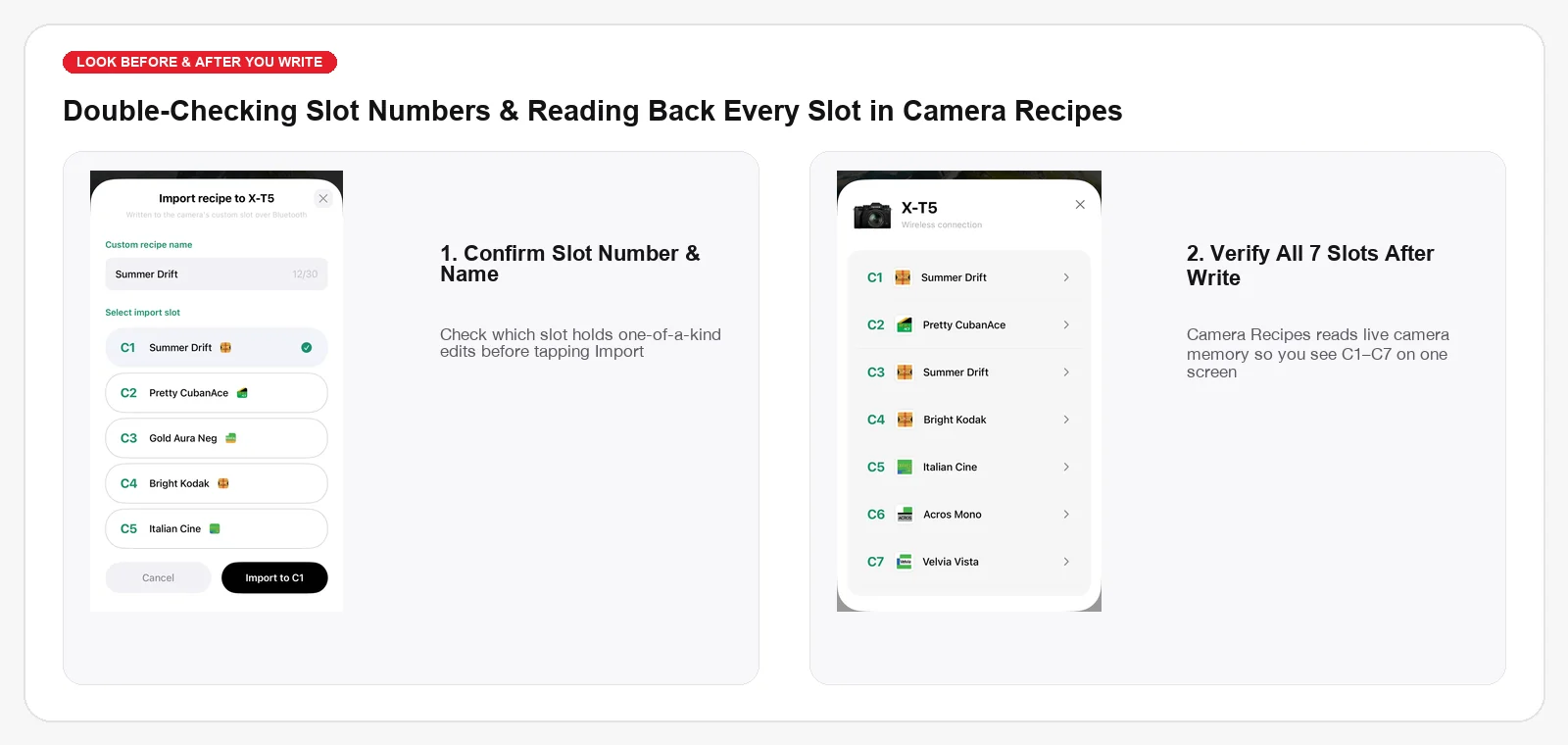 Confirm your target slot number before tapping Import, then inspect Camera Recipes to verify all slots on one screen.
Second, switch to that C slot and take a test shot in P/A/S/M. Many people think a recipe wasn't written when in fact the selected slot isn't that one, or the camera is in a mode such as AUTO or SP, where custom slot settings are overridden. Take one test shot and see whether the viewfinder and the result head in the direction you expected.
Why an automatic confirmation can't replace knowing every slot yourself
A common question: since overwriting can't be undone, isn't a confirmation pop-up enough? In FujiStyle, you can check what every slot on the camera holds through Camera Recipes, before writing and after, precisely to help you avoid mistakes.
But a pop-up mainly guards against the first slip; by the tenth time you've tapped the same confirmation, your finger tends to move faster than your eyes. More important, any software can only see "C2 is a set of Classic Chrome settings, C3 is a set of Classic Neg. settings." Only you know that C3 is something you imported from the community last week and can download again anytime, while C2 is something you fine-tuned over several street walks and has no second copy anywhere. Give that one-of-a-kind slot a record first, through Import from Photo or My Recipes, and then you can write with real peace of mind.
Back to the start
At the start I said importing overwrites the slot you choose. That's a fact, and it's the reason importing exists. Having come this far, I'd revise it to: overwriting isn't the scary part; overwriting a slot when you can't say what's in it is. Before your next import, spend a minute going through every slot, sort out which have a copy elsewhere and which exist only in the camera, and then press write.
Frequently asked questions
Does importing a Fujifilm recipe overwrite custom settings?
Importing a recipe only overwrites the one custom slot you choose: if you choose C1, C1's previous settings are replaced, and the camera has no undo. By design, the other slots are outside the scope of the write; check them after writing to confirm. To keep what's in C1, record it first using the methods above, or simply write to another slot.
Can I back up C1–C7 before I import?
Yes, but you do it yourself. The camera menu has no option to back up the C slots on their own, and Fujifilm's notes for the camera-settings backup in its FUJIFILM X Acquire software list custom setting contents among the items it doesn't back up, so don't count on it to save a slot. The dependable ways: shoot an original JPEG on the slot about to be overwritten and keep it, copy that slot's settings into your notes or My Recipes, or photograph its menu pages with your phone. Slots that have a copy elsewhere (such as community recipes you imported and never changed) don't need this; record the ones that exist only in the camera.
Will importing change photos I already shot?
No. Importing only changes the settings in the camera's custom slot and only affects JPEGs shot with that slot afterward; JPEGs and RAFs already shot aren't rewritten. Importing also won't re-render your RAFs with the new recipe. Reprocessing RAFs you've already shot with the camera's engine is a separate job, done by Fujifilm X RAW Studio on a computer or FujiStyle's Raw Darkroom on your phone (over USB).
Can I undo an import?
No. Neither the camera nor the app has an undo button, and overwritten settings can only be restored from a record you made beforehand. If you shot an original JPEG on that slot before overwriting, read the settings back from it (it must be the original; files that went through editing software or social media can't be read). If you copied the settings into notes or My Recipes, set them again from there. If what was overwritten was a community recipe, just import it again from the card.
How many slots does my camera have for recipes?
It depends on the camera; go by your camera's menu. For whether a given camera has C1–C7 or fewer, see our guide to Fujifilm custom settings (C1–C7).
Is the result the same whether I import with the app or set things by hand in the menu?
Yes. Both save settings into the same custom slot, and both overwrite what that slot held before. The difference is the process: setting by hand means going through one item at a time, while importing writes a dozen or so items in one go.
About this guide
There are no community photos in this guide, because it's about a working habit, not a kind of picture; the interface images are app screenshots taken on the day of writing. If you also have a slot whose settings live "only in your camera," writing the settings down with a few sample photos is a backup in itself. If you like, save it as a recipe in FujiStyle: turn Public on to share it with the community, or turn it off when you save if you only want to keep it for yourself.
Bring it into your camera with FujiStyle
The routine in this guide is "look before you write, record what lives only in the camera, check after writing," and FujiStyle puts every step of it on your phone:
- Tap
Camera Recipesto see every slot before writing: Connect the camera and tap Camera Recipes to see what every slot holds on one screen. Check it against the "What this slot holds now" table above, and sort out which slots have a copy elsewhere and which exist only in the camera. - Record a one-of-a-kind slot with Recipe Reader: For a slot that exists only in the camera, switch to it and shoot an unstripped original Fujifilm JPEG, then use
+→Import from Photoin the app, or our web-based Recipe Reader, to read 14–15 recipe settings from itsMakerNotesand save them to My Recipes. When you want that slot back, write it again from My Recipes. - Write a new community card and check it straight away: Go to Fujifilm Community in the bottom bar to pick a new recipe (over 10,000 recipes shared by users, each with sample photos and full settings), tap Apply Recipe, choose a C slot, give it a short English name of up to 15 characters, and wait for
Recipe Transferred(Bluetooth on 23 supported bodies with iPhone and 22 with Android, or USB on either). Writing overwrites the chosen slot with no undo, so tap Camera Recipes once more afterward to confirm on the spot. - Try a recipe in Raw Darkroom when you don't want to give up a slot: If you only want to try a new recipe on photos you've already shot, without overwriting any C slot for now, connect your phone to a Fujifilm camera of the same model by USB-C and open Raw Darkroom (iOS and Android), set the camera to
USB RAW CONV./BACKUP RESTORE(turn on OTG on Android), and let the camera's own processor re-render your.RAFfiles.
Next step: tonight, connect your camera, tap Camera Recipes and go through every slot; for each slot that exists only in the camera, shoot an original JPEG and read it into My Recipes.

Import to Camera
Use the FujiStyle App to apply recipes to your Fujifilm camera.