Fujifilm Film Simulation Dial (FS1–FS3) vs C1–C7 Custom Recipes: How They Work Together on X-T50, X-M5, X-E5 & X-T30 III
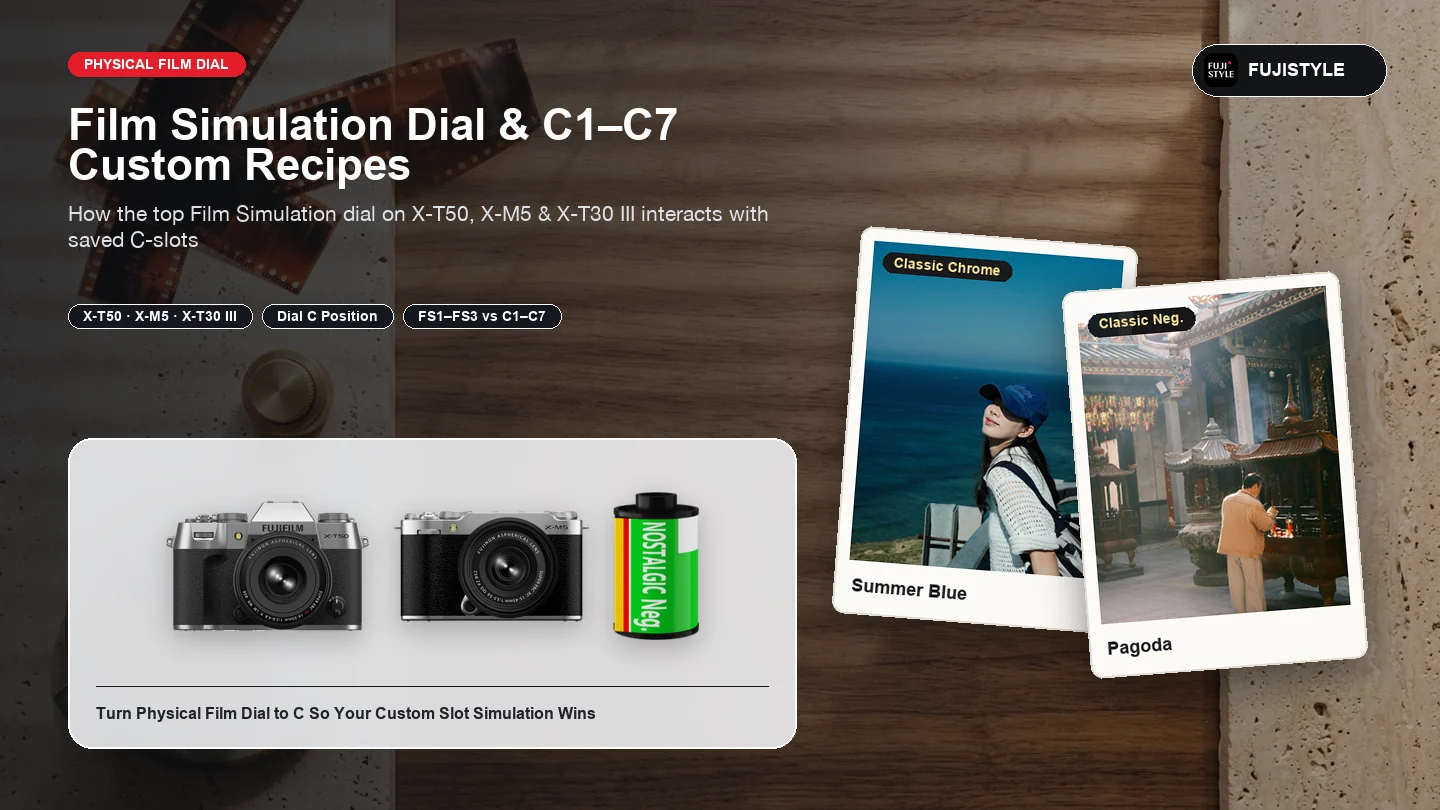
The Fujifilm film simulation dial is a physical dial on top of the X-T50, X-M5, X-E5 and X-T30 III: turn it and the film simulation changes. The X-T5 and X100VI don't have one; on those bodies you switch film simulations and C slots in the menus.
The dial is easy to use, but people who shoot custom recipes tend to hit the same two questions: can FS1–FS3 on the dial be used as recipe slots, and why do the colors look wrong when C1 is clearly selected?
The short version
- To shoot with a recipe stored in a C slot, turn the film simulation dial to C.
- FS1–FS3 are positions on the dial; C1–C7 are custom setting slots in the menu. FujiStyle writes recipes to the C slots.
- The X-T50, X-E5 and X-T30 III have seven slots (C1–C7); the X-M5 has four (C1–C4).
The one rule: to use a recipe in a C slot, turn the dial to C
When the dial sits on a named film simulation (PROVIA or REALA ACE, say) or on an FS position, the dial decides the film simulation, and the one saved in your C slot is overridden. So:
- When you shoot from C1–C7 (C1–C4 on the X-M5), turn the dial to C.
- If the colors suddenly change mid-shoot, look down first: the dial may have been knocked to another position.
- Don't shoot in AUTO or SP scene modes either. They override your recipe too.
What the camera does with the slot's other settings while the dial is off C isn't described the same way in every manual, so go by the one for your body. The simplest habit: shooting a recipe means the dial is on C.
How the Fujifilm film simulation dial's FS1–FS3 differ from C1–C7
| FS1 / FS2 / FS3 on the dial | C1–C7 custom slots (C1–C4 on the X-M5) | |
|---|---|---|
| Where | Custom positions on the film simulation dial | EDIT/SAVE CUSTOM SETTING in the menu |
| What they hold | Depends on the body and firmware: some can only be assigned one film simulation, others can store a full set of image quality settings. Check the film simulation dial section of your manual | A full set: film simulation, white balance and WB shift, dynamic range, highlight / shadow, color, sharpness, noise reduction, clarity, grain, and both Color Chrome settings |
| What FujiStyle writes to | Not the FS positions | These slots: tap Apply Recipe and pick a C slot |
Every recipe you write from FujiStyle lands in a C slot, so you use it with the dial on C. That leaves the FS positions free for film simulations you use often that aren't printed on your dial, or, on bodies that support it, for a set of settings you've dialed in yourself in the camera.
Get the slot count right: the X-T50, X-E5 and X-T30 III all have seven slots, C1–C7. Only the X-M5 has four, C1–C4 (as do the X-S20 and X-S10). The full comparison is in our guide to C1–C7 custom settings.
Switching C slots once the dial is on C
- X-T50, X-E5, X-T30 III: choose C1–C7 in the Q menu, or under IMAGE QUALITY SETTING › SELECT CUSTOM SETTING. If you switch often, you can assign SELECT CUSTOM SETTING to a convenient Fn button in the camera's button settings and change slots with one press. Menu paths can differ slightly by body, so check your manual.
- X-M5: FujiStyle writes to four slots, C1–C4, which sit as C positions on the mode dial, as on the X-S20. Your manual has the details. Four slots don't go far, so split them by light: one each for sun, overcast, indoors and night.
On the X-T5 and X100VI, which have no film simulation dial, you also pick C slots in the menu and Q menu, and there's no dial to override the film simulation.
Four community recipes for your C slots
The cards for the four recipes below all list one of the dial-equipped bodies. Once you've written one to a C slot, remember to turn the dial to C before you shoot. To browse more bases, see all film simulations.
01. Summer Blue (Classic Chrome, shared by Haihalu)
 Summer Blue, shared on FujiStyle by Haihalu; the card lists an X-M5.
Summer Blue keeps white balance unshifted (R0 / B0) and uses Daylight with Color Chrome FX Blue Strong to deepen the blues; the sample is a deep blue sea on a sunny day. The X-M5 only has four slots, and an everyday sunny-weather recipe like this one is a good use of one of them.
| Setting | Value |
|---|---|
| Film Simulation | Classic Chrome |
| White Balance | Daylight |
| WB Shift | R0 / B0 |
| Dynamic Range | DR100 |
| Highlight | -1 |
| Shadow | +1 |
| Color | +2 |
| Sharpness | +1 |
| High ISO NR | -4 |
| Clarity | 0 |
| Grain Effect | Weak / Small |
| Color Chrome Effect | Strong |
| Color Chrome FX Blue | Strong |
| Exposure Compensation | 0 |
| ISO | — |
02. Pagoda (Classic Neg., shared by milcah_h)
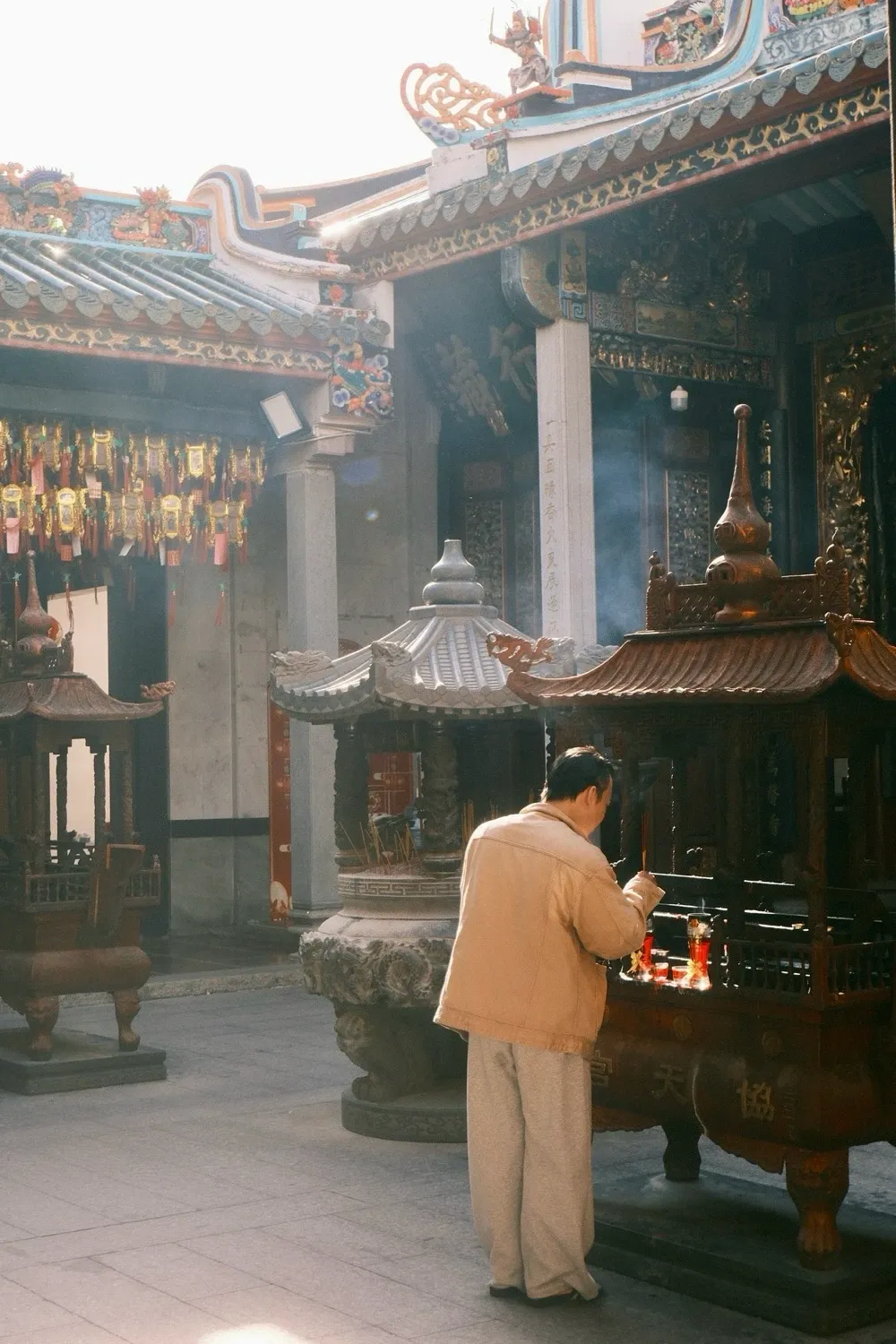 Pagoda, shared on FujiStyle by milcah_h; the card lists an X-M5.
If Classic Neg. straight off the dial feels a little cool and hard to you, write this one to a C slot and compare: R+4 / B-3 pushes toward a warm red-brown, and Highlight -1 / Shadow +2 with DR400 keeps the shadows from going heavy. The sample is a man lighting incense at a temple, with the burner, the woodwork and the reds all on the warm side.
| Setting | Value |
|---|---|
| Film Simulation | Classic Neg. |
| White Balance | Auto |
| WB Shift | R+4 / B-3 |
| Dynamic Range | DR400 |
| Highlight | -1 |
| Shadow | +2 |
| Color | +2 |
| Sharpness | 0 |
| High ISO NR | -4 |
| Clarity | -2 |
| Grain Effect | Weak / Small |
| Color Chrome Effect | Strong |
| Color Chrome FX Blue | Weak |
| Exposure Compensation | 0 |
| ISO | — |
03. Noel (Classic Neg., shared by Duyên)
 Noel, shared on FujiStyle by Duyên; the card lists an X-T50.
Noel fixes white balance at 4000K and adds R+1 / B-3; grain and both Color Chrome settings are off, with Clarity 0. The sample is a holiday-season shop interior, a whole wall of teddy bears under warm lights, and the color doesn't tip into yellow. It's a good candidate for a slot dedicated to warm indoor light.
| Setting | Value |
|---|---|
| Film Simulation | Classic Neg. |
| White Balance | 4000K |
| WB Shift | R+1 / B-3 |
| Dynamic Range | DR200 |
| Highlight | -0.5 |
| Shadow | -1 |
| Color | -1 |
| Sharpness | +2 |
| High ISO NR | +2 |
| Clarity | 0 |
| Grain Effect | Off |
| Color Chrome Effect | Off |
| Color Chrome FX Blue | Off |
| Exposure Compensation | 0 |
| ISO | — |
04. Firenze (Classic Neg., shared by benpery)
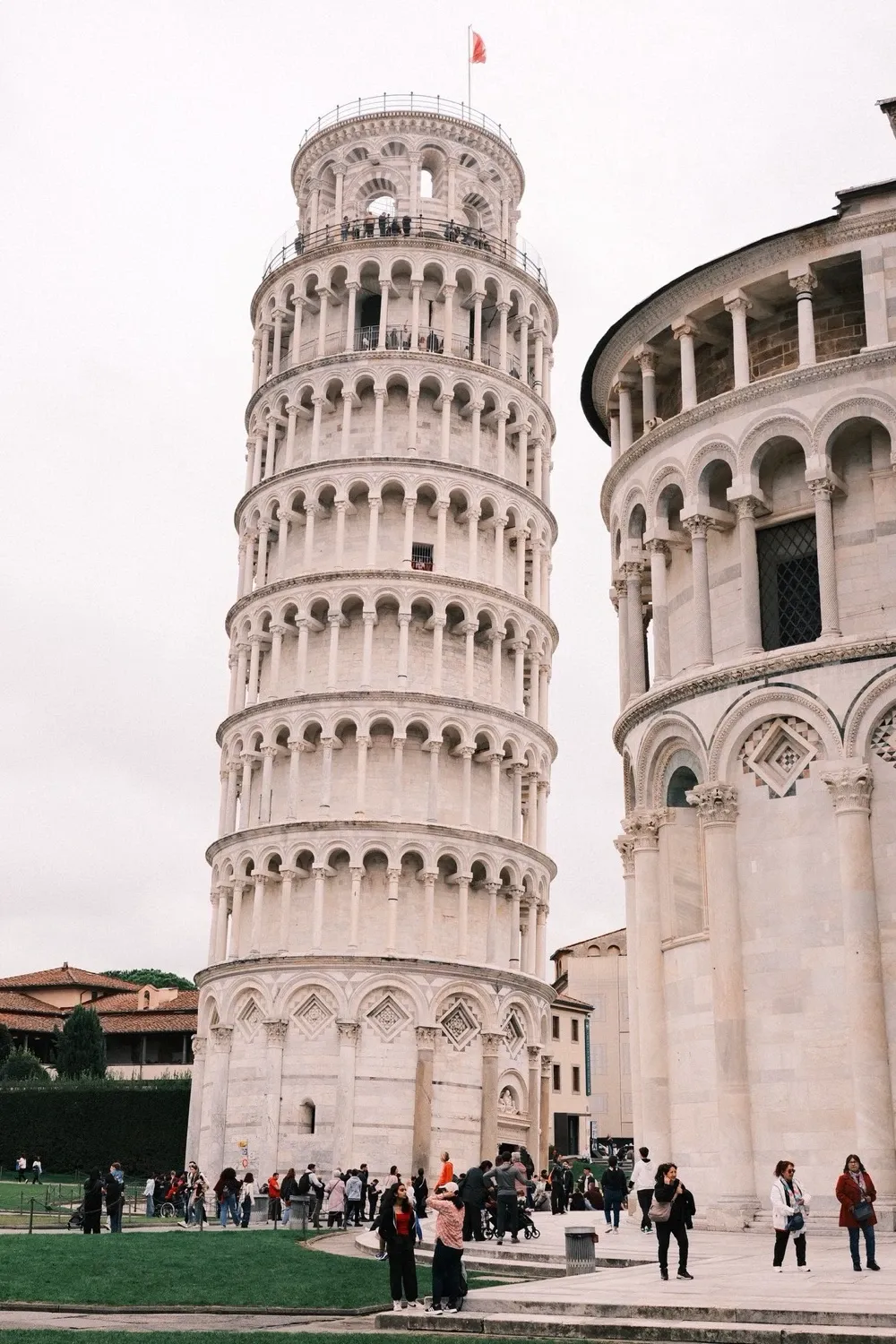 Firenze, shared on FujiStyle by benpery; the card lists an X-E5.
Plenty of negative-film recipes pull Clarity down. This one goes the other way, with Clarity +1 and Sharpness +1, plus Shadow +2. The sample shows the Leaning Tower of Pisa and the cathedral under an overcast sky, and the texture of the white stone stays clear. It suits architecture on a trip.
| Setting | Value |
|---|---|
| Film Simulation | Classic Neg. |
| White Balance | Auto |
| WB Shift | R+2 / B-2 |
| Dynamic Range | DR400 |
| Highlight | -2 |
| Shadow | +2 |
| Color | +3 |
| Sharpness | +1 |
| High ISO NR | -4 |
| Clarity | +1 |
| Grain Effect | Weak / Large |
| Color Chrome Effect | Strong |
| Color Chrome FX Blue | Strong |
| Exposure Compensation | 0 |
| ISO | — |
What to keep on FS1–FS3
With your recipes in C slots, the FS positions don't need to hold recipes too. A few common uses:
- A film simulation you use often that isn't printed on the dial. Which simulations are printed and which aren't varies by body, so look at your own dial.
- A "clean" reference. To see how far a recipe is from the factory default, turn to a film simulation with no shift added and take a comparison shot.
- On bodies that support it, a set of settings you've tuned in the camera yourself. Whether that works, and which items it stores, is in your manual.
Frequently asked questions
Can FS1–FS3 on the Fujifilm film simulation dial store a full recipe?
It depends on the camera and its firmware. On some bodies an FS position can only be assigned a single film simulation; on others it can hold a full set of image quality settings, so check the film simulation dial section of your camera's manual. FujiStyle writes recipes to the C1–C7 custom slots (C1–C4 on the X-M5), not to the FS positions, so to shoot with a recipe written from the app, turn the dial to C.
Why is my camera using the wrong film simulation even though I selected C1?
First check whether the film simulation dial is on C. When it rests on a named film simulation or on an FS position, the dial decides the film simulation and the one saved in C1 is overridden. Turn the dial to C, then confirm the C slot you want is selected. Also avoid AUTO and SP scene modes; they override your recipe too.
How many custom slots does the X-T30 III have? Is it the full C1–C7?
Yes. The X-T30 III has seven custom slots, C1–C7, the same as the X-T50, X-E5, X-T5 and X100VI. The X-M5, X-S20 and X-S10 have four, C1–C4. The full comparison is in our guide to C1–C7 custom settings.
About the photos in this guide
Every recipe and sample photo here comes from the FujiStyle community, and the settings are listed exactly as they appear on each card. The four were picked because their cards list one of the dial-equipped bodies and because they cover different light: a sunny coast, a warm temple, a shop lit by warm lamps, and an overcast city.
Each name here is the person who shared the card on FujiStyle, not necessarily the recipe's creator. If you know who made it first, or spot a wrong name or setting, tell us through the feedback option in the app and we'll correct it.
Bring it into your camera with FujiStyle
Once the dial is on C, the next question is what goes in each C slot, and FujiStyle makes loading them quick:
- Pick a few recipes by light and save them to My Recipes. Open Fujifilm Community in the bottom bar and search for the recipe names above, or browse over 10,000 community recipes, each with sample photos and full settings. Save one each for sun, overcast and indoors to My Recipes. The X-M5 has four slots, so four recipes is enough.
- Write them to the camera one slot at a time. Open a recipe, tap Apply Recipe, choose USB Cable or Wireless, and pick a C slot (you can give it a short English name of up to 15 characters), then wait for
Recipe Transferred. All four dial bodies support Bluetooth import on both iPhone and Android, currently free for a limited time, so no cable is needed; a USB-C cable also works (see the Bluetooth import guide and our guide to adding recipes to your camera). Writing overwrites that slot, so save whatever was there first. - Tap Camera Recipes to check. It shows what each C slot on the camera holds right now. Then turn the dial to C, select that slot, and you're ready to shoot.
- Re-render a
.RAF, or read settings from an old JPEG. If you want a different film simulation or WB shift on photos you've already taken and you kept the.RAF, connect the camera to your phone over USB-C (cameraCONNECTION MODEset toUSB RAW CONV./BACKUP RESTORE, OTG on for Android) and open Raw Darkroom (iOS and Android): the camera's own engine re-renders a.RAFshot on that same model (some bodies aren't supported; the app tells you when you connect). If you have an unstripped Fujifilm JPEG straight out of camera, use + › Import from Photo in the app or the web Recipe Reader to read 14–15 recipe settings from itsMakerNotesand save them to My Recipes.
Next step: open FujiStyle, tap Camera Recipes to see what your C slots hold now, and decide which slot gets your sunny-day recipe.

Import to Camera
Use the FujiStyle App to apply recipes to your Fujifilm camera.