Supported Fujifilm cameras for wireless & USB recipe import
Short answer: FujiStyle writes film simulation recipes directly into custom settings slots on 23 Fujifilm cameras over Bluetooth wireless (23 on iPhone, 22 on Android) and 30 cameras over a USB data cable — no computer, no SD card reader, and no menu-by-menu typing required.
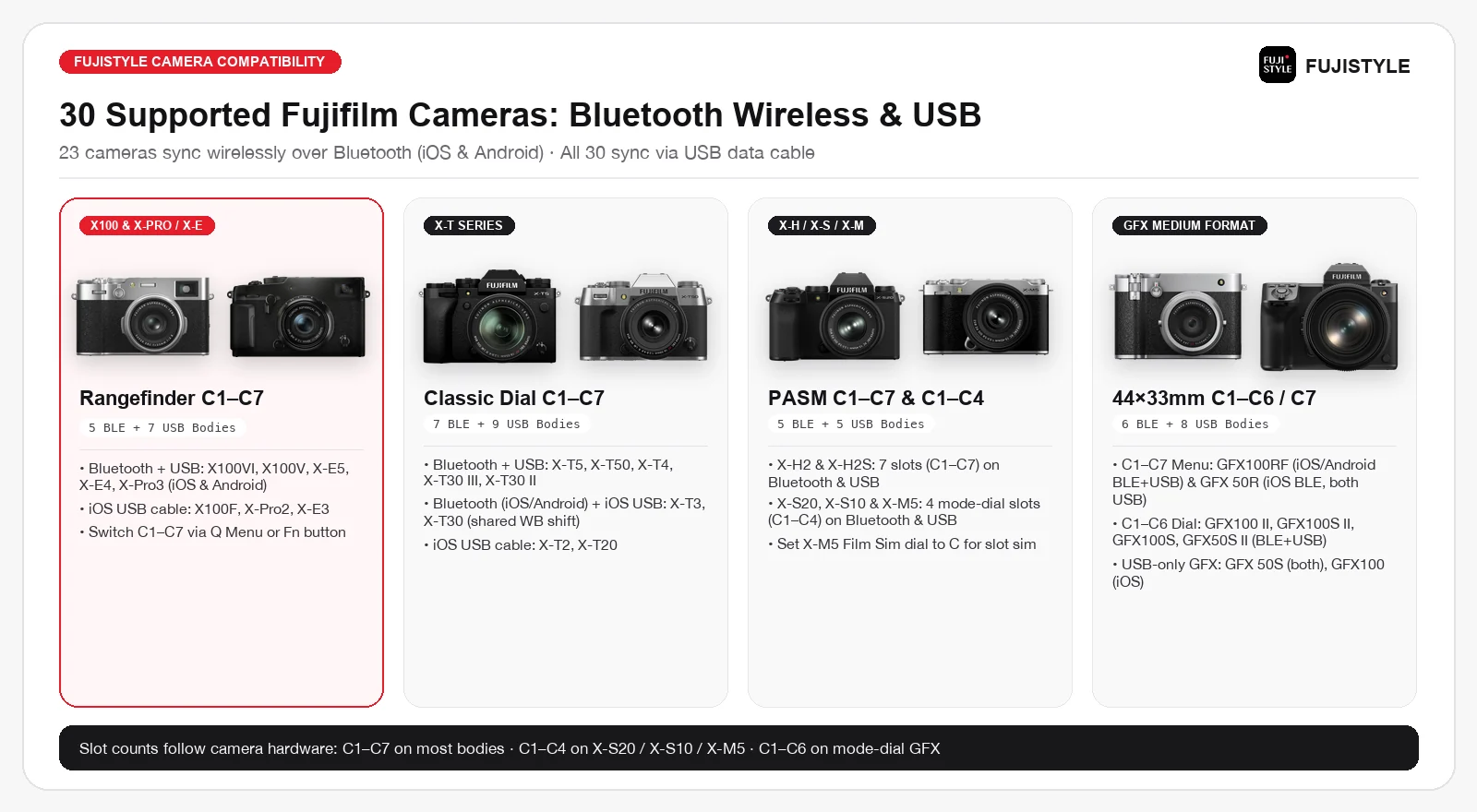
Wireless (Bluetooth)
23
23 on iOS · 22 on Android
USB Cable Import
30
22 iOS & Android + 8 iOS-only
Custom Slots
C1–C7 / C6 / C4
Verified read-back after write
| Camera | Slots | Wireless (Bluetooth) | USB Cable | Notes |
|---|---|---|---|---|
X100VIX-Processor 5 | C1–C7 | iOS & Android | iOS & Android | — |
X100VX-Processor 4 | C1–C7 | iOS & Android | iOS & Android | — |
X100FX-Processor Pro | C1–C7 | — | iOS only | No Bluetooth hardware; USB backup import on iOS |
X-T5X-Processor 5 | C1–C7 | iOS & Android | iOS & Android | — |
X-T50X-Processor 5 | C1–C7 | iOS & Android | iOS & Android | Has a film simulation dial (FS1–FS3) |
X-T4X-Processor 4 | C1–C7 | iOS & Android | iOS & Android | — |
X-T30 IIIX-Processor 5 | C1–C7 | iOS & Android | iOS & Android | Has a film simulation dial (FS1–FS3) |
X-T30 IIX-Processor 4 | C1–C7 | iOS & Android | iOS & Android | — |
X-T30X-Processor 4 | C1–C7 | iOS & Android | iOS only | WB shift shared per WB mode; USB via iOS backup package |
X-T3X-Processor 4 | C1–C7 | iOS & Android | iOS only | WB shift shared per WB mode; USB via iOS backup package |
X-T2X-Processor Pro | C1–C7 | — | iOS only | No Bluetooth hardware; USB backup import on iOS |
X-T20X-Processor Pro | C1–C7 | — | iOS only | No Bluetooth hardware; USB backup import on iOS |
X-H2X-Processor 5 | C1–C7 | iOS & Android | iOS & Android | — |
X-H2SX-Processor 5 | C1–C7 | iOS & Android | iOS & Android | — |
X-S20X-Processor 5 | C1–C4 | iOS & Android | iOS & Android | C1–C4 on the mode dial |
X-S10X-Processor 4 | C1–C4 | iOS & Android | iOS & Android | C1–C4 on the mode dial |
X-M5X-Processor 5 | C1–C4 | iOS & Android | iOS & Android | C1–C4 on mode dial; has a film simulation dial |
X-E5X-Processor 5 | C1–C7 | iOS & Android | iOS & Android | — |
X-E4X-Processor 4 | C1–C7 | iOS & Android | iOS & Android | — |
X-E3X-Processor Pro | C1–C7 | — | iOS only | Bluetooth has no settings transfer; USB backup import on iOS |
X-Pro3X-Processor 4 | C1–C7 | iOS & Android | iOS & Android | — |
X-Pro2X-Processor Pro | C1–C7 | — | iOS only | No Bluetooth hardware; USB backup import on iOS |
GFX100RFX-Processor 5 | C1–C7 | iOS & Android | iOS & Android | — |
GFX100 IIX-Processor 5 | C1–C6 | iOS & Android | iOS & Android | — |
GFX100S IIX-Processor 5 | C1–C6 | iOS & Android | iOS & Android | Slot name is read-only over Bluetooth for now |
GFX100SX-Processor 4 | C1–C6 | iOS & Android | iOS & Android | — |
GFX50S IIX-Processor 4 | C1–C6 | iOS & Android | iOS & Android | — |
GFX 50RX-Processor Pro | C1–C7 | iOS only | iOS & Android | Wireless on iOS; Android wireless coming |
GFX100X-Processor 4 | C1–C6 | — | iOS only | USB cable import on iOS |
GFX 50SX-Processor Pro | C1–C6 | — | iOS & Android | USB cable import (with compatible firmware) |
Cameras for manual entry only
These bodies either lack Bluetooth settings transfer or predate Fujifilm’s USB custom-slot protocol. You can still browse all 3,000+ recipes in FujiStyle and enter settings by hand.
Bluetooth without settings backup
These cameras do not expose custom-slot transfer over Bluetooth. Browse any recipe in FujiStyle and enter its settings manually in the camera menu.
Earlier X-Trans I / II & compact models
Older bodies predate Fujifilm’s Bluetooth and USB custom-slot write protocols. You can still browse recipes built on the film simulations your camera includes and set them by hand.
Wireless Bluetooth vs USB cable import: how FujiStyle connects
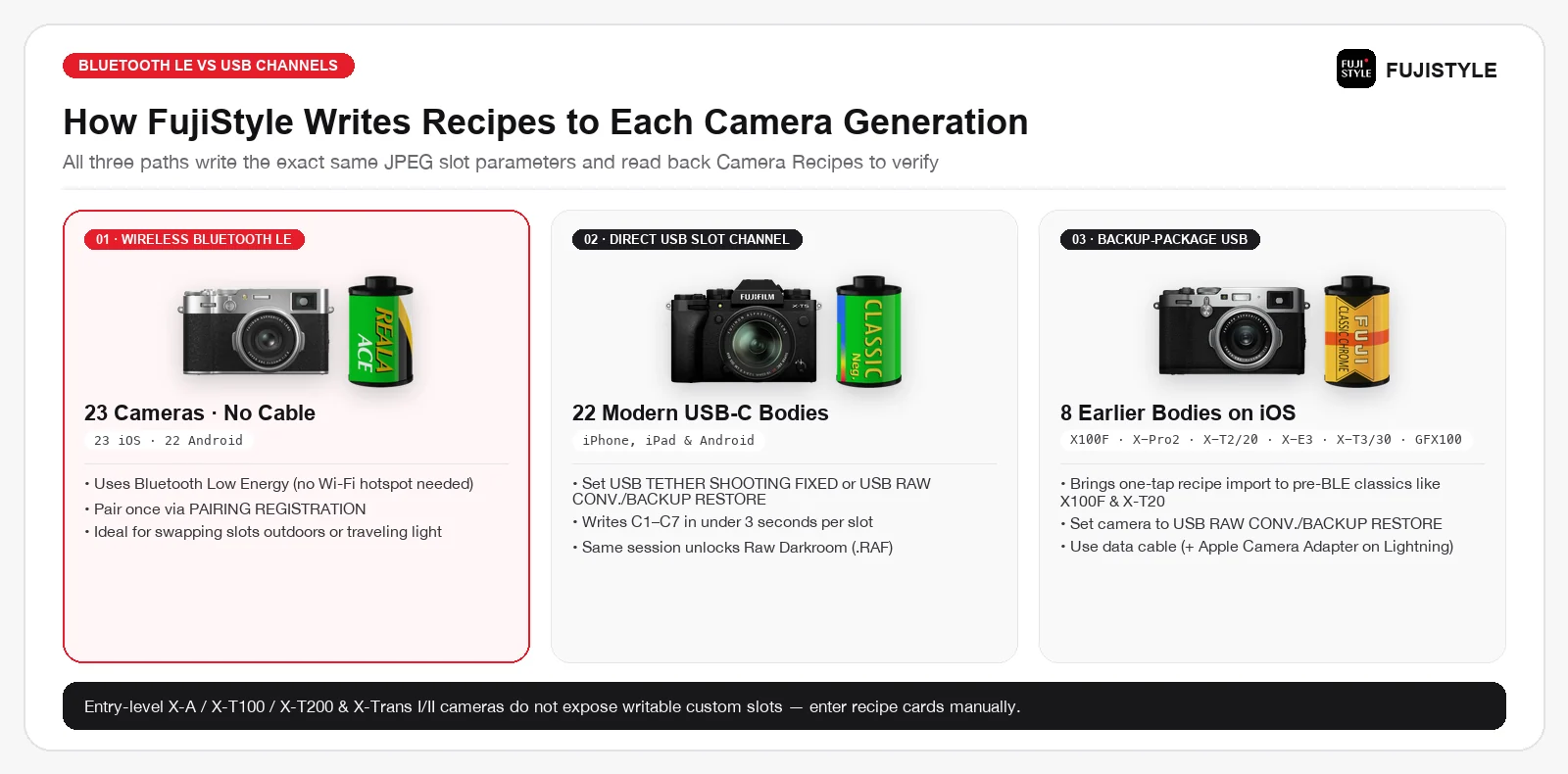
FujiStyle supports two direct phone-to-camera transfer methods. Both write the exact same JPEG recipe parameters — film simulation, Dynamic Range, Highlight and Shadow tone, Color, Sharpness, High ISO NR, Clarity, Grain Effect, Color Chrome Effect, Color Chrome FX Blue, and White Balance with R/B shift — into the custom slot you pick, then read the slot back to verify the write succeeded.
| Feature | Bluetooth Wireless | USB Data Cable |
|---|---|---|
| Supported bodies | 23 on iOS · 22 on Android | 30 total (22 iOS & Android + 8 iOS-only) |
| Hardware needed | None (uses camera Bluetooth, no Wi-Fi) | USB-C data cable (or Apple Camera Adapter on Lightning iPhone) |
| Camera menu setup | One-time PAIRING REGISTRATION | USB TETHER SHOOTING FIXED or RAW CONV./BACKUP RESTORE |
| Best for | Swapping C1–C7 slots outdoors with no cable in your bag | X-Processor Pro bodies (X100F, X-Pro2, X-T2), Raw Darkroom RAF rendering, or fast batch setup |
Wireless (Bluetooth) supported cameras by series (23 models)
Wireless recipe import works on both iPhone (iOS 16+) and Android (Android 7.0+) across X-Processor 5 and X-Processor 4 cameras, plus the GFX 50R on iOS. Step-by-step pairing screenshots are in our Bluetooth wireless recipe import guide.
- X100 series (C1–C7): X100VI and X100V on both iOS and Android. Activate slots via the Q menu or
SELECT CUSTOM SETTING— see X100VI & X100V recipe import tips. - X-T series (C1–C7): X-T5, X-T50, X-T4, X-T30 III, X-T30 II, X-T30, and X-T3 on both iOS and Android. On X-T3 and X-T30, white balance shift is stored per WB mode across slots.
- X-H series (C1–C7): X-H2 and X-H2S on both iOS and Android (update firmware to 5.00 / 7.00+ if you need Reala Ace).
- X-S & X-M series (C1–C4 on mode dial): X-S20, X-S10, and X-M5 on both iOS and Android. Turn the physical mode dial directly to C1–C4 to shoot — see mastering C1–C4 on X-M5, X-S20 & X-S10.
- X-E & X-Pro series (C1–C7): X-E5, X-E4, and X-Pro3 on both iOS and Android.
- GFX medium format (C1–C7 / C1–C6): GFX100RF (C1–C7), GFX100 II (C1–C6), GFX100S II (C1–C6), GFX100S (C1–C6), and GFX50S II (C1–C6) on both iOS and Android, plus GFX 50R (C1–C7) on iOS — see the Fujifilm GFX recipe import guide.
USB cable supported cameras (30 models)
USB recipe import uses two calibrated protocols under the hood so both modern USB-C bodies and classic X-Trans III cameras work reliably. Full cable and adapter checklists are in our USB-C & Lightning recipe import guide and how to add recipes to your camera.
- iOS & Android USB direct slot write (22 bodies): X100VI, X100V, X-T5, X-T50, X-T4, X-T30 III, X-T30 II, X-H2, X-H2S, X-S20, X-S10, X-M5, X-E5, X-E4, X-Pro3, GFX100RF, GFX100 II, GFX100S II, GFX100S, GFX50S II, GFX 50R, and GFX 50S. Also supports FujiStyle Raw Darkroom for re-rendering RAF files on your phone.
- iOS USB backup-package import (8 earlier bodies): X100F, X-Pro2, X-T2, X-T20, X-E3, X-T3, X-T30, and GFX100. Set the camera’s USB mode to
USB RAW CONV./BACKUP RESTOREand connect to your iPhone or iPad.
3 community starter recipes matched by camera generation
Once you confirm your camera’s connection path above, pick a starter recipe built on a film simulation your body includes and test a one-tap write into C1:
 Reala Ace
X-Processor 5 & Recent GFX
Scotland
Daylight · R+3 / B-5 · DR Auto · H-2 S+1 · Color +3 · Clarity 0
X100VI, X-T5, X-T50, X-S20, X-M5, X-E5, X-T30 III, GFX100RF, GFX100 II/S II
 Classic Neg.
X-Trans IV & Newer
Clockwise Negative
Auto WB · R+1 / B-3 · DR400 · H-1 S-1.5 · Color +4 · Clarity 0
X100V, X-T4, X-S10, X-E4, X-Pro3, X-T30 II, GFX100S, GFX50S II + all Gen 5
 Classic Chrome
All 30 Supported Cameras
Green Chrome
Daylight · R-2 / B-8 · DR400 · H-1 S+1 · Color +2 · Clarity 0
Works on X100F, X-T2, X-T20, X-Pro2, X-E3, X-T3, GFX 50R/50S + every newer body
Frequently asked questions
- How many Fujifilm cameras support wireless Bluetooth recipe import?
- 23 Fujifilm bodies support wireless Bluetooth recipe import in FujiStyle on iPhone, and 22 support it on Android — including the X100VI, X100V, X-T5, X-T50, X-T4, X-T30 III, X-T30 II, X-T30, X-T3, X-H2, X-H2S, X-S20, X-S10, X-M5, X-E5, X-E4, X-Pro3, GFX100RF, GFX100 II, GFX100S II, GFX100S, GFX50S II and GFX 50R (iOS).
- Which Fujifilm cameras support USB cable recipe import?
- 22 Fujifilm bodies support USB cable import on both iOS and Android (set the camera’s Connection Mode to USB TETHER SHOOTING FIXED or USB RAW CONV./BACKUP RESTORE). On iOS, FujiStyle also supports USB import for 8 additional bodies — X-T3, X-T30, X-Pro2, X100F, X-T2, X-T20, X-E3 and GFX100 — bringing total USB support to 30 cameras.
- Do the Fujifilm X100V, X-T4, X-Pro3 and X-E4 support Bluetooth recipe import now?
- Yes. All four X-Processor 4 bodies — X100V, X-T4, X-Pro3 and X-E4 — are supported for wireless Bluetooth recipe import into C1–C7 on both iPhone and Android, as well as USB cable import.
- Why do some cameras have C1–C4 or C1–C6 instead of C1–C7?
- Custom slot count is set by Fujifilm’s camera firmware: most X-series bodies and the GFX100RF / GFX 50R have C1–C7, medium-format GFX100 II / GFX100S II / GFX100S / GFX50S II / GFX100 / GFX 50S have C1–C6, and PASM mode-dial bodies (X-S20, X-S10, X-M5) have C1–C4.
- Why can’t the X100F, X-Pro2 or X-T2 import wirelessly?
- X-Processor Pro bodies (X100F, X-Pro2, X-T2, X-T20) do not have Bluetooth hardware, and the X-E3’s Bluetooth module does not transfer camera settings. On iPhone or iPad, FujiStyle imports recipes to all five cameras over a USB data cable into C1–C7.
- Can I import a Reala Ace or Nostalgic Neg recipe to an older camera like X100V or X-T3?
- FujiStyle writes every supported parameter cleanly, but a camera can only render film simulations built into its own firmware. If a recipe uses a simulation your body lacks (such as Reala Ace on an X100V or X-T4), FujiStyle skips that simulation field and reports what was skipped on the transfer confirmation screen.
- Does FujiStyle wireless import use Bluetooth or Wi-Fi?
- Bluetooth only. There is no camera Wi-Fi hotspot to join. Pair once via the camera’s PAIRING REGISTRATION menu, then tap Wireless inside FujiStyle whenever you want to write or read custom slots.

In die Kamera importieren
Mit der FujiStyle App Rezepte auf deine Fujifilm-Kamera übertragen.