Preface
Dear Fujistyle users and Fujifilm camera owners, we’ve got great news for you! After multiple rounds of development by our research team, the wireless import feature for Fujistyle film recipes is now available for public beta testing!!
Anyone who shoots with Fujifilm in-camera JPEGs knows that film simulation recipes are the heart of color grading. Previously, to update your custom presets C1-C7 in the camera, you either had to manually enter every parameter one by one, or connect your phone with a data cable. It was extremely inconvenient if you wanted to switch styles on the go.
The newly launched wireless recipe import feature on Fujistyle lets you wirelessly send massive amounts of community-shared film recipes from creators straight to your Fujifilm camera with just a few taps. No data cables, no manual copying of parameters. Swap color tones anytime during your commute or between shots. This step-by-step guide follows the App interface exactly. Even total beginners can get it working on the first try.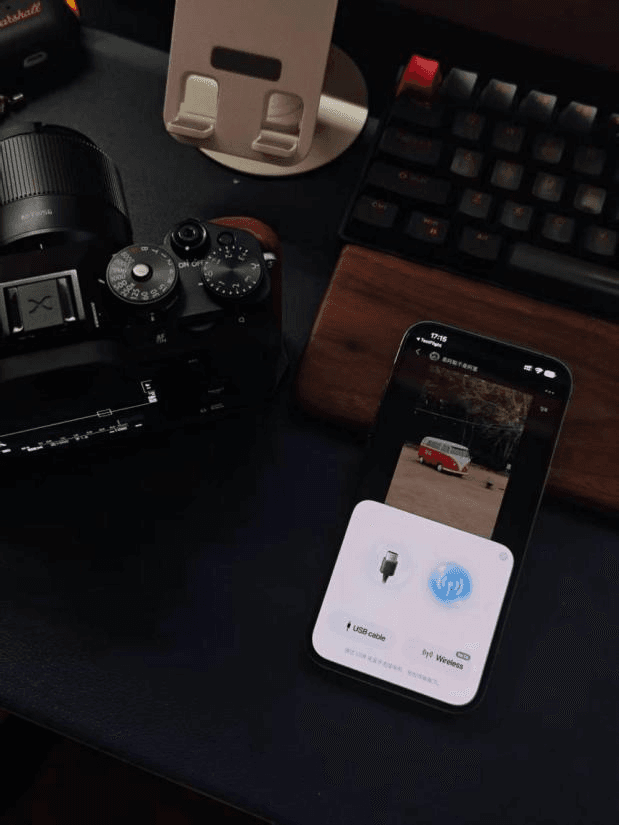
I. Preparations Checklist
1.Install and update the Fujistyle App on your phone to the latest official release, then log into your account.
2.Power on your Fujifilm camera and ensure the battery level is ≥30%. Low battery may cause transmission interruptions.
3.Turn on Bluetooth on your mobile device.
4.Complete Bluetooth pairing between the App and camera. Pairing only needs to be done once; subsequent connections can be quickly re-established by enabling Bluetooth on the camera.
II. One-Time Basic Settings on the Camera Side
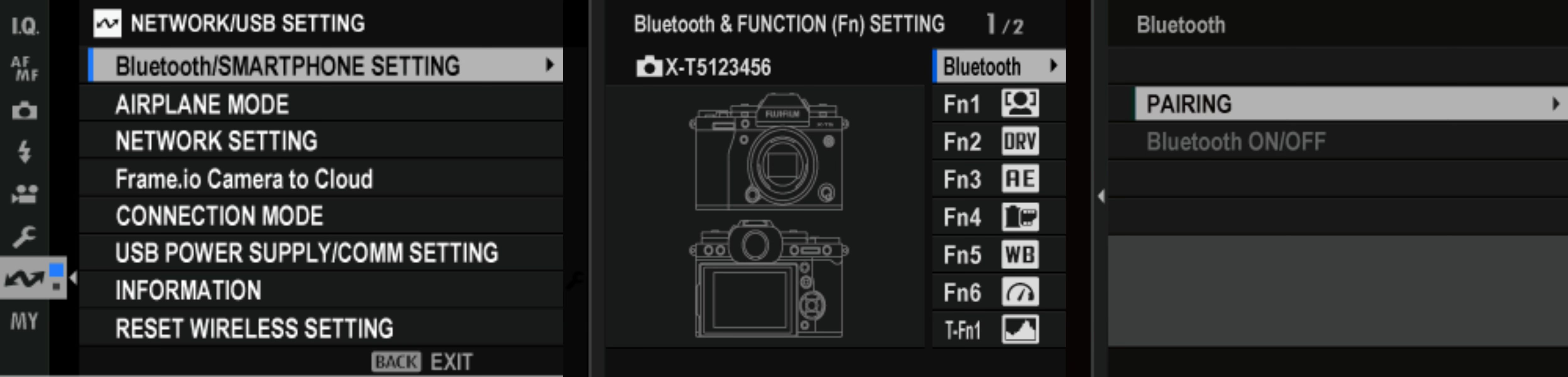
If connection failure occurs during wireless pairing, follow the camera setup steps below:
Press MENU/OK on your camera to open the wrench icon settings tab, then locate CONNECTION SETTING.
Select Bluetooth/SMARTPHONE SETTING and press OK to enter the submenu. On the Bluetooth & FUNCTION (Fn) SETTING page, tap Bluetooth to turn on the camera’s Bluetooth. Bluetooth handles the handshake recognition between your phone and camera. Once paired successfully, the camera will automatically establish communication to transfer recipe data.
Verify that custom preset slots C1–C7 are available. Note that the X-S20 only supports four custom slots: C1–C4.
Troubleshooting alternative: If pairing fails repeatedly, return to the connection settings page, select RESET WIRELESS SETTING to reset wireless configurations, then redo the Bluetooth pairing.
III. Full Wireless Import Workflow via the App
1.Launch the Fujistyle App and tap [Fujifilm Community] on the bottom navigation bar. Browse film recipes shared by creators in the community, such as the landscape preset Summer Drift, portrait preset Pretty CubanAce, and street photography preset Gold Aura Neg. Choose your preferred style and enter the recipe detail page.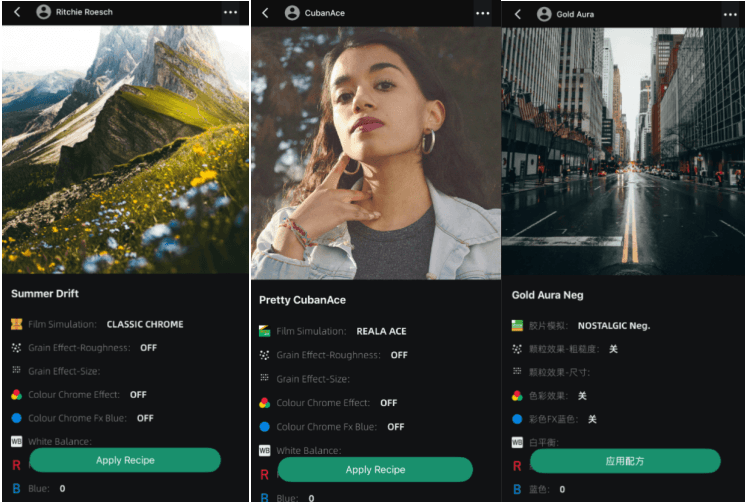
2.On the recipe detail page, tap the green [Apply Recipe] button at the bottom. A selection popup will appear with two options: USB Cable / Wireless. Select [Wireless]. The App will automatically search for nearby Fujifilm cameras via Bluetooth. After selecting your camera, the App will immediately pair and connect with it. Once connected, tap Start Import to begin. Choose the custom preset slot you want to write to — C1/C2/C3…C7 — and you can customize the recipe name.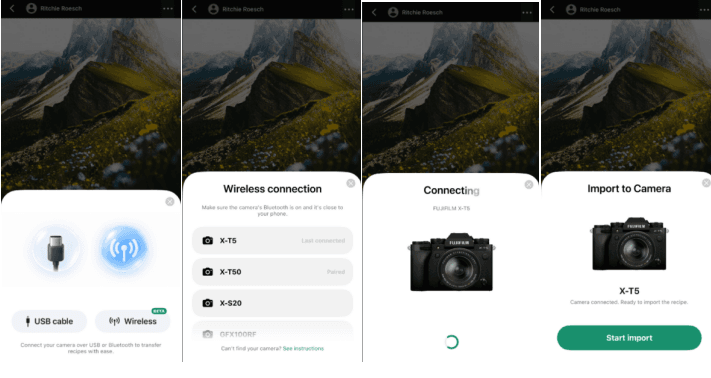
❗Selecting a new preset slot will overwrite the original parameters stored in that slot. We recommend saving your valuable presets to My Recipes or bookmarking community recipes within the App in advance to prevent loss of your settings.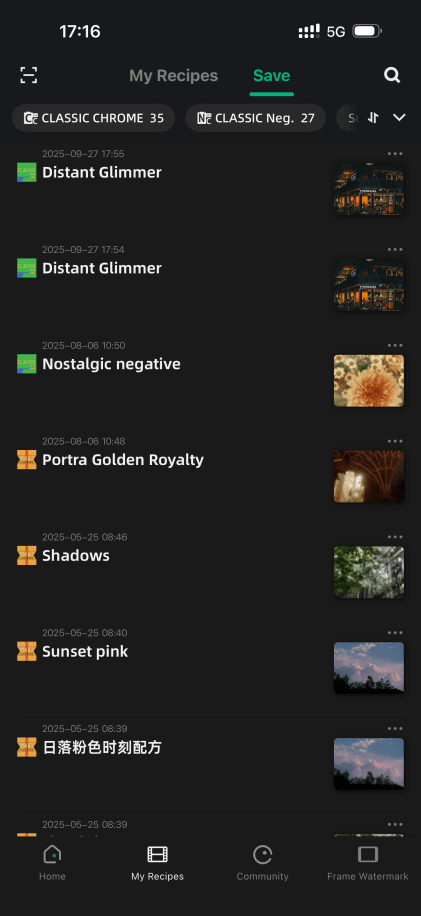
3.Confirm your target preset slot and tap [Import to C1/C2/C3...C7]. Wait a few seconds for the transfer. When the App shows the prompt "Recipe Transferred", the writing process is finished. You can tap [View Camera Recipes] to preview all saved recipes stored in slots C1–C7 on your camera. Head back to your Fujifilm camera, rotate the dial to the corresponding C slot, and you can start shooting with this film recipe immediately.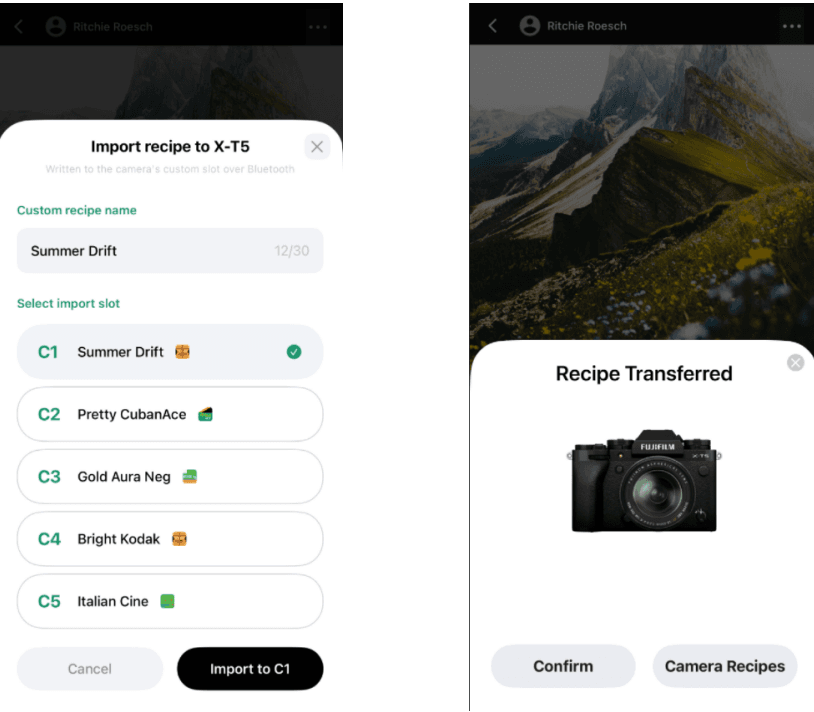
Multi-Recipe Import Tip
If you find multiple recipes you like in the [Fujifilm Community] of the Fujistyle App, you can select up to 7 distinct styles and import them one by one into custom slots C1–C7. Preload all your custom presets so you can start shooting right after arriving at your location.
IV. Backup Alternative
Wireless connection is convenient, yet unstable under strong outdoor sunlight, long distances or complex electromagnetic interference. Fujistyle fully retains the free USB wired import function: connect your camera and phone directly via cable. Select your recipe in the Fujifilm Community, tap Apply Recipe and choose USB mode for import.
V. Practical Tips
Import recipes wirelessly during your commute ahead of time to save shooting time on location. When lighting conditions change outdoors, you can instantly switch between pre-imported recipes. You may also turn on Bluetooth on your phone again to import new recipes via the Fujistyle App. No cables required, leaving your hands free.
Closing Remarks
Fujistyle’s wireless recipe import is not designed to replace the wired method. Instead, it delivers a lightweight color workflow for Fujifilm creators. Open Fujistyle, browse the Fujifilm Community for your favorite recipes, tap Apply Recipe and select wireless connection. Effortlessly send your preferred film looks straight to your Fujifilm camera.
👉Head over to the App Store now to download and try the Fujistyle App, and start your creative journey with wireless film recipe imports.
If you have any questions or suggestions, please contact us.
mail: fujistyleinfo@163.com
ins: fujistyle_app
Thank you for your understanding and support.